

Two Ways to Run a Takeoff
Stru produces quantity schedules from your drawings or your model. You define the scope, it does the measuring and tabulating, and you verify the result the way you’d check any estimator’s work. There are two ways to run a takeoff, depending on what you have:From a drawing set (PDF)
Run a Drawing Review in Quantity Takeoff mode. It reads the sheets and schedules like an estimator would
From a BIM model (IFC)
Ask the BIM Agent. It measures the model’s actual elements and can price against a rate book
Takeoff from a Drawing Set
1
Put the set in its own project folder
One drawing set per folder: the takeoff covers what’s in the folder. Include the schedules and any specs the quantities depend on. Folder setup is covered in File Management.
2
Enable reviews and launch
Right-click the folder’s row and choose Enable Reviews, then click Launch Review. The full walkthrough is in the Drawing Review guide.
3
Pick Quantity Takeoff mode
In the review dialog, choose the Quantity Takeoff mode card. This mode requires instructions: the brief decides what you get back.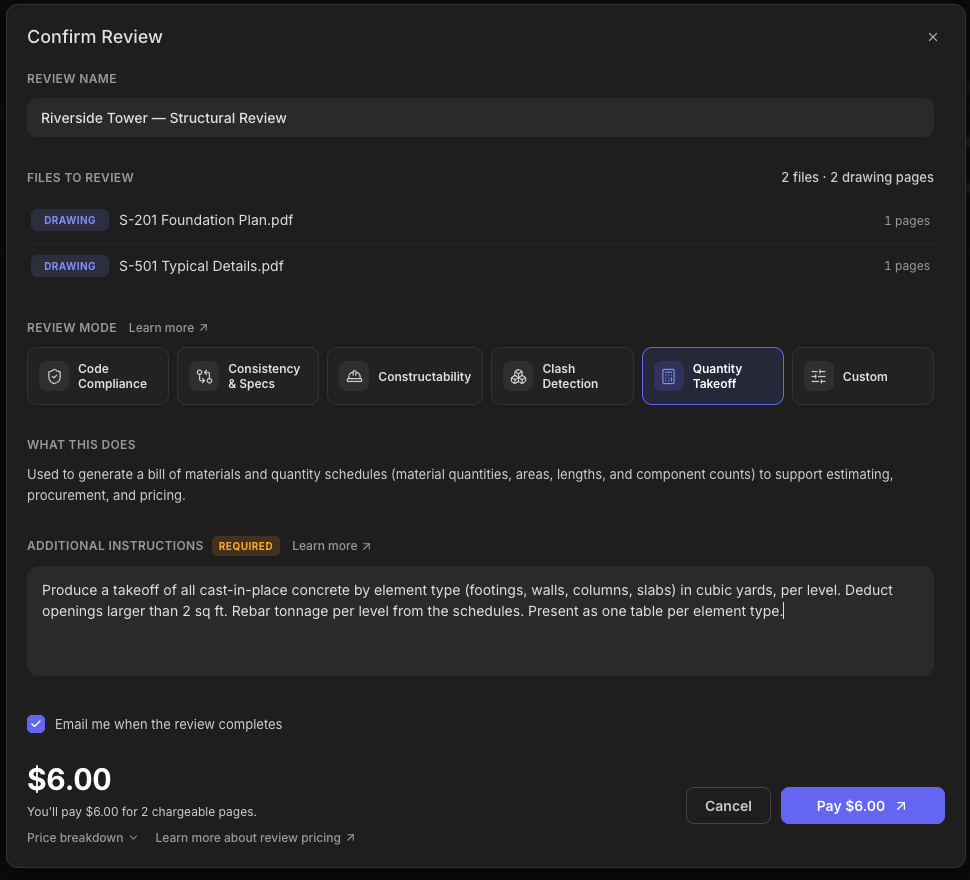
4
Write the scope brief
Tell it exactly what to measure, in what units, with what rules, the way you’d brief a junior doing the takeoff by hand:A good brief covers:
- What to quantify: elements, systems, or materials
- Units: cubic yards, tons, square feet, each
- Deduction rules: what openings or voids to subtract, and the threshold
- Grouping: per level, per element type, per sheet
5
Confirm the price and start
Takeoffs are priced like any review: per drawing page in scope, shown before you start (Review Pricing). Results land in the folder’s Reviews section, with an email when done.
6
Verify before you use it
Spot-check the output the way you’d check a junior’s takeoff: a few representative quantities measured by hand, the deduction rules honored, the schedule totals cross-footed. Use the Review Agent to interrogate any number: “where did the level 3 slab volume come from?”
Takeoff from a BIM Model
Have an IFC model instead of (or alongside) the sheets? The BIM Agent measures the model itself:1
Start a BIM Agent conversation
Pick BIM Agent in the agent dropdown, select the project folder holding the model, and attach or @-mention the
.ifc file (Mentions & Attachments).2
Ask for the takeoff
3
Get the schedule
The agent returns quantity tables in chat and can export them as a spreadsheet, and it tells you which quantities are exact and which are geometric estimates, so you know where to look closer.
Next Steps
Drawing Review
The full launch-to-results walkthroughDrawing Review guide
Review Modes
What each mode does, and how to brief itReview Modes & Instructions
BIM Agent
Model inspection, takeoffs, and costingBIM Agent guide
Review Pricing
Per-page pricing, shown before you startReview Pricing guide
Questions? Email support@stru.ai or book a call.