

From Brief to Running Model
Describe the structure and the agent builds it in the ETABS or SAP2000 installed on your machine, live on your screen, with your licenses and your section databases. The connection runs through the Stru AI desktop app: set it up once with Connecting ETABS & SAP2000, then model by conversation. Jobs this page covers:- Build a model from a brief: geometry, sections, loads, and combinations from one written description
- Build from structural drawings: attach the framing plans and schedules and model from them
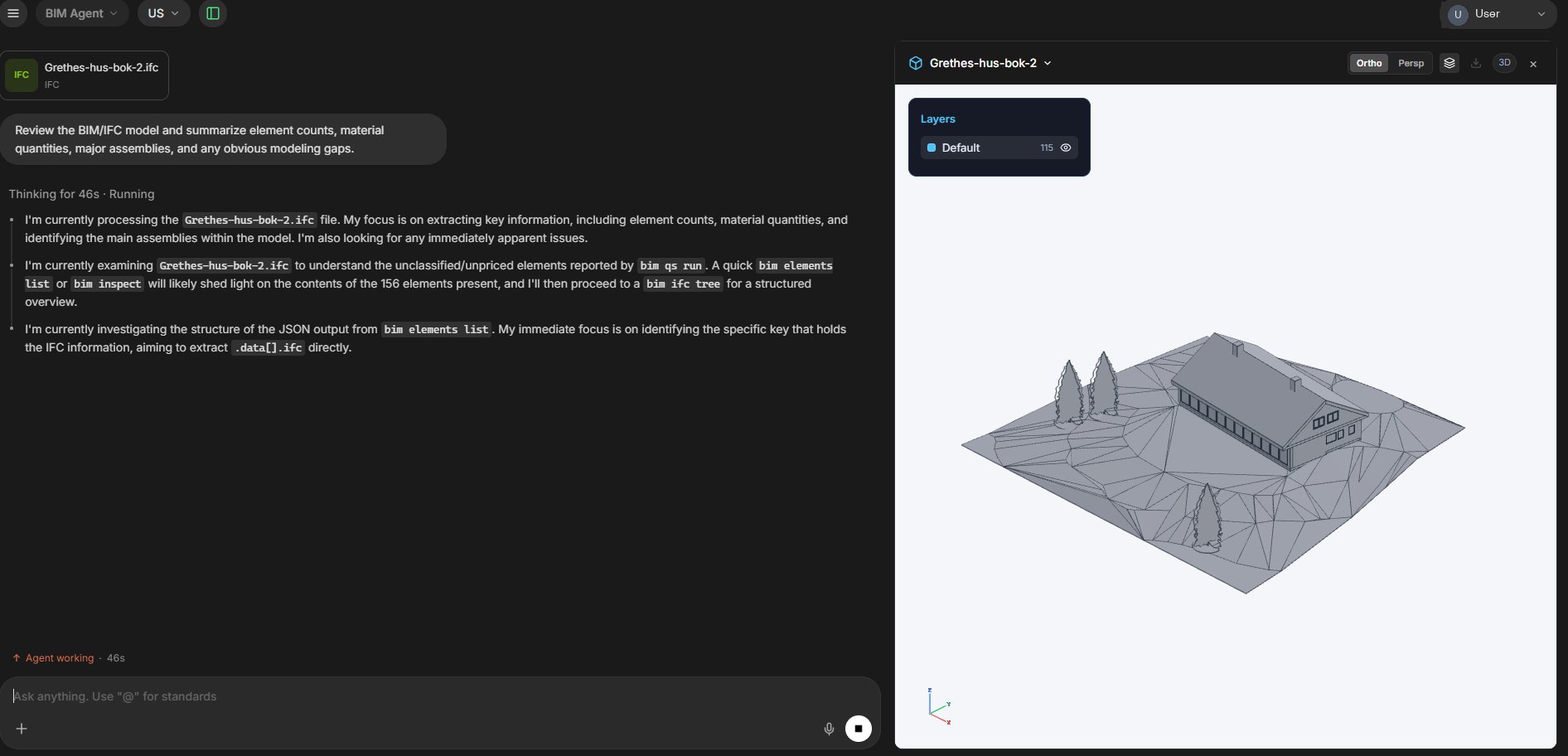
- Build from an IFC model: turn a BIM model into an analysis model
- Build a bridge in SAP2000: the same staged pattern, applied to spans instead of stories
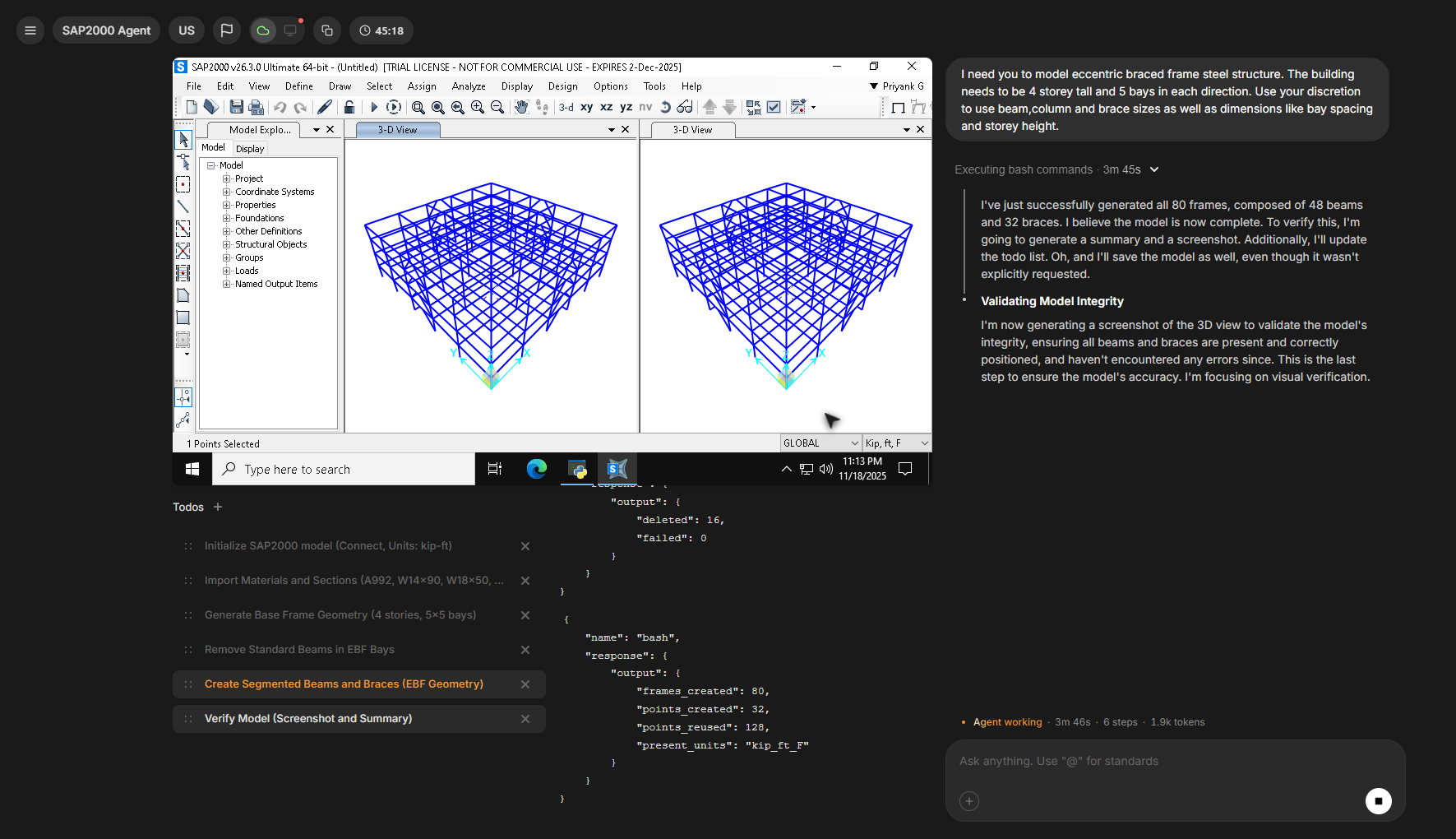
This page is the workflow. For prompting patterns, ETABS vs SAP2000 selection, and recovery when a session stalls, see the ETABS & SAP2000 Agents guide.
Set Up Once
1
Install the desktop app and sign in
The agent drives the software on the machine where it is installed, so start with Install & Sign In on that machine.
2
Wait for the green dot
The Client pill in the app header shows a green dot when the app is connected to your ETABS or SAP2000. Details in Connecting ETABS & SAP2000.
3
Pick your agent
Choose ETABS Agent for buildings or SAP2000 Agent for bridges, trusses, and general structures, from the dropdown in the top-left corner.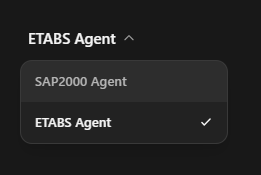
Stage the Build
A model built in stages is a model you can check at every step. Give the complete brief up front, then have the agent build one stage at a time: grids and stories, then framing, then loads, then the analysis run. Each stage gets verified before the next builds on it.1
Give the complete brief
Geometry, sections, materials, code, and units, all in the first message. A complete brief gets a complete model; anything you leave out, the agent has to assume.
Example: model brief
2
Grids and stories first
Everything else hangs off the grid, so confirm it before any framing exists: “Show me a plan view and an elevation before we continue.” Fixing a grid now takes one message; fixing it under a finished model takes a rebuild.
3
Framing next
Columns, then beams, then walls and slabs, one system per message. After each: a screenshot, a quick scan, then the go-ahead. To change something, say exactly which members: “Change the girders on levels 2 to 4 to W24x76, keep the roof as is.”
4
Then loads
Apply gravity first, then lateral, and ask for a screenshot with load arrows visible to confirm the pattern and direction. If the wind and seismic demands still need deriving, Wind & Seismic Load Calcs covers getting them from your site and code. Before moving on: “List every load case and combination you have not applied yet.”
5
Run it and read it back
Run the analysis, then have the agent walk you through the results in the model: “Walk me through the governing drift: story, combination, and value. Then give me the base reaction totals so I can compare them with my hand tally.” Save with a versioned name: “Save as Office_Building_Demo_v1.EDB.”
Build From Your Drawings
Attach the framing plan and reference it with @ so the agent models from your sheet and your numbers. The Mentions guide covers tagging files already in your project.Example: model from a plan
Build From an IFC Model
When the geometry already exists as a BIM model, have the BIM Agent read the IFC first and turn it into a modeling brief.Example: IFC to modeling brief
A Bridge in SAP2000
The staged pattern carries over: alignment and supports first, then the superstructure, then loads.Example: bridge brief
Verify As You Go
Three habits keep a staged build honest:- Screenshot every stage. A plan and an elevation after each stage catches misplaced grids and missing members while they are one message deep.
- Ask what is missing before the run. “List every load case and combination you have not applied yet” turns the gap between intent and model into a to-do list.
- Read the numbers back after the run. Have the agent open the saved file and report the governing drift and reaction totals, then compare them against your expectations.
Next Steps
Connecting ETABS & SAP2000
The Client pill, working folders, and detected versions.
ETABS & SAP2000 Agents
Prompting patterns, examples, and stall recovery.
Check an Existing Model
Export the results and verify them against code limits.
Wind & Seismic Load Calcs
Derive the lateral loads before you apply them.Wind & Seismic Load Calcs
Questions? Email support@stru.ai or book a call.