

Catch It Before It Goes Out
A Drawing Review is an AI QA/QC pass over a full drawing set: every sheet, cross-checked against the codes, the specs, and the other sheets. Jobs engineers use it for:- QA/QC a set before issue: a full pass over the drawings before they leave your desk
- Code checking: flag details, notes, and schedules with potential issues against the governing building codes, for your review
- Catch coordination issues: discrepancies between architectural, structural, and MEP sheets
- Constructability: find the underspecified and conflicting details that would otherwise come back as RFIs during construction
- Cross-discipline conflict and rebar/detail checks: conflicts and congestion called out across the sheets
- Quantity takeoffs: quantity schedules pulled from the set
Drawing Review vs. the Review Agent: two different things. A Drawing Review is the formal, set-wide QA/QC run described on this page. The Review Agent is the chat agent you talk to about your drawings: ask questions, dig into specific findings. They work together: run the review, then interrogate the results in chat.
Step-by-Step
1
Put the drawing set in its own folder
A review covers the files in one folder, so give each drawing set (or submittal package) its own project folder in Files. Include the drawings plus anything the reviewer should read for context: specs, reports, calculations. New to folders? Start with File Management.
2
Enable reviews on the folder
Right-click the folder’s row in the Projects section of Files (on a trackpad: two-finger click, or Control-click) and choose Enable Reviews. The folder gets the review icon, a Launch Review button, and a Reviews section.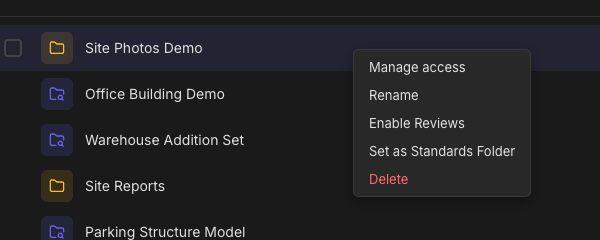
3
Check the file labels
In a review folder, every file gets an automatic Category label (Drawing, Spec, Report, Code, Calculations) and Language, shown as editable dropdowns, so correct anything the detection got wrong. The Include checkbox controls whether a file is in scope.
Only files categorized as Drawing are billed. Specs, reports, and other supporting documents ride along free as reference material. See Review Pricing.
4
Launch the review
Click Launch Review in the folder’s toolbar (you need Editor access, see Sharing & Permissions). The review dialog opens with a suggested name and the list of files in scope, with page counts.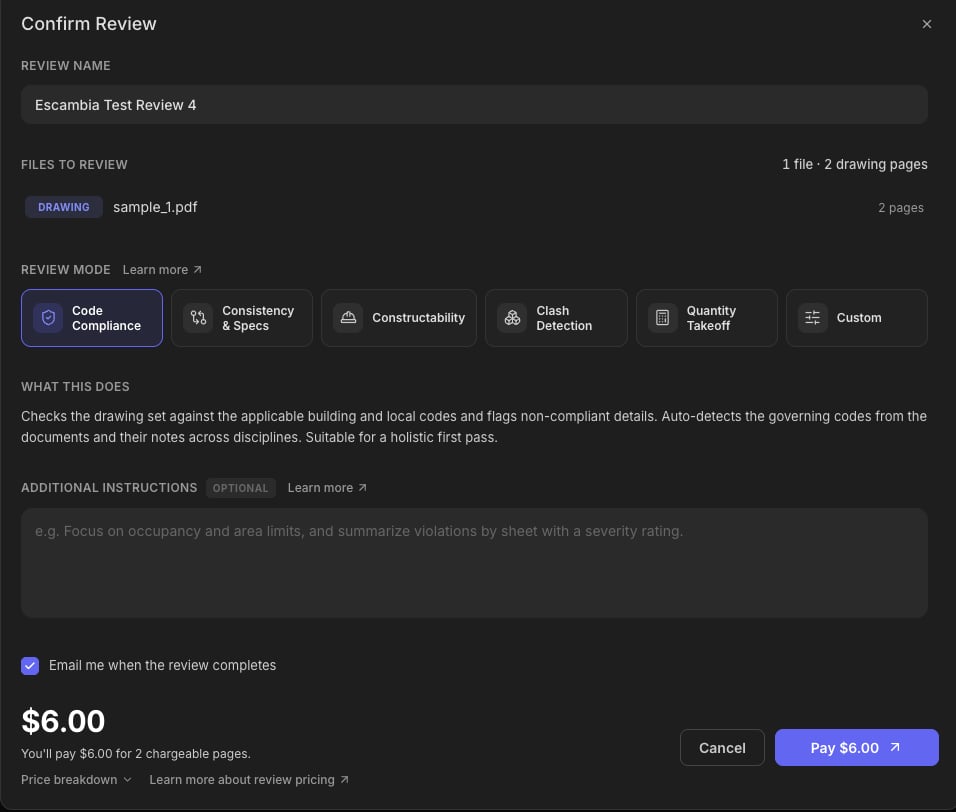
5
Pick a review mode
A review mode is the kind of check the reviewer runs. In one line each: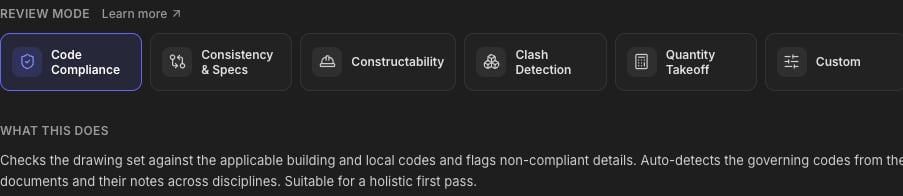
- Code Compliance (the default): flags potential building-code issues for your review
- Consistency & Specs: catches sheets, callouts, and specs that contradict each other
- Constructability: finds the unclear or missing details that turn into RFIs on site
- Clash Detection: flags cross-discipline conflicts visible across the sheets
- Quantity Takeoff: pulls quantity schedules from the drawings
- Custom: you define the scope yourself
6
Add instructions
Use Additional Instructions to brief the reviewer like you’d brief a junior engineer: the code edition, the areas you care about, what a useful finding looks like. Quantity Takeoff and Custom require instructions; for the others they’re optional but powerful. Examples per mode in Review Modes & Instructions.
7
Review the price and start
The dialog shows the price before anything runs: pages in scope, page credits applied, and anything payable, with a Price breakdown you can expand. Click Start review; if your page credits don’t cover the scope, the button offers to pay the difference by card and the review starts once payment confirms. Details in Review Pricing.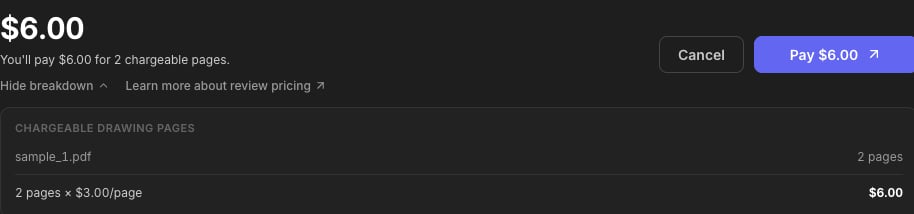
8
Track it and get results
The review appears in the folder’s Reviews section with a live status, and runs on its own. How long depends on the size of the set, so leave Email me when the review completes checked (it’s on by default) and get on with your day. Results appear in the Reviews section when the run finishes, ready to open. Then bring your questions to the Review Agent.
Review Statuses
What a Completed Review Delivers
Every completed review lands its results in a folder inside your project folder, named after the review. The core deliverables:- An Excel check register (.xlsx). The full verification record: every check the review ran, passing and failing alike, with the sheets and sections compared, what was found, and a cross reference to each issue raised.
- A PowerPoint deck (.pptx). The visual walkthrough of the results, ready to circulate to the project team.
- A PDF report when the review calls for a written narrative.
- The findings viewer. When the review produced findings, they load automatically when you open the review: each issue pinned to its sheet with a highlight, ready for follow up with the Review Agent.
Tips for Better Reviews
One drawing set per folder
One drawing set per folder
Reviews scope to the folder: mixing two projects in one folder means one combined review. Keep sets separate and reviews stay clean.
Get the categories right
Get the categories right
The review treats drawings and supporting documents differently. A spec mislabeled as a Drawing gets billed and reviewed as sheets; a drawing mislabeled as a Spec gets skipped. Ten seconds of label-checking pays off.
Use Include to trim scope
Use Include to trim scope
Superseded sheets or irrelevant files in the folder? Flip their Include checkbox off instead of deleting them.
Brief it like a junior engineer
Brief it like a junior engineer
Name the code edition, the discipline focus, and what you want back. See Review Modes & Instructions for worked examples.
Next Steps
Review Modes
What each mode catches, and how to write instructionsReview Modes & Instructions
Review Pricing
Per-page pricing and page creditsReview Pricing guide
Review Agent
Chat with your drawings and findingsReview Agent guide
File Management
Set up project folders for your jobsFile Management guide
Questions? Email support@stru.ai or book a call.