Overview

The Review Agent is the agent you talk to about a set of construction drawings. Point it at a project folder of drawings and specs and it answers the way a sharp reviewer would: it reads the sheets, follows callouts and cross-references between them, pulls up the exact detail you’re asking about, and cites the code clause behind its answer.
The Review Agent home screen with suggestion cards and the project selector in the message box
The Review Agent is not the same thing as a Drawing Review. A Drawing Review is a formal quality assurance/quality control (QA/QC) run you launch from the Files page, billed per page: it sweeps every sheet in a folder and produces a findings report. The Review Agent is the conversation side. Ask it anything about your drawings, including questions about the findings a Drawing Review produced. The Drawing Review is the red-line pass; the Review Agent is the reviewer you interrogate afterwards.

What Can You Do With It?

Ask questions across the set

“Where is the typical shear wall boundary detail?” The agent finds the sheet, the detail, and the note.

Trace callouts and references

Follow a section cut or detail bubble to the sheet it lives on, and check the reference actually resolves.

Verify review findings

Take a finding from a completed Drawing Review and have the agent re-check it against the drawings and the code.

Check RFI responses

Upload an RFI response and ask whether it answers the question and matches the drawings.

Compare specs and revisions

Cross-check spec sections against the drawings, or one revision against another, and get the inconsistencies listed.

Show me the detail

Ask for a crop of a specific detail or note and the agent clips that region of the sheet into the chat.
Answers cite the sheet, the detail, and the clause so you can verify them at the source. Engineering judgment and responsibility stay with you.

Getting Started

1

Select the Review Agent

Open app.stru.ai and pick Review Agent from the agent dropdown in the top-left corner.
2

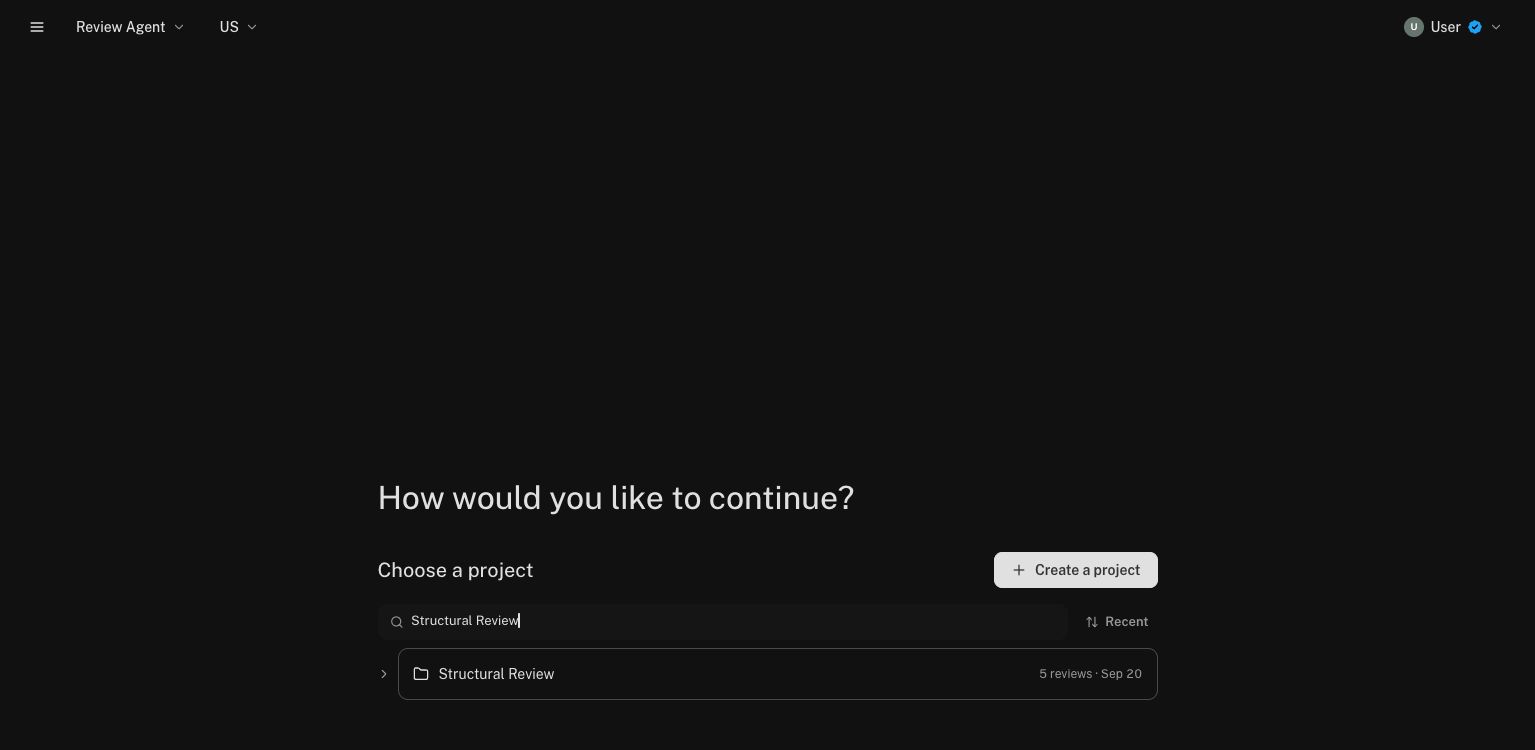
Pick a project

A project is a folder in your Files area that holds the drawings and documents for a job. The Review Agent works inside one project at a time, so it knows which drawing set you mean. Use the Select project pill in the message box to pick one, or create a new project from the same menu.
The message box with the Select project pill
If your drawings aren’t in a project yet, upload them to a folder first: the File Management guide shows how.
3

Ask

Ask the way you’d ask the engineer who did the review. Name the sheet or detail when you know it. When you don’t, finding it is the agent’s job.

Common Workflows

Ask questions about the drawings

Examples
Which sheets show the second-floor framing, and what's the
typical beam size?

Where does detail 5/S-501 get called out, and does the base
plate thickness match the schedule?

What's the specified concrete strength for the shear walls,
and is it consistent between the general notes and the schedule?
The agent reads the actual sheets, not just the file names, and answers with the sheet and detail references included, so you can flip to the source and confirm.

Verify a finding from a Drawing Review

After a Drawing Review completes, its findings live with the project, and the Review Agent can see them. Pick the same project the review ran on and interrogate any finding:
Examples
The review flagged a missing weld size on detail 3/S-402.
Is that right, or is it covered by a general note?

Walk me through finding #12. Show me the detail it's talking
about and the code clause it cites.
The agent re-checks the finding against the drawings themselves and tells you whether it holds up, with the evidence.

Check an RFI response

Attach the response, or tag it with @ if it’s already in the project:
Example
@RFI-014_Response.pdf Does this response actually resolve the
conflict between the foundation plan and S-501? Anything left
open?

Good to Know

The Review Agent never launches a formal Drawing Review on its own. When you need the full QA/QC sweep with a findings report, launch it from the Files page: the Drawing Review guide walks through it. Then come back here to dig into the results.
The agent needs to know which drawing set you’re talking about, so the message box asks you to pick a project before your first message. Your choice sticks for the conversation.
By default the Review Agent answers in the chat. If you want the output as a document (a comment summary, a spec-comparison table), name the format and it produces the file.

Next Steps

Drawing Review

Launch the formal QA/QC review this agent helps you interrogate.

File Management

Set up the project folder your drawing set lives in.

Mentions & Attachments

Tag drawings and specs without re-uploading them.

Generate RFIs & RFAs

Draft the RFI once you’ve confirmed the issue is real.
Questions? Email support@stru.ai or book a call.