

Files & Standards
File Management
Set up your projects in Stru the way your company organizes work: project folders, drawings, deliverables, client uploads, and where everything lives
Set Up Your Work the Way Your Company Works
Open Files from the account menu to organize inputs and results. Files you upload are available to conversations working in that folder; files the agent creates appear there too.
Typical setups engineers use:
- One project folder per job: drawings, specs, and deliverables for each project together, ready for a chat or a Drawing Review.
- A standards folder with your company templates: so reports and RFIs come out formatted your way.
- Shared organization projects: so your whole team works from the same set. See Sharing & Permissions.
Open Files from the account menu in the top-right corner of the app, or go straight to app.stru.ai/files.
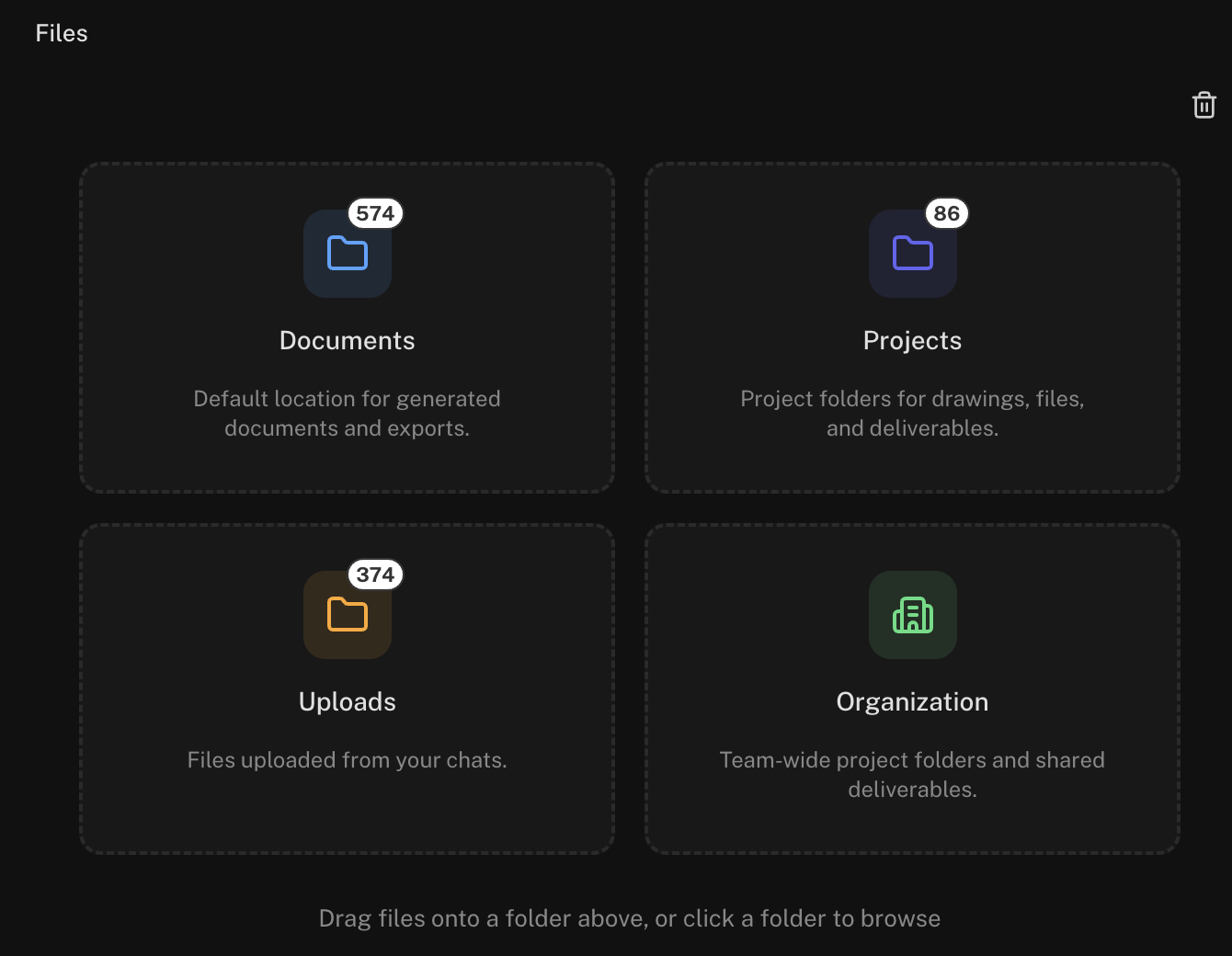
Projects
Your project folders, where drawings, chats, and reviews for each job live
Documents
One folder per conversation that works without a project, created automatically
Organization
Your team’s shared project folders
Accounts that uploaded files before project folders existed also see an Uploads area holding those files.
A “project” is just a folder. The top-level folders under Projects and Organization are called projects. When you pick a project in the chat’s Select project menu, the conversation works inside that folder.
Where Does My File End Up?
You never have to file anything by hand. Every file lands in a predictable place depending on how it entered:
| You do this | The file lands here |
|---|---|
| Click Upload inside a folder (or drag files into it) | That folder |
| Attach a file in a chat that works in a project | That project folder |
| Attach a file in a chat with no project | The conversation’s own folder under Documents |
| The agent creates or edits a document | The folder the conversation works in (the project, or its Documents folder) |
| A client uploads through a Request files link | The folder the link was made for |
| A Drawing Review completes | The review’s own results folder, opened with View results |
Why one folder per conversation? A quick question with no project still produces files: calc sheets, spreadsheets, PDFs. Each of those conversations gets its own folder under Documents, named after the chat, so nothing the agent makes is ever lost. Work that belongs to a job goes to the job’s project folder whenever you pick one.
Getting Files In
In the Files area
Open the folder you want the files in and click Upload in the toolbar at the top right, or drag files from your computer into the folder. From the Files home screen you can drag files straight onto an area card.
In the chat
Click the + button in the message box and choose Upload from computer, or drag the file anywhere onto the page. See Using the Chat Input.
Already uploaded? Don't re-upload
If the file is already in your Files, type @ in the message box and pick it. See Mentions & Attachments.
The Status column shows each file’s upload progress and a check once it’s ready.
Setting Up a Project Folder
Say you just got drawings for a new job. Here’s the setup:
Create the folder
In Projects, click New Folder, name it after the job (for example “Riverside Pump Station”), and press Enter.
Upload the set
Open the folder and drag in the drawings, specs, and anything else that belongs to the job.
Share it and put it to work
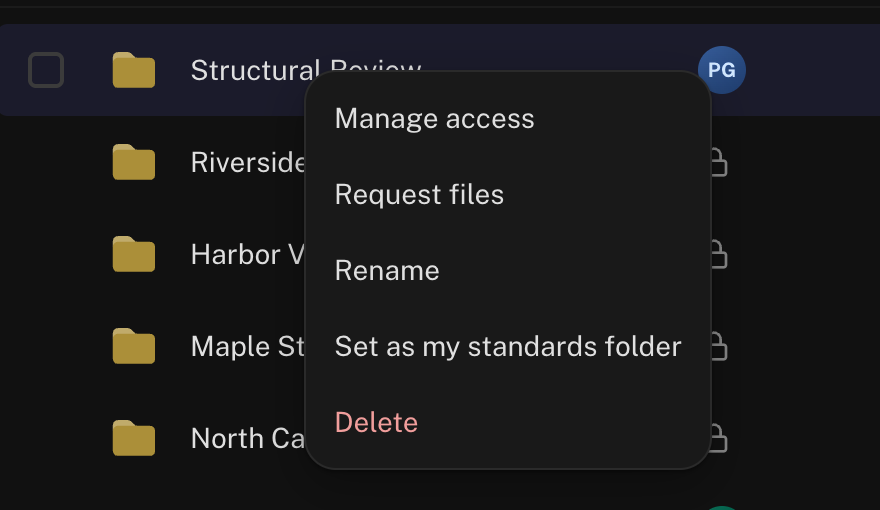
Right-click the folder’s row (on a trackpad: two-finger click, or Control-click) for the folder actions: share it with the team, request files from a client, or make it your standards folder. Open it and click Launch review to run a Drawing Review, or pick it in a chat’s Select project menu.
Check the box next to one or more items, then drag the selection onto a folder in the list. A hint appears in the toolbar when a move is possible.
Yes: create a folder inside another folder. The breadcrumb trail at the top jumps back to any parent level.
Check the box next to each file or folder. The toolbar shows bulk actions: Delete (n), and Open in Split View when exactly two PDFs are selected.
Type in Filter this folder at the top to narrow the list. The ⋯ menu at the end of the toolbar sorts by name, modified date, size, or type.
Viewing Files
Click a file and it opens in a viewer beside the list, without leaving Files. The same viewer is the Canvas you see in chats.
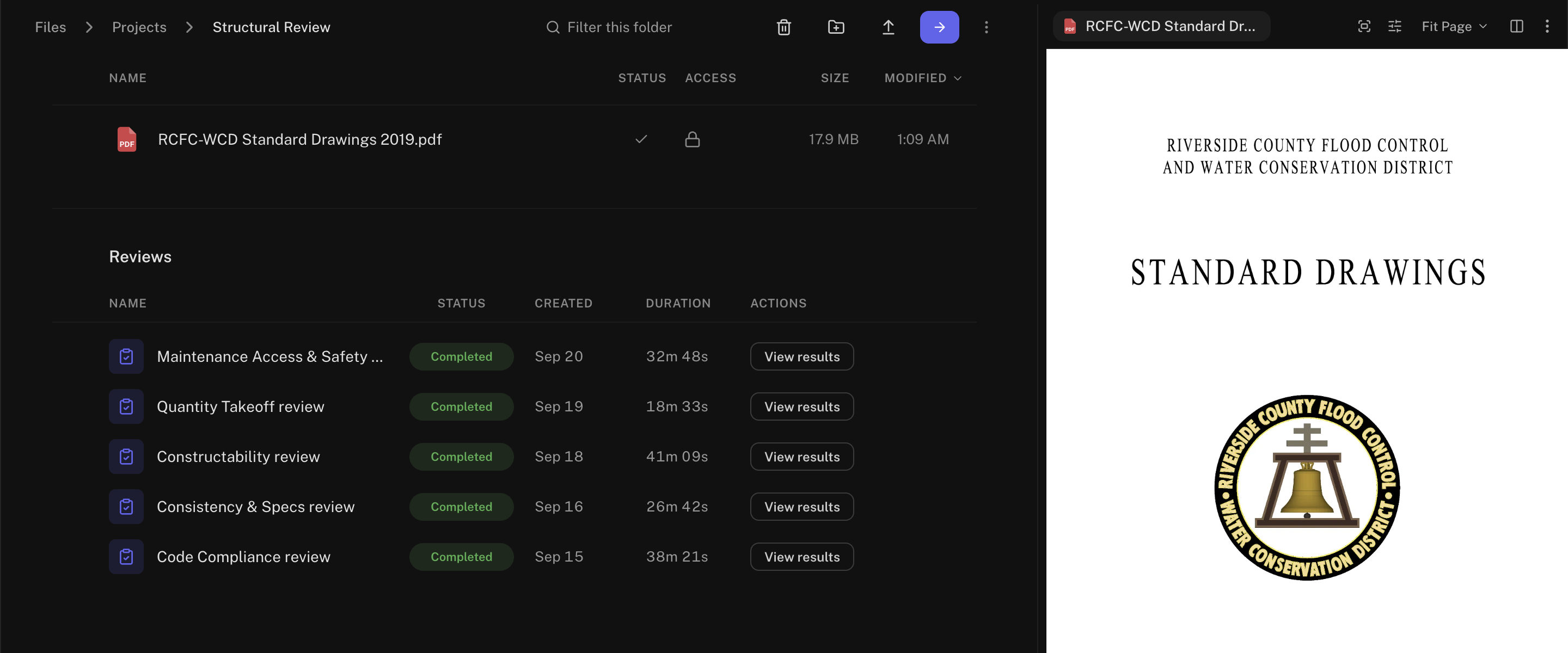
- PDF drawings and documents open page by page, with Fit Width, Fit Page, and zoom.
- Word, Excel, PowerPoint, and Mathcad files open as the real document, with a download menu.
- Images, Markdown, and text files open in place.
- IFC models open in the 3D viewer.
Select exactly two PDFs (check their boxes) and click Open in Split View in the toolbar. Both sheets open side by side, which suits revision comparisons.
Right-click a file for Manage access, Rename, Download, and Delete.
Request Files from a Client
Need drawings from a client or consultant who has no Stru account? Send them an upload link.
Open Request files
Right-click the folder’s row and choose Request files.
Describe what you need
Type a short message under Shown on the upload page (for example “Current structural set and geotech report”). To email the link, add the address under Email the link (optional).
Create the link
Click Create link, then Copy link to send it yourself. The link is shown once, so copy it before you close the dialog.
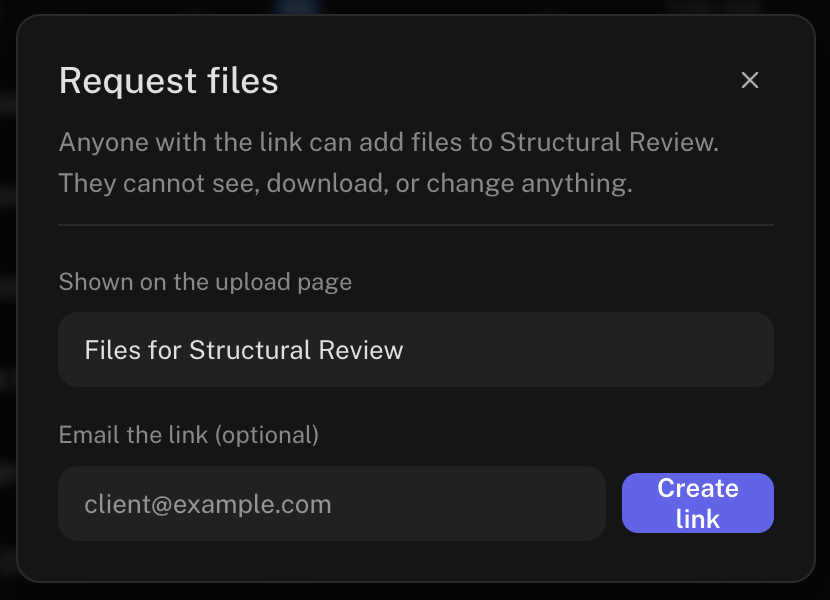
Your client opens the link, drags files onto the page, and the files land in your folder. They can add files and nothing else: they can’t see, download, or change what’s already there. Back in the dialog, each link shows how many files have arrived and which ones. Click Turn off to close a link early; links also close on their own when they expire or reach their file limit.
Reviews and Results in a Folder
A folder you’ve reviewed shows a Reviews section below its files: each review’s name, status, created date, and how long it ran, with View results. Each review saves its deliverables into its own results folder, marked with an indigo folder icon. The results folder starts with the same people as the reviewed folder, and from then on you share it separately: send the findings to a client without giving them the drawings. See Drawing Review.
Trash
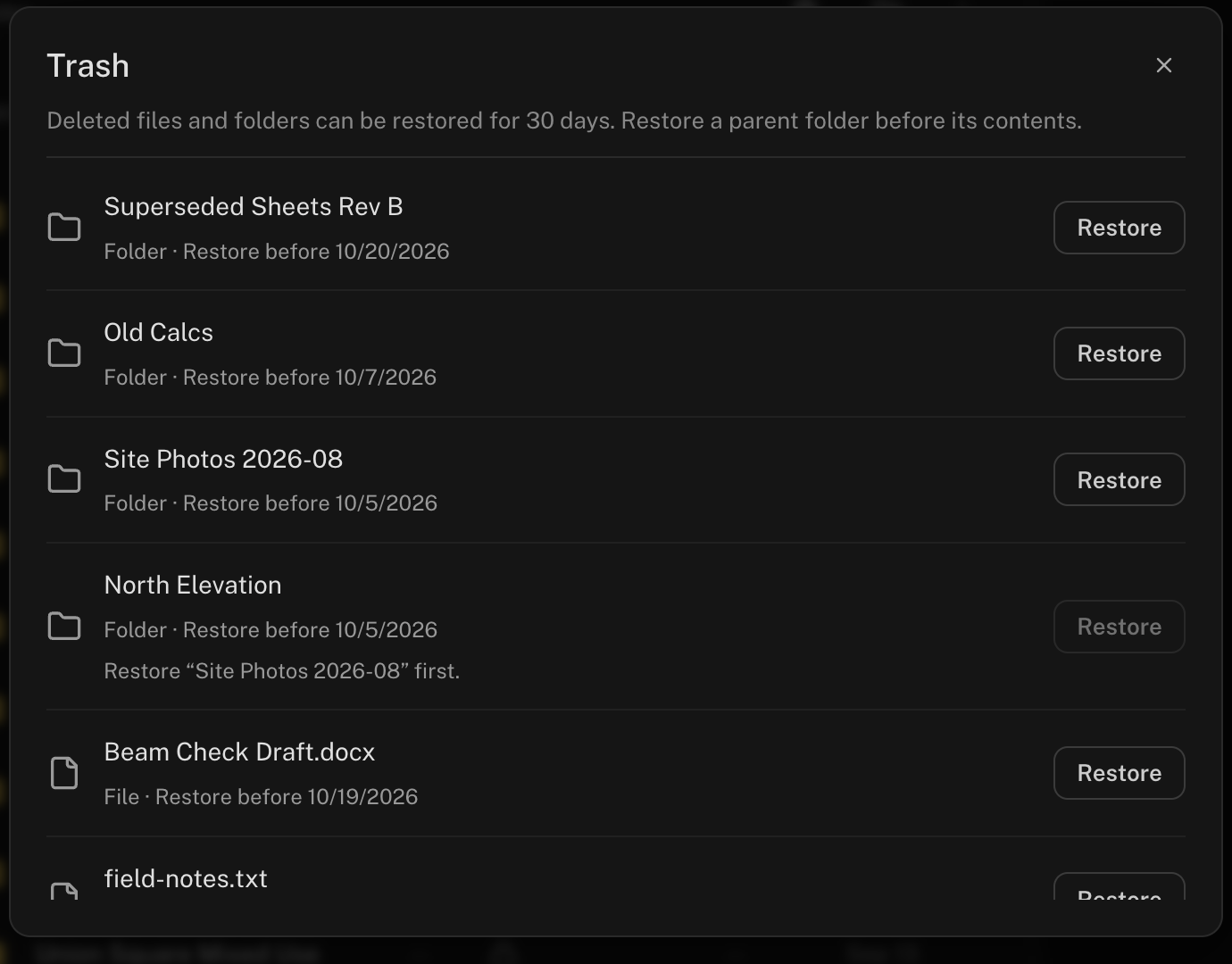
Deleting a file or folder moves it to Trash for everyone who has access. Restore it within 30 days.
Open Trash
Click Trash in the Files toolbar.
Restore
Click Restore next to the item. A deleted folder comes back with its contents; to bring back a file from a deleted folder, restore the folder first.
Editors can delete, and Editor is the default role on organization projects. Anyone with Editor access can move a shared file to Trash. Restoring puts it back, but if a folder holds stamped drawings or issued deliverables, keep write access tight with Manage access.
Troubleshooting
Shared items appear inside your own Files at their natural location. Check your notification for a direct link, then browse to it under Projects (or Organization for organization projects). More in Sharing & Permissions.
Your role on it is Viewer: view, preview, and download only. Ask one of the folder’s owners to raise you to Editor. Roles are explained in Sharing & Permissions.
The chat’s project menu lists folders where you can edit, because the agent saves its work into the selected project. Ask a project owner to raise your role to Editor.
Quick Reference
| Term | What it means |
|---|---|
| Project | A top-level folder under Projects or Organization; the folder a chat or a review works in. |
| Documents folder | The folder a conversation gets when it works without a project, named after the chat. |
| Standards folder | A folder of your company’s templates, marked with a book icon. See Your Standards Folder. |
| Results folder | Where a Drawing Review saves its deliverables; opened with View results and shared on its own. |
| Trash | Deleted files and folders, restorable for 30 days. |
| Request files | An upload link that lets someone without an account add files to a folder. |
Next Steps
Sharing & Permissions
Give your team the right level of access.
Work in a Project Folder
Point chats at a job folder and keep everything together.
Drawing Review
Run a review over a drawing set.
Your Standards Folder
Deliverables in your company’s format.
Email support@stru.ai for help.