

Overview
The Structural Agent reads a drawing sheet and drafts a Request for Information (RFI) or a Request for Approval (RFA) for you: a formatted PDF that references the relevant details on the sheet. You point it at the drawing, state the question or the proposed change, and the agent handles the reading, the writing, and the formatting. Both directions of the workflow are covered: a contractor or detailer raising an RFI to the design team, and an engineer of record drafting a response or raising a query to the architect or owner.What this does and doesn’t do. Stru drafts the document. RFI numbering, transmittal, and your RFI log stay in your project’s own process: review the PDF, assign it a number from your log, and send it through your usual channel. An RFA proposes an engineering change, so the substitution still requires design verification before anyone builds it.
Step-by-step
1
Select the Structural Agent
Open app.stru.ai and pick Structural Agent from the agent dropdown in the top-left corner (new to it? see the Structural Agent guide).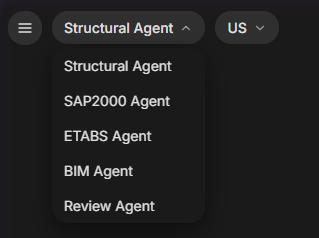
2
Attach or tag your drawing
Two ways to get the drawing in front of the agent: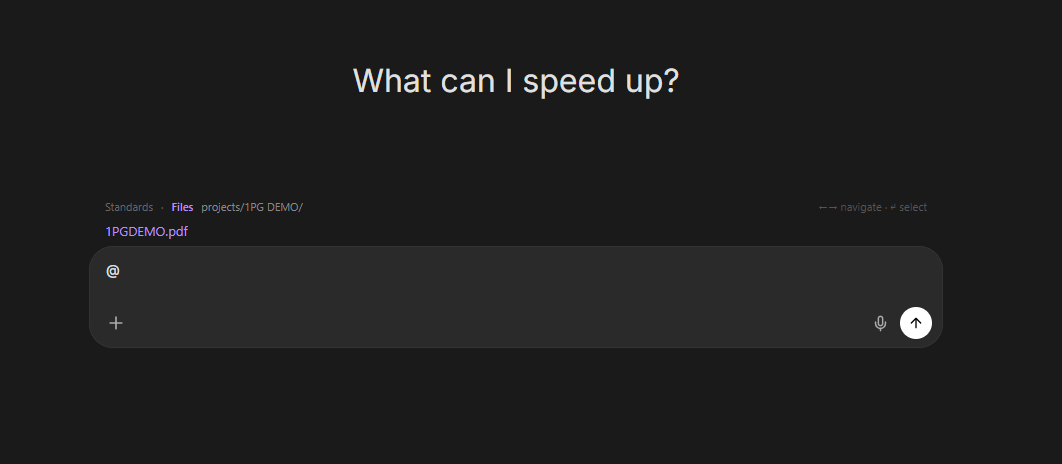
- Upload it: click the + button in the message box and choose Upload from computer, or drag the PDF onto the page.
- Tag an existing file: if the drawing is already in your Files, type @ in the message box and pick it. The picker browses your Standards and Files, and the arrow keys navigate into project folders (full walkthrough: Mentions & Attachments).
3
Write your prompt
Name the sheet, the detail, and the specific question or proposed change: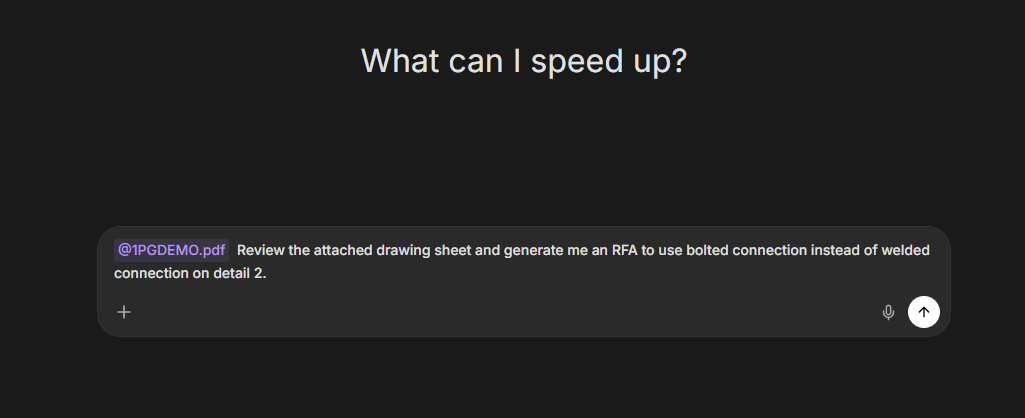
Example: RFA (propose a substitution)
Example: RFI (contractor to the EOR)
4
Let the agent work
Send the message. The agent reads the drawing, pulls the relevant details, and drafts the document. Expect 5 to 10 minutes for a typical sheet.
5
Download your PDF
The finished RFI or RFA comes back in the conversation as a PDF, and is saved to the conversation’s folder under Documents in your Files area. Review it, assign it a number from your project’s RFI log, and send it.
Using your company’s RFI/RFA template
If your company has a standard RFI or RFA format, the agent follows it instead of its default layout:1
Upload the template
Click the + button in the message box and choose Upload from computer to add your template.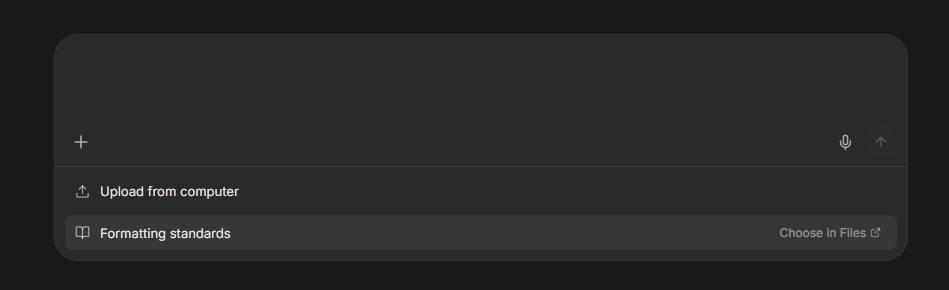
2
Tag it in your prompt
Reference the template with @ alongside the drawing:
Tips for better results
Be specific about the detail and sheet
Be specific about the detail and sheet
Point the agent at the exact location: “detail 2 on the attached sheet” beats “the connection.” If the set has multiple sheets, name the sheet number too.
State the change and the reason for an RFA
State the change and the reason for an RFA
Give the agent both the substitution and the justification: “bolted connection instead of welded, to simplify field erection.” The agent builds the case around it.
Frame the question clearly for an RFI
Frame the question clearly for an RFI
Say what’s unclear or conflicting and what answer you need: “confirm which governs”, “clarify the intended weld size”, “provide the missing dimension.”
Review before sending
Review before sending
The agent drafts the document; the engineering responsibility for what goes out is yours. Check the references, the technical claims, and the project details before it leaves your desk.
Next steps
File Management
Where your drawings and generated PDFs live.
Your Standards Folder
Make every RFI come out on your company form.
Questions? Email support@stru.ai or book a call.