Overview

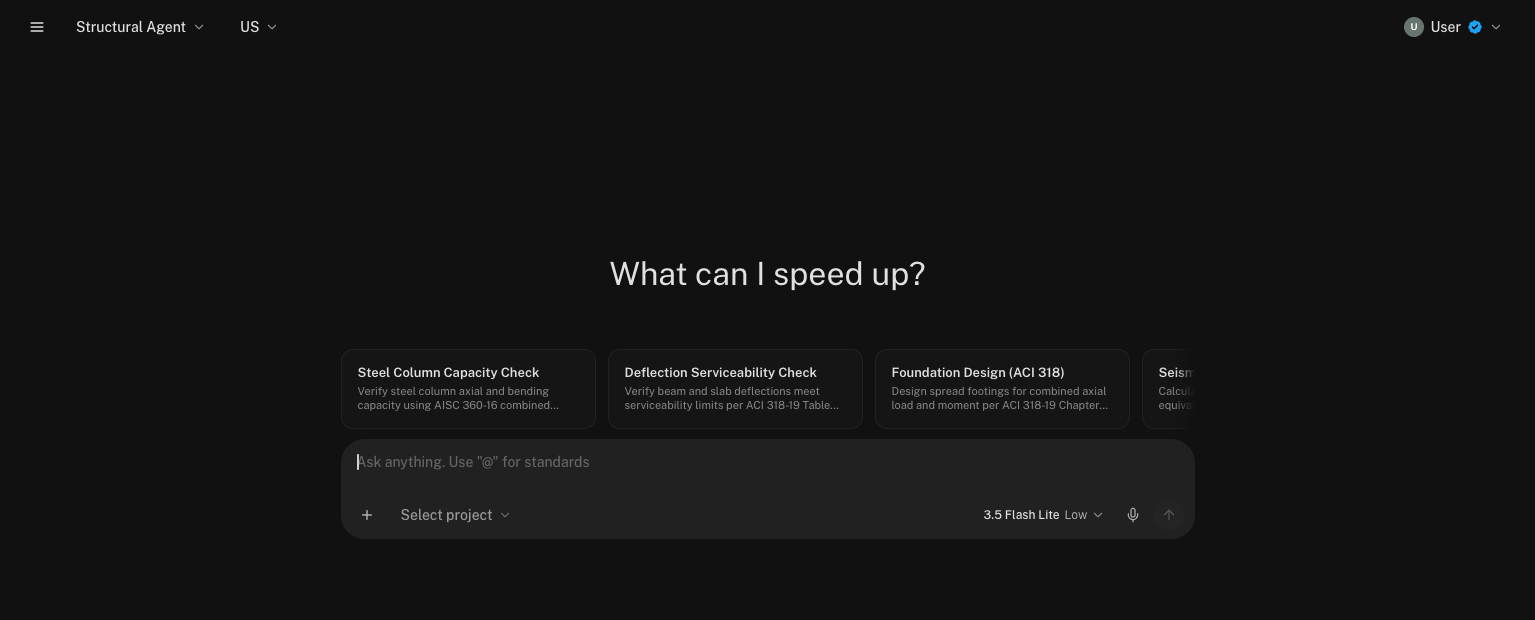
The Structural Agent is the general-purpose engineering assistant in Stru AI, and the agent you start on when you open app.stru.ai. Describe the task, attach or tag the files it needs, and the agent researches, calculates, and builds the deliverable. An agent is an AI assistant that does the work, not just the talking: it reads your files, searches design codes, runs calculations, and produces documents (calc sheets, spreadsheets, PDFs) you download and use.
The Structural Agent home screen with suggestion cards and the message box
You are the engineer of record. The agent drafts and calculates; you review and take responsibility. Check the code references and the numbers before anything leaves your desk. Every calc sheet is laid out to be checked line by line.

What Can You Do With It?

Build calculation packages

Describe a design check (a beam, a weld, a base plate) and get a formatted, unit-aware calc sheet to download and check

Check a design against code

Ask code questions and get answers backed by the cited clause: ACI, AISC, ASCE, and regional standards

Create and analyze spreadsheets

Generate a new Excel workbook, or upload your company’s existing sheet and have the agent explain or extend it

Look up site hazard data

Give a project address and get wind, seismic, snow, and other design parameters for your risk category and site class

Draft RFIs and RFAs

Point it at a drawing sheet and get a ready-to-review RFI or RFA as a PDF: see the step-by-step guide

Produce reports in your format

Keep your templates in your Standards folder and the agent follows your company’s formatting automatically

Getting Started

1

Open the app

Go to app.stru.ai. The Structural Agent is the default. Confirm which agent is active in the dropdown at the top-left corner.
The agent dropdown at the top-left, with Structural Agent selected
2

Pick your design standard

The selector next to the agent name sets which family of building codes the agent works from: US, Eurocode, Australia/NZ, Canada, Philippines, or Singapore. This also filters which code documents appear when you type @ in the message box.
The design standard dropdown showing US, Eurocode, Australia/NZ, Canada, Philippines, and Singapore
3

Describe the task

Type what you need in the message box, or use one of the suggestion cards to see what a good prompt looks like. Attach the files the agent should work from (drawings, spreadsheets, reports) with the + button or by dragging them onto the page. The Using the Chat Input guide covers every way to get files and instructions in.
4

Let it work, then collect the deliverable

The agent shows its progress while it works. You’ll see a step list for longer tasks. Documents it builds open live in the Canvas beside the chat, and finished files come back as download links. Everything is also saved to your Files area automatically.
A completed task in the chat: the prompt, the agent's progress, and the finished document ready to download

Common Workflows

Get a code-backed answer

Ask the question the way you’d ask a colleague, and name the code if you have one in mind:
Example
What's the minimum development length for a #6 bottom bar,
uncoated, normalweight 4000 psi concrete, per ACI 318-19?
State the modification factors you assume and show the calculation.
The agent answers with the governing clause cited (here, ACI 318-19 §25.4.2) and lists the modification factors it applied: bar location, coating, lightweight concrete, spacing and cover. Development length depends on all of them, so the assumptions are stated where you can check them.
Type @ in the message box to tag a specific code document directly. The Mentions guide shows how the picker works.

Build a calculation package

Describe the element, the loads, and the check you need:
Example
Create a fillet weld capacity calc: E70XX electrode, 1/4 in leg,
10 in weld length, 35 kip required shear. LRFD per AISC 360-22.
The agent drafts the calc sheet live in the Canvas beside the chat, where you can watch each section appear: project reference, code references, calculations, and the final design check.
A conversation with the Canvas open, showing a fillet weld capacity calc sheet being built beside the chat
When it finishes, the deliverables arrive as download links in the chat: the calc file itself, a PDF report, and supporting files.
Deliverables list with download links for the Mathcad document, PDF report, and JSON definition

Work with spreadsheets

The agent builds new Excel workbooks and reads the ones you already have:
Create a new workbook
Build a spreadsheet that checks bearing capacity for a strip
footing: inputs for width, depth, soil friction angle, and
cohesion, with the Terzaghi factors calculated.
Analyze an existing one
@Retaining_Wall_Design.xlsx Walk me through this spreadsheet.
What are the inputs, what does it check, and are there any
formulas that look off?

Look up site hazard data

Example
Get the wind and seismic design parameters for 1600 4th Ave,
Seattle, WA 98101. Risk Category II, Site Class D.
The agent returns the design parameters for the location, ready to feed into your load calcs.

Draft an RFI or RFA from a drawing

Tag the drawing sheet, describe the question or proposed change, and the agent reads the sheet and drafts the document as a PDF. This workflow has its own walkthrough: Generate RFIs & RFAs.

Tips for Better Results

Name the element, the loads, the material, and the code edition. “Check this beam” gets a generic answer; “check this W16x40, 28 ft span, 1.2 klf total factored load, A992, AISC 360-22 LRFD” gets a real calc.
The agent reads drawings, specs, and spreadsheets. Give it the actual document instead of describing it from memory. Files already in your Files area can be tagged with @ so you never upload the same sheet twice.
If your company has a calc-sheet format, report boilerplate, or QA notes, put them in your Standards folder. With Formatting standards switched on in the + menu, the agent follows them automatically.
Bigger deliverables take several minutes. The agent shows a task list and progress while it works. You can keep typing follow-ups; press Enter and they’ll be answered as soon as the current task finishes.
The agent drafts and calculates; you review. Check the code references and the numbers before anything leaves your desk. Every calc sheet is laid out so it can be checked line by line.

FAQ

Every conversation gets its own folder under Documents in your Files area, and generated deliverables land there automatically. See File Management for how the folders are organized.
A built-in library of design standards covering the regions in the design standard selector. Type @ in the message box to see the exact documents and editions available for your selected region; that list is the source of truth. Every answer cites the clause it used, so you can verify against the code text.
Yes. Anything you upload or keep in your Standards folder works: templates, past calcs, QA checklists, marked-up drawings.
The Structural Agent is the generalist. For driving ETABS or SAP2000 on your desktop, use the ETABS & SAP2000 Agents; for IFC/Revit model work, the BIM Agent; for Q&A over a drawing set, the Review Agent.

Next Steps

Using the Chat Input

Every way to type, dictate, and attach filesRead the guide

The Canvas

The live workspace where your documents take shapeRead the guide

Generate RFIs & RFAs

Turn a drawing sheet into a ready-to-send RFI or RFARead the guide

Your Standards Folder

Make the agent follow your company’s formatsRead the guide
Questions? Email support@stru.ai or book a call.