

Chat & Results
Mentions & Attachments (@)
Tag design codes, files, and whole folders in your message with @. No re-uploading, no copy-pasting.
Overview
Type @ in the message box and a picker opens with everything the agent can work from: the built-in design standards library (building codes) and your files (everything in your Files area). Tagging beats re-uploading: the agent gets the exact document and your message stays readable.
The picker has two sections, and they’re different things:
Standards: the code library
Built-in design codes (ACI, AISC, ASCE, and your region’s codes), shown in green. Filtered by your design standard selector: with US selected, you see the US codes.
Files: your documents
Your own drawings, specs, spreadsheets, and folders from the Files area, shown in purple. Browse into folders like a file manager.
Not to be confused with your Standards folder. The green Standards section is the built-in library of published design codes. Your own standards folder (company templates and formatting references) lives in the Files section, and the My standards toggle in the + menu points the agent at it.
Using the picker
Type @ in the message box
The picker opens on the Standards section, showing design codes matched to your selected design standard:
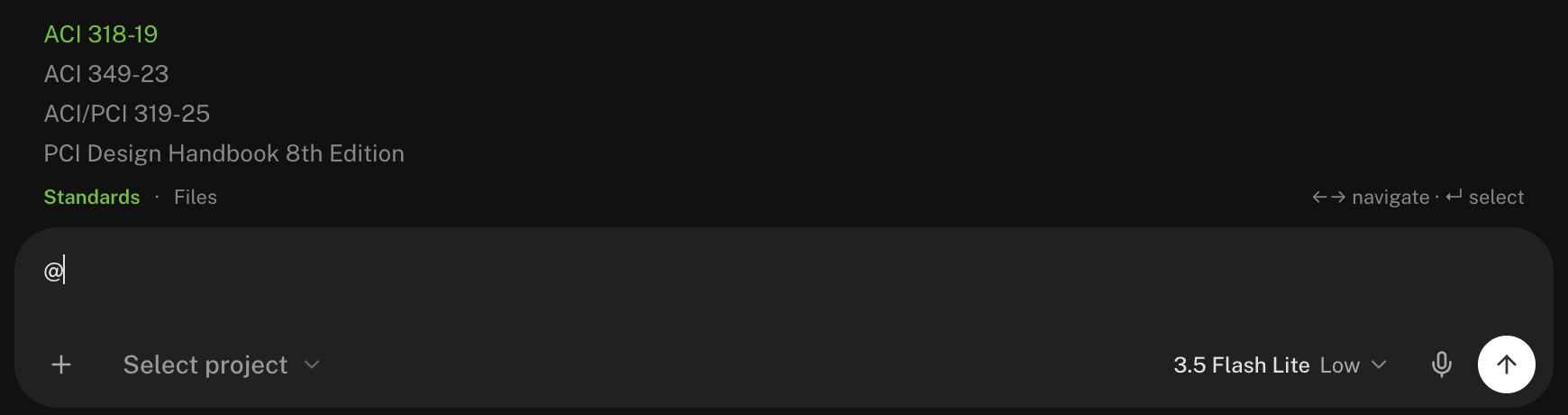
Arrow keys move you around
- ↑ / ↓ move the selection.
- → switches from Standards to Files, and drills into a selected folder.
- ← backs out again.
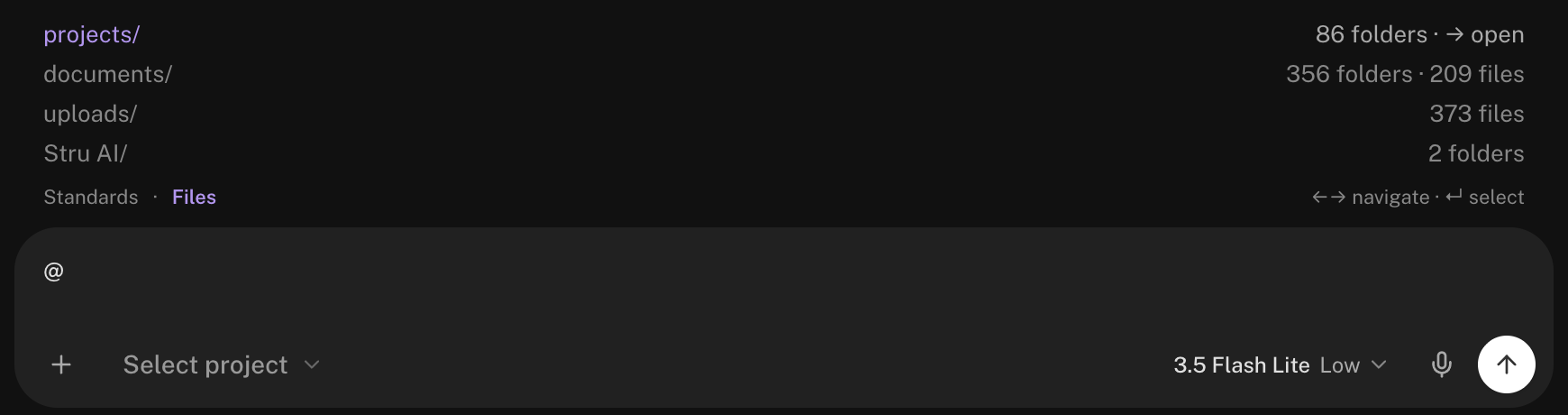
Or type to search
Keep typing after the @ and the picker searches the current section, including inside subfolders, with the folder path shown next to each match.
Press Enter to tag it
The selection becomes a colored chip in your message: green for standards, purple for files and folders. Add as many as you need, and press Backspace on a chip to remove the whole thing in one keystroke.
Tagging a whole folder
Select a folder and press Enter instead of drilling into it. The agent gets the folder’s contents. Use this when the task spans a document set:
@Skyline_Tower_Drawings Compare the column schedule against the
foundation plan and list any mismatched sizes.
When to @, when to attach
| Situation | Do this |
|---|---|
| The file is already in your Files area | @ it. No re-upload, no duplicate copies. |
| The file is on your computer, not uploaded yet | Attach it: + button, drag and drop, or paste (how). |
| You need a design code clause | @ it from the Standards section, or name the code in your prompt. |
| The whole project folder matters | @ the folder itself. |
Attachments become @-able. Anything you attach is saved into your Files automatically, so next conversation you tag it instead of hunting for the file again. See File Management for where attachments land.
Next steps
Using the Chat Input
The rest of the message box: uploads, dictation, shortcuts.
File Management
How your Files area is organized and where attachments go.
Your Standards Folder
Company templates the agent follows automatically.
Generate RFIs & RFAs
A real workflow built on @-tagging drawings.
Email support@stru.ai for help.