

How-To Guides
Bluebeam
Invite the Stru agent to a Bluebeam Studio Session or Project and it reads the documents and markups, adds its own markups, and replies to comments from your chats
The Agent in Your Bluebeam Sessions
Invite the Stru agent to a Bluebeam Studio Session (or Studio Project) the way you add a teammate, and your conversations can work in it: list and open the documents, download them with or without markups, read every markup and comment, and add markups and replies of its own.
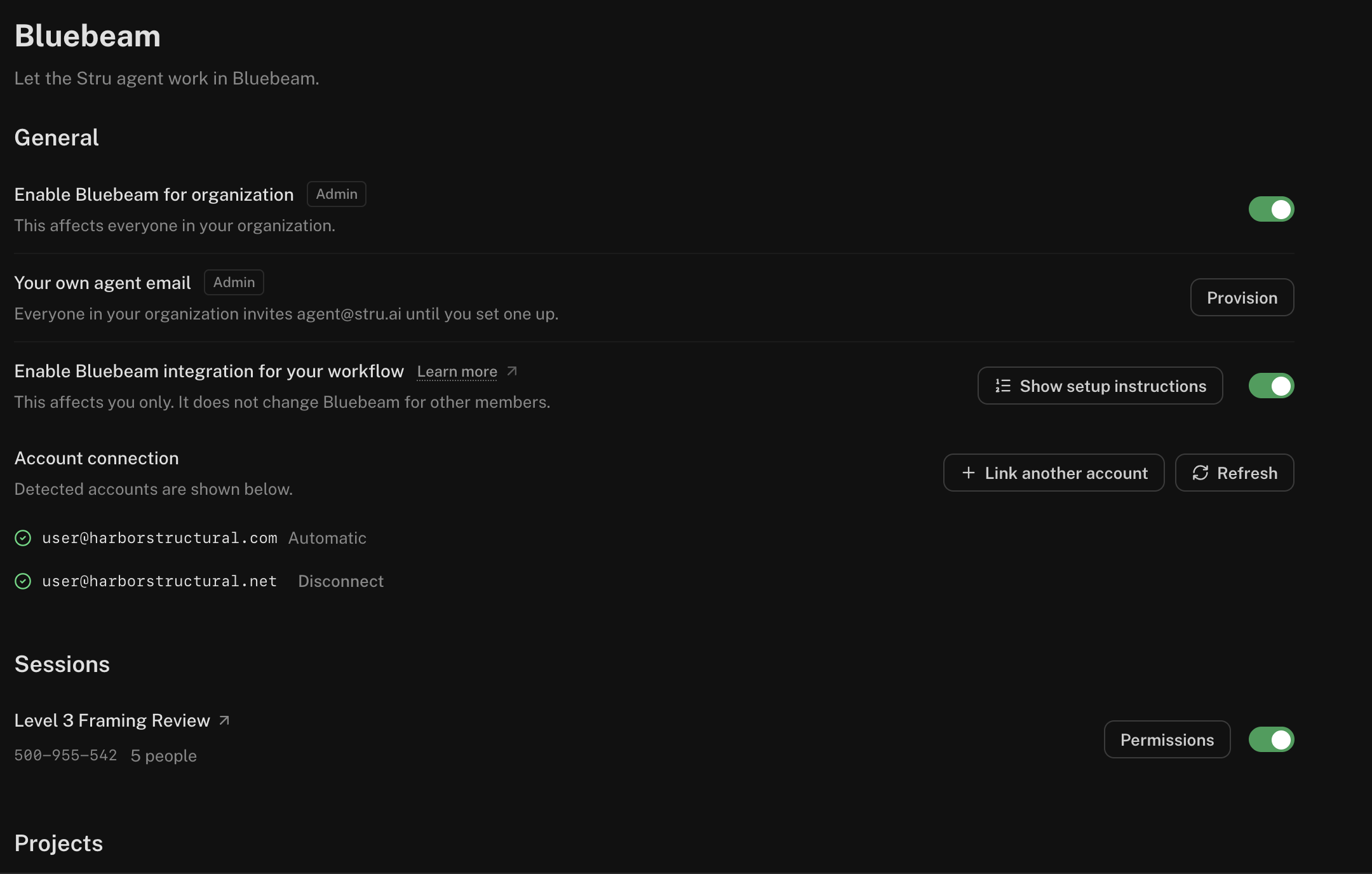
Open it from the account menu in the top-right: Organization (or Account), then Bluebeam.
Connect a Session
Copy the agent's address
On the Bluebeam page, click Show setup instructions. In Connect a Session, under Invite this address as an attendee, click agent@stru.ai to copy it.
Invite it in Bluebeam
In Bluebeam Revu, open the Studio tab, pick the Session or Project, and invite the address as an attendee.
Come back and refresh
Close the dialog and click Refresh. The Session appears under Sessions (a Studio Project under Projects) once Bluebeam confirms the agent is on it.
Turn it on and pick the access
Each Session in the list starts off. Turn on its switch for yourself, then click Permissions and choose the Agent access:
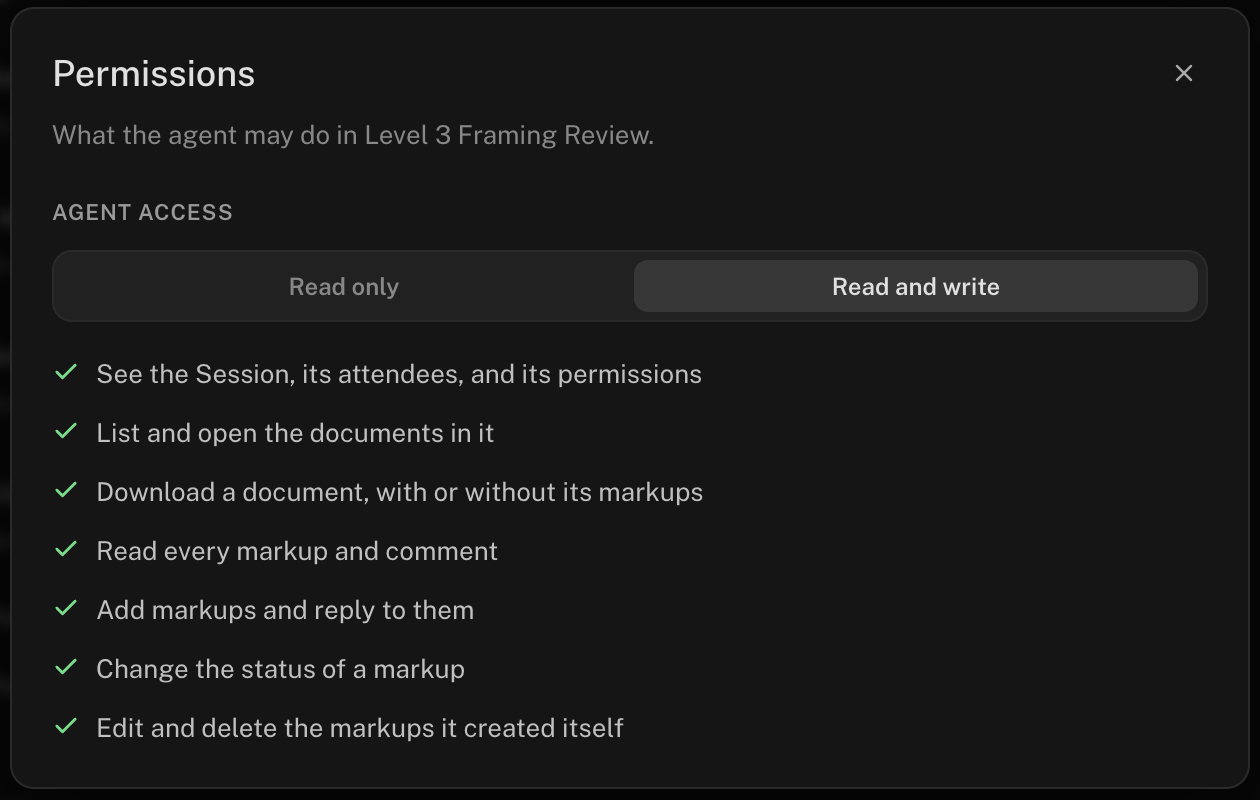
- Read and write: read everything, add markups and replies, change a markup’s status, and edit or delete the markups the agent created itself.
- Read only: see the Session, its attendees, documents, markups, and comments, and download documents.
Now ask for it in any chat:
In the Level 3 framing Session, list every open markup on S-301
and reply to each one with the detail or note that answers it.
Everyone Chooses for Themselves
A Session shows up for every Stru user who is an attendee of it. Each person turns the agent on for their own chats and picks their own access; one person enabling it doesn’t enable it for anyone else. Nobody who isn’t in the Session sees it.
The agent never goes beyond what Bluebeam grants it: the Session host’s attendee permissions still apply.
Your Bluebeam Email
Sessions are matched by email. Stru detects the address you sign in with automatically. If you use a different address in Bluebeam Studio (for example your company address while you sign in to Stru with another):
Add it
Under Account connection, click Link another account and type the address you use in Bluebeam.
Confirm it
Click Send confirmation, then open the link in that inbox. It shows Waiting for confirmation until you do; Sessions using that email appear once it’s confirmed.
Disconnect removes a linked address. Sessions matched only through it stop being available to the agent, and you can link it again at any time.
Switches
- Your own switch. Enable Bluebeam integration for your workflow turns the Bluebeam agent on or off for your own chats. It affects you only.
- Organization switch. Organization owners and admins also see Enable Bluebeam for organization, which turns it on or off for everyone in the organization.
Both are on by default. Each Session still starts off until you turn it on.
Next Steps
Review Drawings, Submittals & Specs
Structured reviews of the documents in your Sessions.
Generate RFIs & RFAs
Turn a markup into an RFI.
Questions? Email support@stru.ai or book a call.