

Chat & Results
The Canvas
The workspace beside the chat where Word reports, Excel workbooks, PowerPoint decks, Mathcad sheets, PDFs, and 3D models open, update live, and download
Overview
The Canvas is the panel beside the chat where your documents open. When the agent creates or edits a file, it appears here and updates as the agent works: a Word report, an Excel workbook, a PowerPoint deck, a Mathcad calc sheet, a PDF, a 3D model.
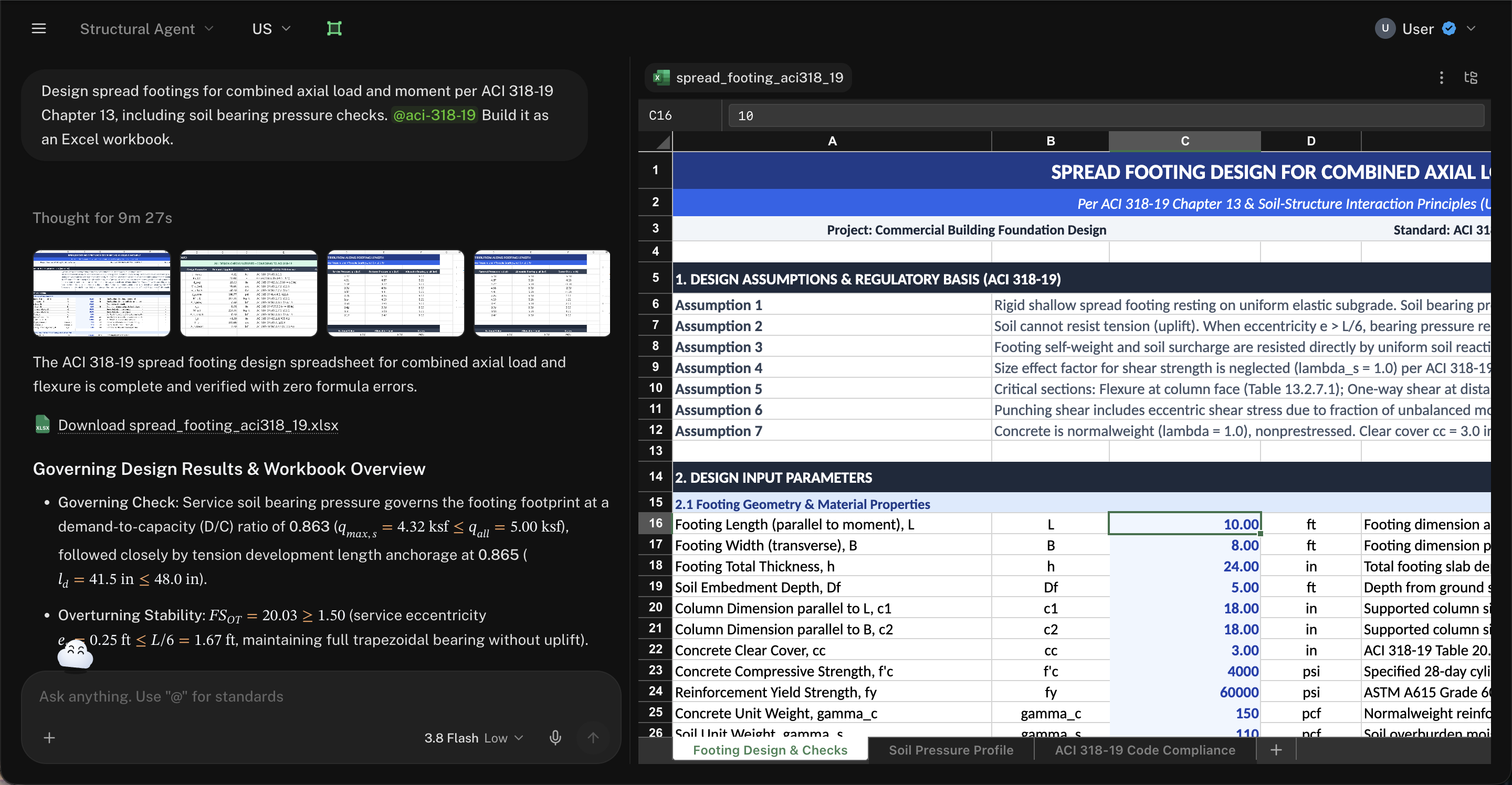
The Canvas opens by itself when the agent opens a document. The Canvas button in the header, next to the design standard selector, closes and reopens it. Every chat agent uses it.
Word
Reports, memos, method statements
Excel
Design workbooks with live formulas
PowerPoint
Decks for the project team or client
Mathcad
Unit-aware calc sheets
Drawings, reports, and code documents
3D and 2D models
IFC models and DXF drawings
Watch the Agent Work
Ask for a deliverable and it takes shape in the Canvas while the agent writes it. The Canvas follows the agent to the part of the document it’s working on, so you watch each section land.
When the agent finishes, its reply shows a strip of page previews of what it produced, with download links for each file.
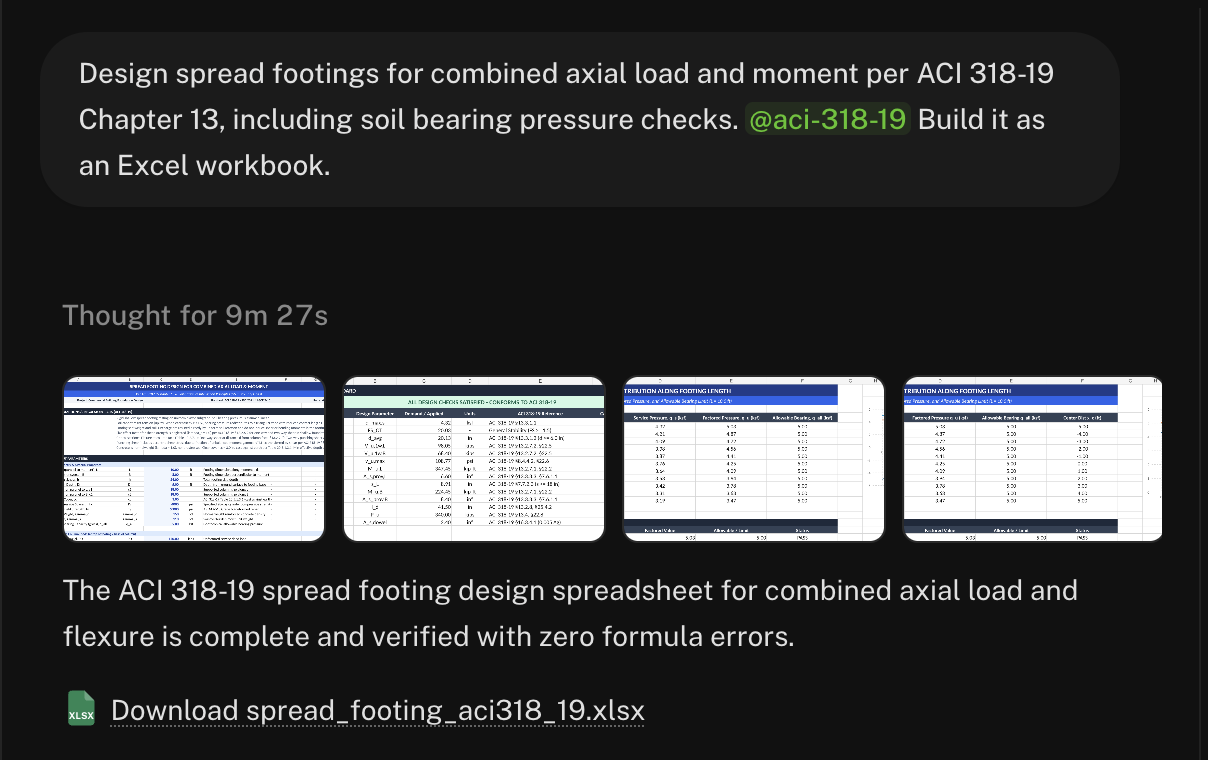
Click a preview to see the page full size. Right-click a file link in the reply for Open in Canvas or Download.
Documents in the Canvas
Word
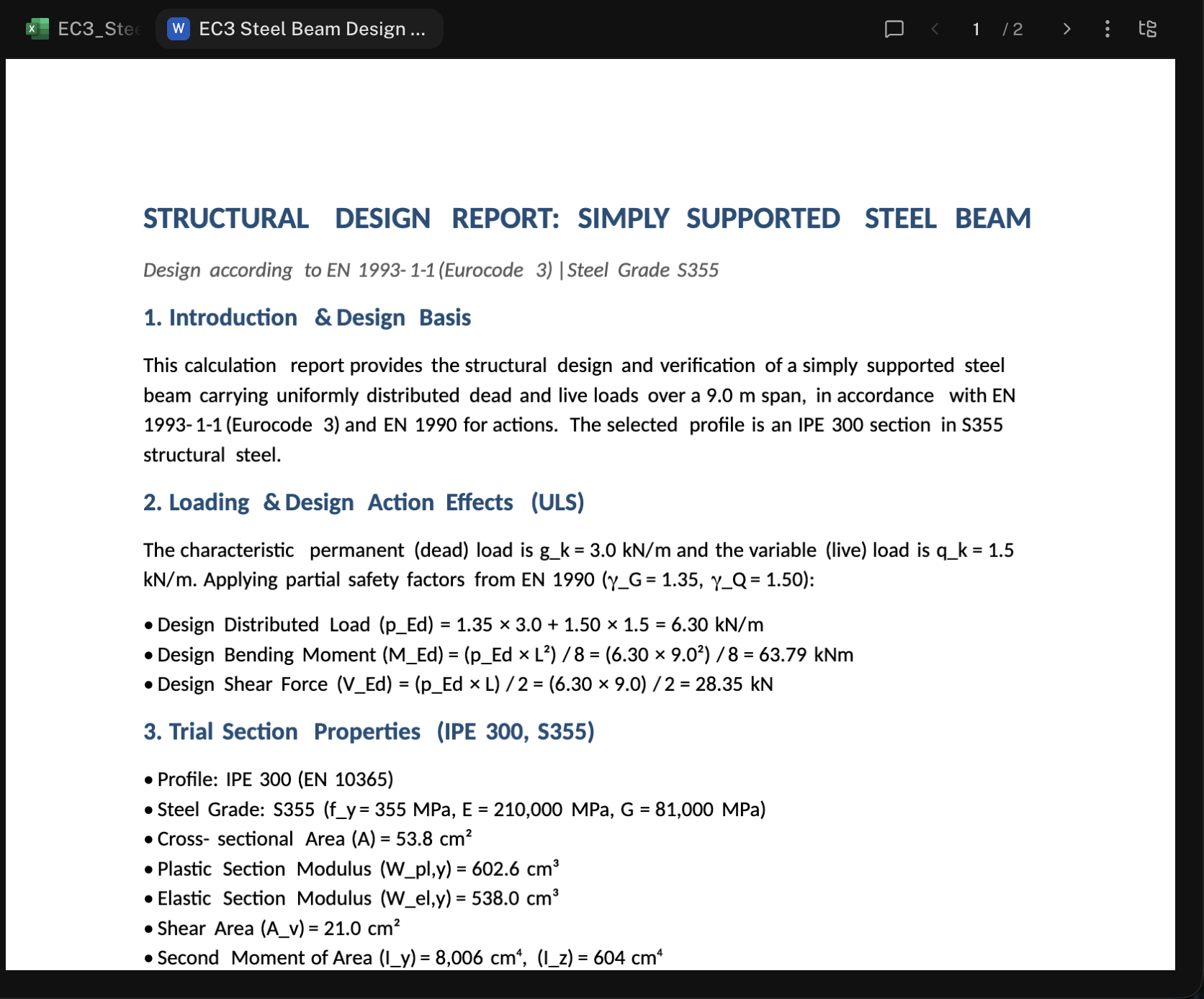
Word documents open as pages, just as they print. Comments show in a side pane you can hide. The ⋯ menu offers Download Word and Download PDF.
Excel
Workbooks open as a live grid with the cell name and formula bar at the top and sheet tabs along the bottom.
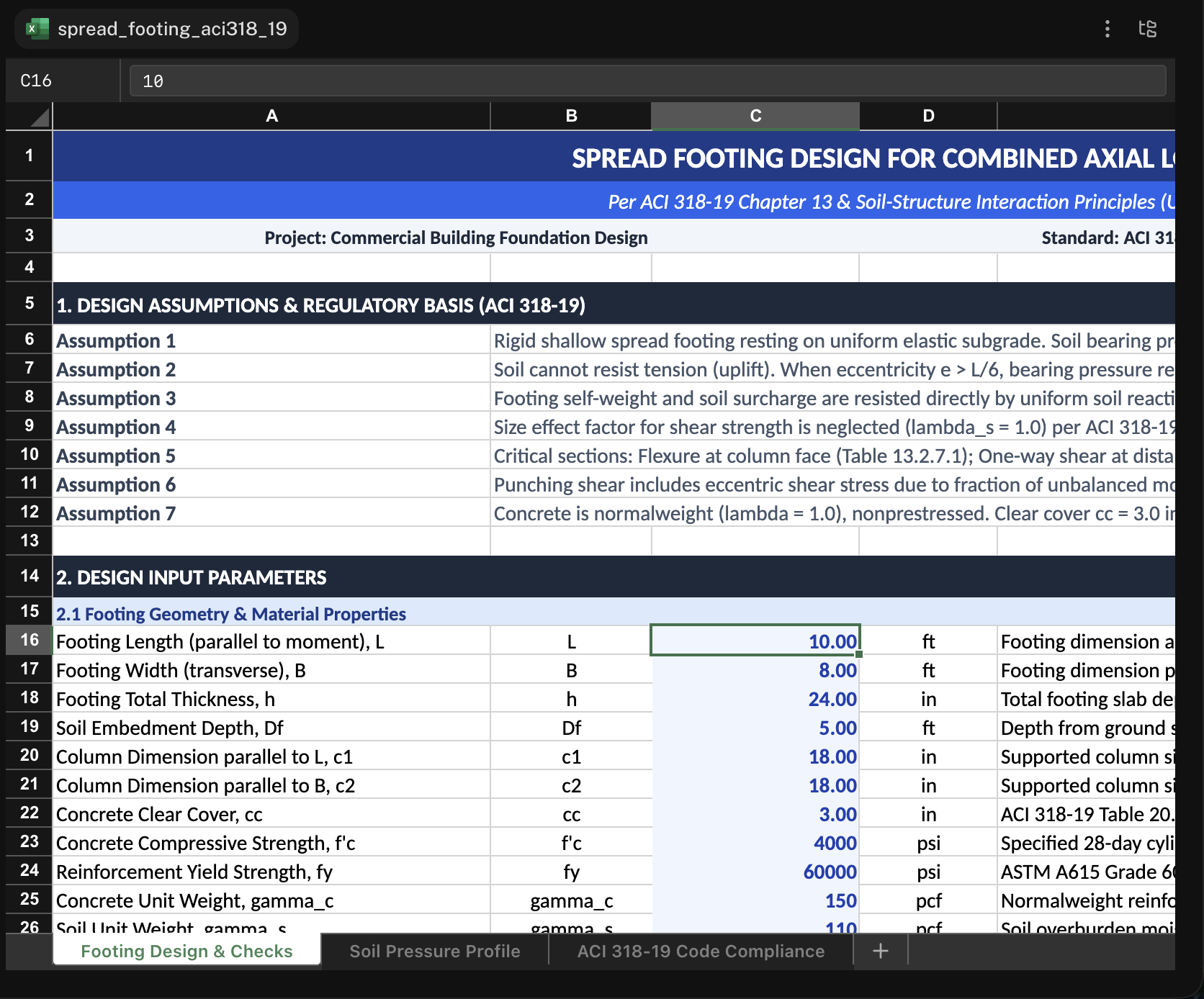
- Click a cell to see its formula; type to change it and dependent cells recalculate. Your edits save to the workbook.
- Copy and paste ranges, drag the fill handle, and add a sheet from the tab strip.
- Download Excel in the ⋯ menu saves the
.xlsx.
PowerPoint
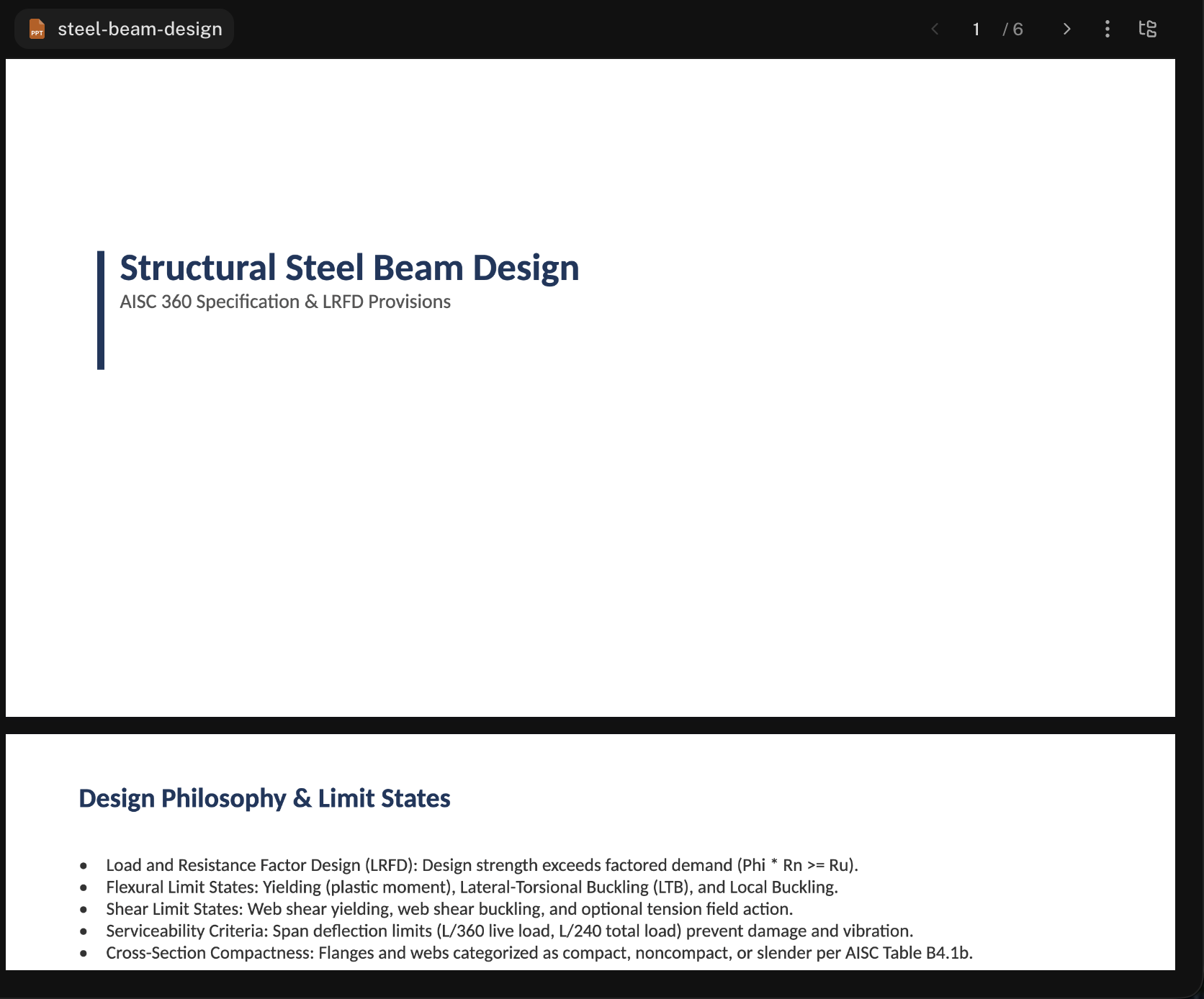
Decks open slide by slide. The ⋯ menu offers Download PowerPoint and Download PDF.
Mathcad
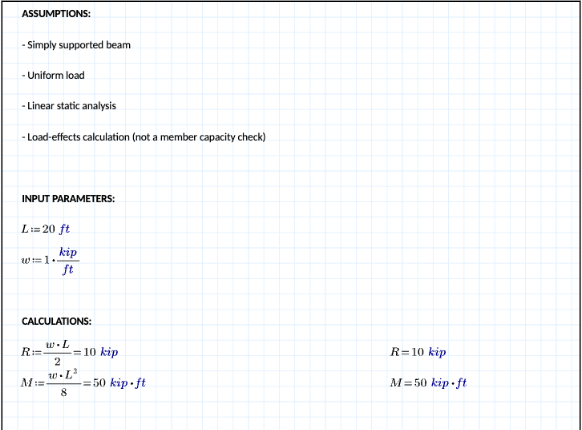
Mathcad sheets show the equations, inputs, units, and calculated results. This beam worksheet calculates support reactions and maximum moment from a uniform load.
PDF and other files
PDFs open page by page, with Fit Width, Fit Page, and zoom. Split view puts two documents side by side, for a drawing against its spec or two revisions of a sheet. Images, Markdown, and text files open in place too.
3D and 2D models
IFC models from the BIM Agent and DXF drawings open in the model viewer:
- Drag to orbit, right-drag to pan, scroll to zoom. Fit model brings the whole model back into view.
- Switch the background between White and Charcoal.
- Click an element to highlight it and show its ID, then ask the agent about it by name or ID.
Changing a Document
Tell the agent what to change and it edits the file in place: “add a serviceability check after the flexure check”, “move the summary table to slide 2”, “set the span to 32 ft and update the checks”. The Canvas refreshes as it goes.
In Excel you can also edit cells yourself. Word, PowerPoint, and Mathcad are read-only in the Canvas: ask the agent for the change, or download the file and edit it in the desktop application.
A tab name in italics is a document the agent is still working on that hasn’t been saved yet. It saves as the agent finishes.
The File Tree and Tabs
Each document opens in its own tab across the top of the Canvas. Drag tabs to reorder them.
The file tree button in the Canvas header shows every file in the folder the conversation works in: the project you picked, or the conversation’s own folder under Documents.
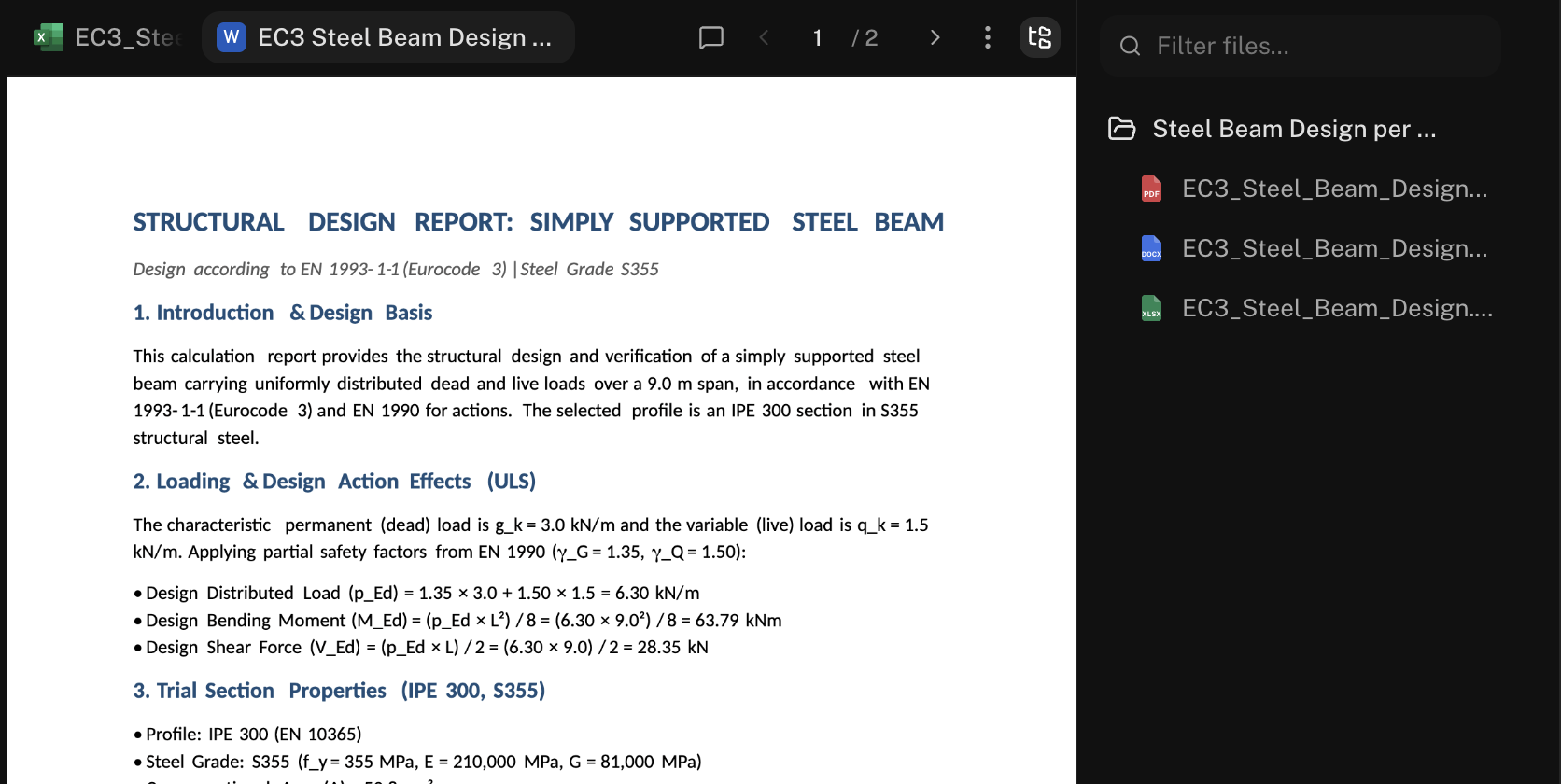
- Click any file to open it in a tab.
- Filter files… narrows the list.
- Open in Files jumps to the folder in Files.
When the agent answers from one of your files, the reply shows a chip with the file’s name. Click a PDF, Word, or Markdown chip and it opens in the Canvas at the source.
Good to Know
Close the tab, come back tomorrow, reopen the conversation: the Canvas restores its documents, and the files are in the conversation’s folder in Files.
Downloading saves a copy to your computer. The documents themselves live in the conversation’s folder in Files, so nothing is lost if you never click download.
Click a file in Files and it opens in the same viewer beside the list. A Drawing Review shows your drawings in it with the findings alongside.
On a phone-width window the Canvas becomes a sheet that slides up from the bottom, over the chat.
Next steps
Word Reports & PowerPoint Decks
Create, revise, and download report and presentation deliverables.
Excel Spreadsheets
Design workbooks with live formulas.
Mathcad Calc Sheets
Calc packages built live in the Canvas.
File Management
Where Canvas documents are saved.
Email support@stru.ai for help.