

How-To Guides
Cloud Computer
Run the SAP2000 and ETABS agents from any browser on your own Windows cloud computer, with SAP2000 and ETABS installed and your license signed in
Your Own Windows Machine in the Browser
The cloud computer is a Windows machine in the cloud with SAP2000 and ETABS installed, kept for you. The SAP2000 and ETABS agents drive it from app.stru.ai in any browser, and you watch the software work in the Computer tab of the Canvas. No local install, no Windows PC needed.
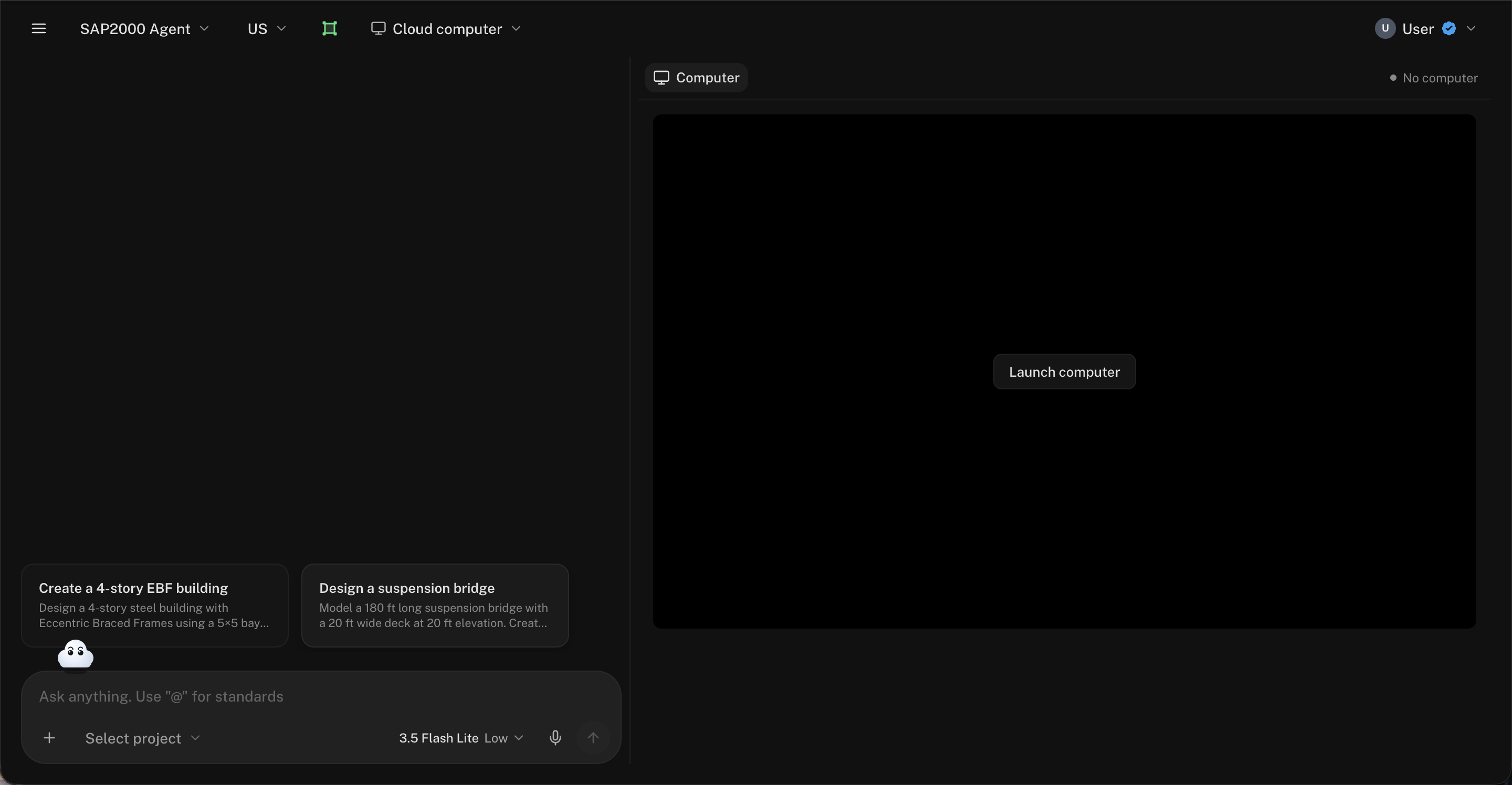
Prefer your own machine? The Stru AI desktop app lets the same agents drive the SAP2000 and ETABS installed on your Windows PC. Switch between the two with the machine selector in the header.
Launch It
Pick the SAP2000 or ETABS Agent
Choose SAP2000 Agent or ETABS Agent from the agent dropdown in the top-left. The machine selector next to the design standard reads Cloud computer, and the Canvas opens on the Computer tab.
Click Launch computer
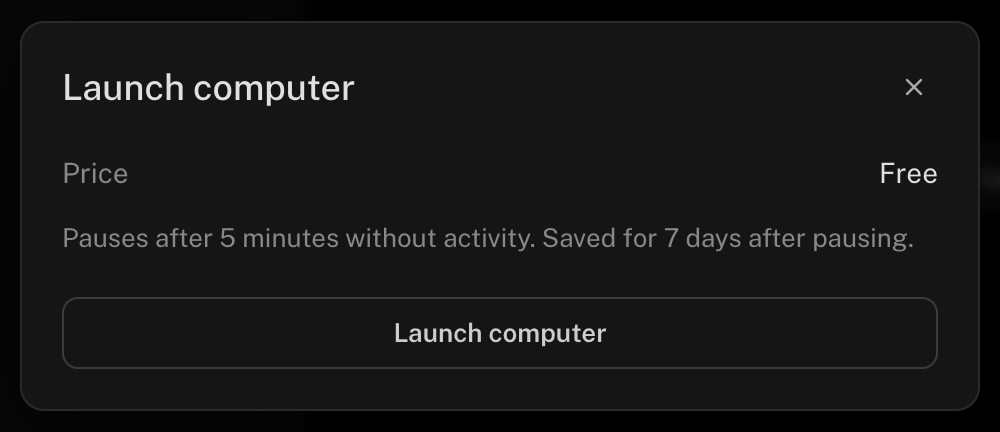
The launch dialog shows what this session costs and how long it runs before it pauses. Confirm, and the computer starts. It takes a minute or two the first time.
Sign in to SAP2000 and ETABS once
Hover the computer screen and click Take control. A window opens with the full Windows desktop. Open SAP2000 and ETABS and sign in with your CSI license, as you would on any new PC. The computer keeps your sign-ins.
Chat
Describe the model. The agent opens the software and builds it while you watch in the Computer tab. See Build Models in ETABS & SAP2000.
Send a message before launching and the agent asks which machine to use: Launch cloud computer starts the same launch dialog.
Sessions, Pausing, and Resuming
- A free session pauses when you step away. After a stretch with no activity the computer pauses on its own; the launch dialog says how long.
- At busy times a session is rented for a set time. The launch dialog shows the price and the run time, and the Computer tab counts down. Extend before it ends to keep going.
- Resume picks up where you left off. Resume computer brings back the same machine with your apps, sign-ins, and files.
- Paused computers are kept for 7 days. After that the computer is removed, and the next launch starts a fresh one.
Save your models from SAP2000 or ETABS as you work. Ask the agent to export results or copy files into the conversation’s folder, and they’re in Files for good.
The Computer Menu
The ⋯ menu in the Computer tab holds:
| Item | What it does |
|---|---|
| Paste clipboard | Types your clipboard’s text into the computer |
| Pause computer | Pauses now; resume later with everything kept |
| Reset computer… | Deletes the saved computer and starts a new one on the next launch |
| Delete computer… | Deletes the saved computer |
Start fresh in the launch dialog does the same as Reset: use it when you want a clean machine.
Good to Know
Each account gets its own computer. Conversations with the SAP2000 and ETABS agents all drive the same machine, so a model saved in one chat is there for the next.
The launch dialog tells you when your balance is too low to launch or extend, and offers what to do next.
Allow pop-ups for app.stru.ai in your browser, then click Take control again.
At busy times the launch dialog may report that all computers are in use. Try again shortly, or run the agents on your own PC with the desktop app.
Next Steps
ETABS & SAP2000 Agents
Prompting patterns and use cases.
Build Models in ETABS & SAP2000
Stage a build from brief to running model.
Questions? Email support@stru.ai or book a call.