

Your Account
Account & Settings
Set your display name, appearance, and agent preferences, and manage signed-in devices.
Open the account menu at the top-right of the app. Choose Personal Account, Account, or Organization, depending on your account, then Settings.
Profile
Name appears on member lists and shared files. Display name is what the app and agent call you. Click Rename beside the field you want to change.
Appearance and agent preferences
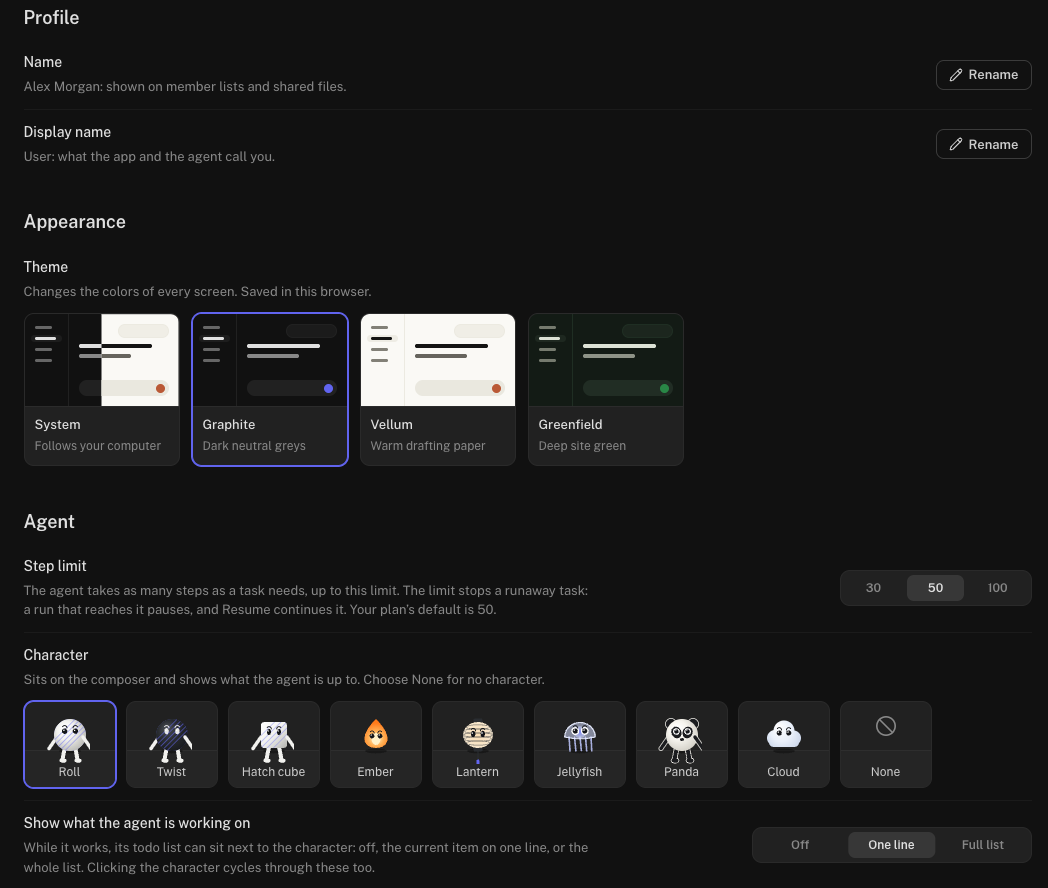
- Theme changes the app’s colors. Choose System, Graphite, Vellum, or Greenfield.
- Step limit sets when a long-running task pauses. Select an available limit for your plan. Click Resume in the chat to continue a paused task.
- Character selects the character beside the message box. Choose None to hide it.
- Show what the agent is working on controls whether the task list is hidden, shown as one line, or shown in full.
These appearance and agent preferences are saved in the browser you use.
Active sessions
The Active sessions section lists the browsers and desktop apps signed in to your account. Use Revoke beside a device to end that session, or Sign out other sessions to end the others. Revoking a desktop session also disconnects it from Stru.
Memory, usage, and plans
Open Memory in the account sidebar to review remembered preferences. See Memory.
The account menu’s Usage row opens your usage view. Plans opens the current plan comparison. Subscribers can read Plans & Usage Credits for billing support.
Sign out
Open the account menu and choose Sign Out. To sign out of the documentation, use Sign out in the docs header. Both use your Stru session.
Email support@stru.ai if you need help signing in.