> ## Documentation Index
> Fetch the complete documentation index at: https://docs.stru.ai/llms.txt
> Use this file to discover all available pages before exploring further.
# Excel Spreadsheets
> Build Excel design workbooks with live formulas, or hand the agent your existing spreadsheet to explain, check, and extend
## A Calc That Works Like a Tool
Ask the [Structural Agent](/platform-guides/structural-agent) for a spreadsheet and it builds a working **.xlsx**: inputs at the top, formulas live in the cells, checks that recalculate when a number changes. Download it once and it becomes a tool your team reuses on the next project.
Workbooks engineers build this way:
* **Design checkers**: a crane outrigger or boomlift wheel load on an existing slab, with the pad size and load as inputs
* **Option comparisons**: hollow core plank against double tees for the same bay, side by side
* **Load takedowns and schedules**: tributary areas in, column loads out
* **Extensions of the firm's own sheets**: hand over the workbook you already trust and grow it
***
## Step-by-Step
Name the inputs, the checks, the code, and the units, the same brief as any [design check](/workflows/design-checks):
```text Example: outrigger check workbook theme={null}
Build a workbook that checks crane outrigger loads on an existing
slab. Inputs: load per outrigger, pad size, slab thickness, f'c,
and reinforcement. Check punching shear and flexure per ACI 318-19,
US units, and flag any demand capacity ratio over 1.0.
```
The workbook opens as a live grid in the [Canvas](/how-to/canvas): sheet tabs along the bottom, cells that recalculate.
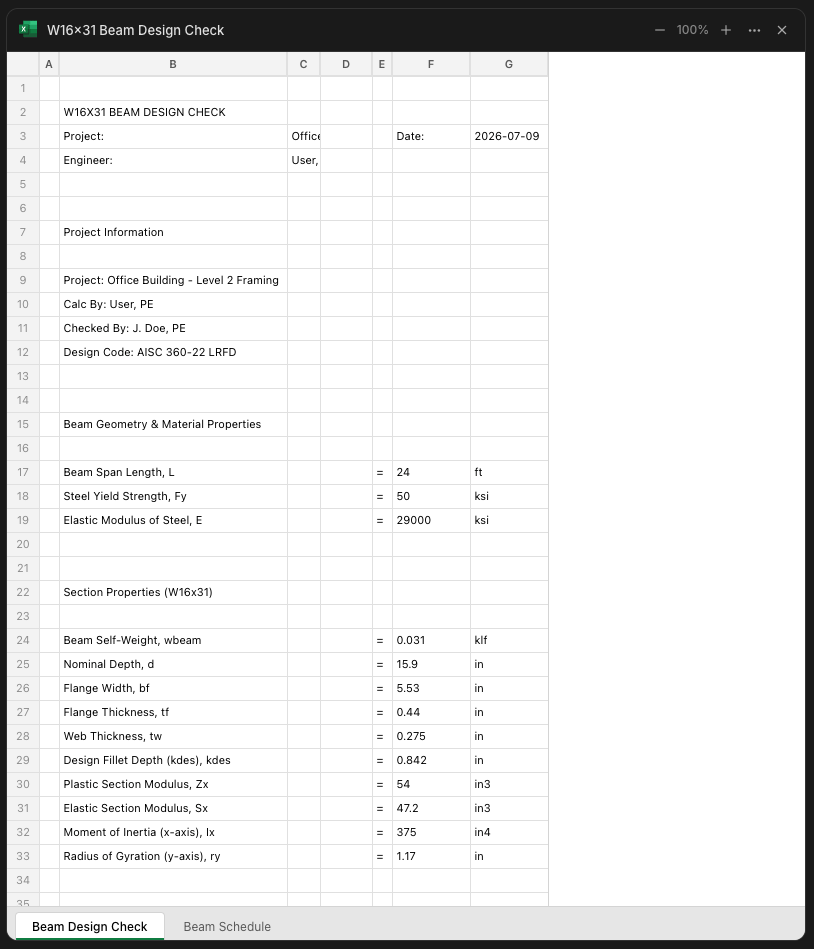 Click a cell and change a number for a quick what-if. For a change that should stick, tell the agent ("set the pad to 30 in square and update the checks") and it becomes part of the real workbook. The header rows at the top (project, calc by, checked by, design code) fill from the header fields you set once: see [Branded Reports](/workflows/branded-reports).
The workbook arrives as an .xlsx download link in the chat and is saved to your [Files area](/how-to/file-management) automatically, so you can tag it with **@** in every future conversation.
Click a cell and change a number for a quick what-if. For a change that should stick, tell the agent ("set the pad to 30 in square and update the checks") and it becomes part of the real workbook. The header rows at the top (project, calc by, checked by, design code) fill from the header fields you set once: see [Branded Reports](/workflows/branded-reports).
The workbook arrives as an .xlsx download link in the chat and is saved to your [Files area](/how-to/file-management) automatically, so you can tag it with **@** in every future conversation.
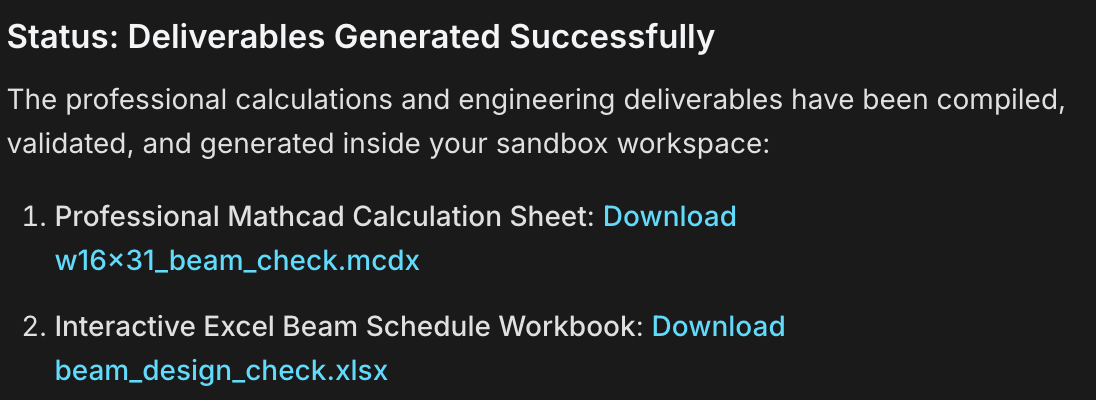 The formulas stay live, so every result traces back to its inputs. Trace the governing check before the workbook goes to the project team: you are the engineer of record, and a workbook you have traced is a workbook you can stand behind.
***
## Hand Over Your Existing Workbook
Tag the spreadsheet your firm already uses and put the agent to work on it:
```text Explain and audit theme={null}
@Wind_Pressure_Workbook.xlsx Walk me through this workbook: the
inputs, what it checks, and any formula that looks off.
```
```text Extend it theme={null}
@Wind_Pressure_Workbook.xlsx Add a components and cladding sheet
for the roof zones, same layout and conventions as the wall sheet.
```
The agent follows your layout and your conventions, so the new sheet reads like the rest of the workbook. Tagging mechanics are in [Mentions & Attachments](/how-to/mentions).
***
## Compare Design Options
A comparison is a workbook job: options in columns, criteria in rows, formulas doing the arguing.
```text Example: precast options theme={null}
Compare 8 in hollow core plank with a 2 in topping against 24 in
double tees for a 45 ft span parking level, 40 psf live load.
Build one comparison sheet: capacity, self weight, structural
depth, and camber side by side, with the governing criterion
flagged for each option.
```
**Same numbers, calc sheet format.** Have any workbook rebuilt as a Mathcad sheet, every formula written out with its code reference for line by line review: [Mathcad Calc Sheets](/workflows/mathcad-calc-sheets).
***
## Next Steps
How to write the brief that gets a complete calc
[Design Checks guide](/workflows/design-checks)
The same calcs as .mcdx sheets for line by line review
[Mathcad Calc Sheets guide](/workflows/mathcad-calc-sheets)
Header fields and your firm's logo on every deliverable
[Branded Reports guide](/workflows/branded-reports)
The live grid where your workbook takes shape
[Canvas guide](/how-to/canvas)
**Questions?** Email **[support@stru.ai](mailto:support@stru.ai)** or [book a call](https://cal.com/bhosh).
The formulas stay live, so every result traces back to its inputs. Trace the governing check before the workbook goes to the project team: you are the engineer of record, and a workbook you have traced is a workbook you can stand behind.
***
## Hand Over Your Existing Workbook
Tag the spreadsheet your firm already uses and put the agent to work on it:
```text Explain and audit theme={null}
@Wind_Pressure_Workbook.xlsx Walk me through this workbook: the
inputs, what it checks, and any formula that looks off.
```
```text Extend it theme={null}
@Wind_Pressure_Workbook.xlsx Add a components and cladding sheet
for the roof zones, same layout and conventions as the wall sheet.
```
The agent follows your layout and your conventions, so the new sheet reads like the rest of the workbook. Tagging mechanics are in [Mentions & Attachments](/how-to/mentions).
***
## Compare Design Options
A comparison is a workbook job: options in columns, criteria in rows, formulas doing the arguing.
```text Example: precast options theme={null}
Compare 8 in hollow core plank with a 2 in topping against 24 in
double tees for a 45 ft span parking level, 40 psf live load.
Build one comparison sheet: capacity, self weight, structural
depth, and camber side by side, with the governing criterion
flagged for each option.
```
**Same numbers, calc sheet format.** Have any workbook rebuilt as a Mathcad sheet, every formula written out with its code reference for line by line review: [Mathcad Calc Sheets](/workflows/mathcad-calc-sheets).
***
## Next Steps
How to write the brief that gets a complete calc
[Design Checks guide](/workflows/design-checks)
The same calcs as .mcdx sheets for line by line review
[Mathcad Calc Sheets guide](/workflows/mathcad-calc-sheets)
Header fields and your firm's logo on every deliverable
[Branded Reports guide](/workflows/branded-reports)
The live grid where your workbook takes shape
[Canvas guide](/how-to/canvas)
**Questions?** Email **[support@stru.ai](mailto:support@stru.ai)** or [book a call](https://cal.com/bhosh).