> ## Documentation Index
> Fetch the complete documentation index at: https://docs.stru.ai/llms.txt
> Use this file to discover all available pages before exploring further.
# Review Drawings, Submittals & Specs
> Attach the documents and get a structured review in chat: submittals against design drawings, proposal comparisons, and spec discrepancies
## A Structured Review, in Chat
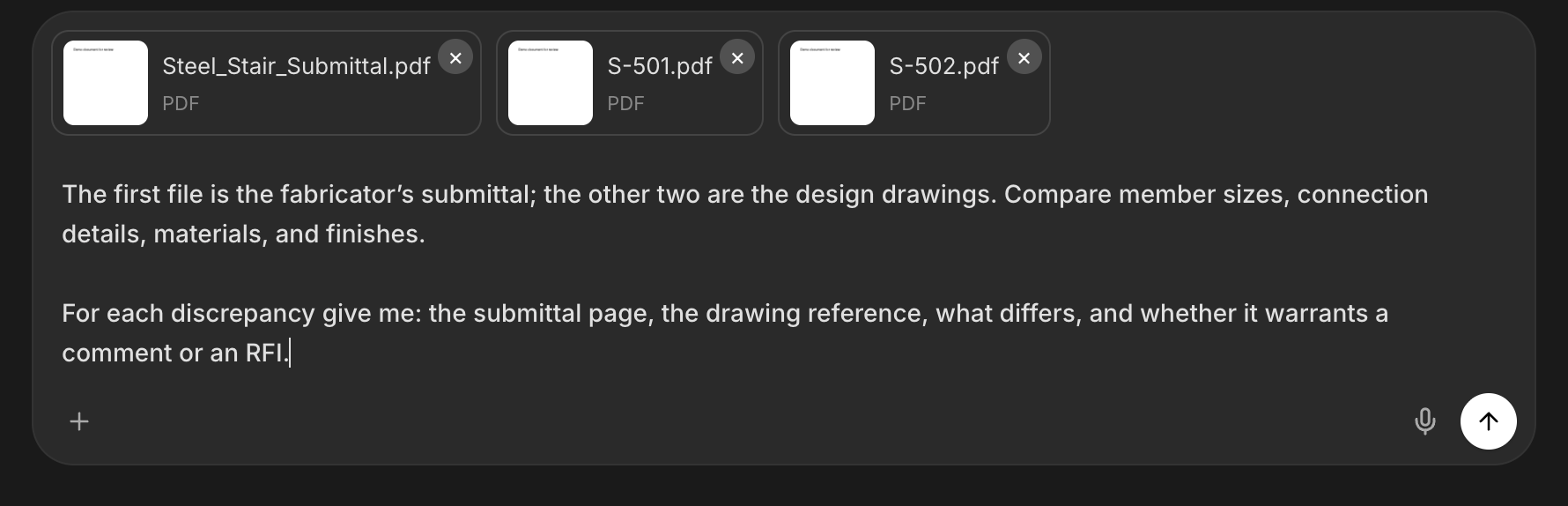
Attach the documents, say what each one is, and ask for the review. This is the conversational pattern for reviewing specific documents (a submittal, a spec section, two competing proposals, a Basis of Design) against each other or against your design documents, with findings you can act on.
It works across the disciplines a project throws at you: a fabricator's steel submittal against the structural drawings, an architectural door schedule against the spec, an MEP shop drawing against the design intent, a contractor's proposal against the tender documents.
**Three ways to review, one habit of checking.** This page is the chat review of documents you attach or tag. The [Review Agent](/platform-guides/review-agent) is for conversations across a whole ingested drawing set. A [Drawing Review](/how-to/drawing-review) is the formal, set-wide QA/QC run that produces a findings report. Start here for specific documents; move up when the question covers the whole set.
***
## How to Run One
Attach with the **+** button, or tag files already in your project with **@** ([Mentions guide](/how-to/mentions)). Then assign roles in plain language: *"The first file is the submittal; the other two are the design drawings it must match."* Before the review starts, ask the agent to list the files it can see, so the review runs on everything you sent.
Ask for a structured review and define the structure: each finding with its location in both documents, what differs, why it matters, and the suggested action. Name your code and jurisdiction, and ask the agent to quote the clause text behind any code-based finding, so every citation is ready for a reviewer to verify.
After the first pass: *"List everything you did not compare."* The answer tells you whether the review covered dimensions but not finishes, or details but not notes, and becomes the brief for the second pass.
Real discrepancies become RFIs ([Generate RFIs & RFAs](/how-to/generate-rfi-rfa)) or review comments. Ask for the findings as a comment log or comparison table when you need a file to circulate; name the format and the agent produces it.
The setup for a submittal review, ready to send: documents attached, roles assigned, finding format defined.
 ***
## Four Reviews Engineers Run
```text Example: submittal review theme={null}
@Steel_Stair_Submittal.pdf @S-501.pdf @S-502.pdf
The first file is the fabricator's submittal; the other two
are the design drawings. Compare member sizes, connection
details, materials, and finishes. For each discrepancy give
me: the submittal page, the drawing reference, what differs,
and whether it warrants a comment or an RFI.
```
```text Example: proposal comparison theme={null}
@PT_Proposal_A.pdf @PT_Proposal_B.pdf
Compare these two post-tensioning proposals side by side:
tendon quantities, anchorage details, assumed losses, scope
exclusions, and program. Give me a comparison table first,
then a recommendation with the reasons.
```
```text Example: Basis of Design review theme={null}
@Basis_of_Design.pdf
Read this as a design-risk reviewer. List the assumptions
that carry the most risk if they turn out wrong, the
requirements that conflict with each other, and anything
underspecified that will surface later as a change. Rank by
impact and cite the section for each.
```
```text Example: spec discrepancy check theme={null}
@Spec_Section_03_30_00.pdf @S-001_General_Notes.pdf
Find every point where the concrete spec section and the
structural general notes disagree: strengths, cover, testing,
curing. Cite the spec paragraph and the drawing note for each
one, and flag which document should govern.
```
**One comparison per request.** Submittal vs drawings is one review; spec vs drawings is another. Separate requests produce separate, traceable findings lists instead of one blended answer.
***
## When the Question Covers a Whole Set
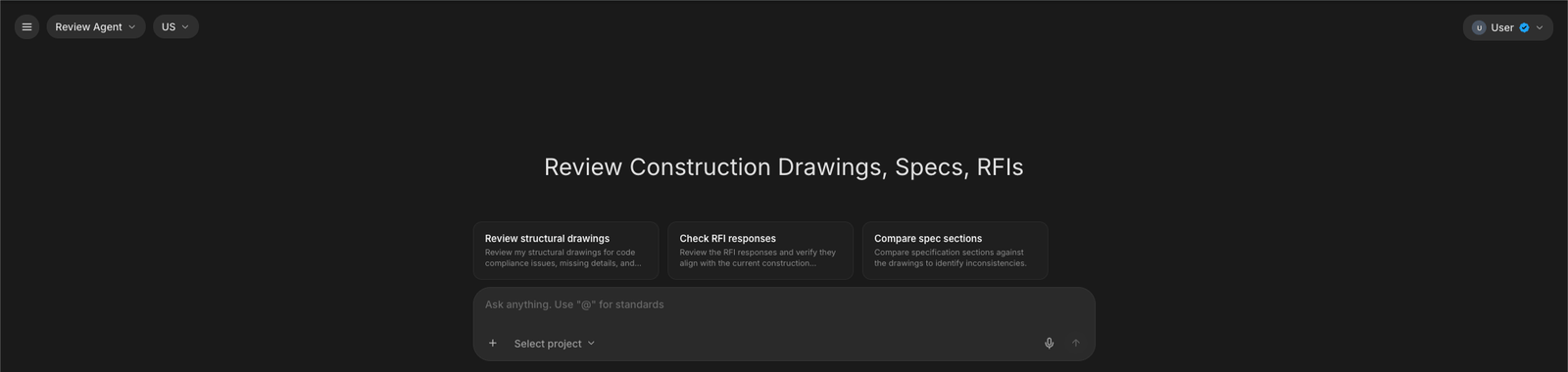
For questions that span every sheet of a project ("where is this detail called out?", "does the callout on S-301 resolve?"), switch to the [Review Agent](/platform-guides/review-agent): it works inside a project folder, follows callouts and cross-references between sheets, and cites the sheet and detail behind each answer.
***
## Four Reviews Engineers Run
```text Example: submittal review theme={null}
@Steel_Stair_Submittal.pdf @S-501.pdf @S-502.pdf
The first file is the fabricator's submittal; the other two
are the design drawings. Compare member sizes, connection
details, materials, and finishes. For each discrepancy give
me: the submittal page, the drawing reference, what differs,
and whether it warrants a comment or an RFI.
```
```text Example: proposal comparison theme={null}
@PT_Proposal_A.pdf @PT_Proposal_B.pdf
Compare these two post-tensioning proposals side by side:
tendon quantities, anchorage details, assumed losses, scope
exclusions, and program. Give me a comparison table first,
then a recommendation with the reasons.
```
```text Example: Basis of Design review theme={null}
@Basis_of_Design.pdf
Read this as a design-risk reviewer. List the assumptions
that carry the most risk if they turn out wrong, the
requirements that conflict with each other, and anything
underspecified that will surface later as a change. Rank by
impact and cite the section for each.
```
```text Example: spec discrepancy check theme={null}
@Spec_Section_03_30_00.pdf @S-001_General_Notes.pdf
Find every point where the concrete spec section and the
structural general notes disagree: strengths, cover, testing,
curing. Cite the spec paragraph and the drawing note for each
one, and flag which document should govern.
```
**One comparison per request.** Submittal vs drawings is one review; spec vs drawings is another. Separate requests produce separate, traceable findings lists instead of one blended answer.
***
## When the Question Covers a Whole Set
For questions that span every sheet of a project ("where is this detail called out?", "does the callout on S-301 resolve?"), switch to the [Review Agent](/platform-guides/review-agent): it works inside a project folder, follows callouts and cross-references between sheets, and cites the sheet and detail behind each answer.
 And when you want a formal record rather than a conversation, launch a [Drawing Review](/how-to/drawing-review): the set-wide QA/QC run that sweeps every sheet and delivers a findings report you can interrogate afterwards.
You are the engineer of record: the review surfaces the discrepancies, and the acceptance codes and dispositions stay yours to assign.
***
## Next Steps
Chat with a whole drawing set: callouts, details, findings.
The formal set-wide QA/QC run with a findings report.
Draft the RFI once a discrepancy is confirmed.
Tag documents already in your project with @.
**Questions?** Email **[support@stru.ai](mailto:support@stru.ai)** or [book a call](https://cal.com/bhosh).
And when you want a formal record rather than a conversation, launch a [Drawing Review](/how-to/drawing-review): the set-wide QA/QC run that sweeps every sheet and delivers a findings report you can interrogate afterwards.
You are the engineer of record: the review surfaces the discrepancies, and the acceptance codes and dispositions stay yours to assign.
***
## Next Steps
Chat with a whole drawing set: callouts, details, findings.
The formal set-wide QA/QC run with a findings report.
Draft the RFI once a discrepancy is confirmed.
Tag documents already in your project with @.
**Questions?** Email **[support@stru.ai](mailto:support@stru.ai)** or [book a call](https://cal.com/bhosh).