> ## Documentation Index
> Fetch the complete documentation index at: https://docs.stru.ai/llms.txt
> Use this file to discover all available pages before exploring further.
# Code Questions
> Ask a code question with the code, edition, and jurisdiction named, and get the answer with the clause text quoted, ready for a submittal response or a reviewer reply
## The Answer, With the Clause Quoted
Name the code, the edition, and the jurisdiction in your question, and ask the agent to quote the clause text it used. The answer comes back with the governing section cited and quoted, ready to drop into a submittal response or a reply to a reviewer comment.
The pattern works across disciplines: an architect confirming a fire rating, a civil engineer checking cover on a buried structure, an engineer settling which load combination governs. Same question shape every time.
```text A reviewer-ready question theme={null}
What is the minimum concrete cover for the earth-side face of a
cast-in-place retaining wall, per ACI 318-19? Quote the table
entry and state the exposure condition you assumed.
```
The answer comes back with the table entries quoted, the section number cited, and the assumptions stated where you can check them:
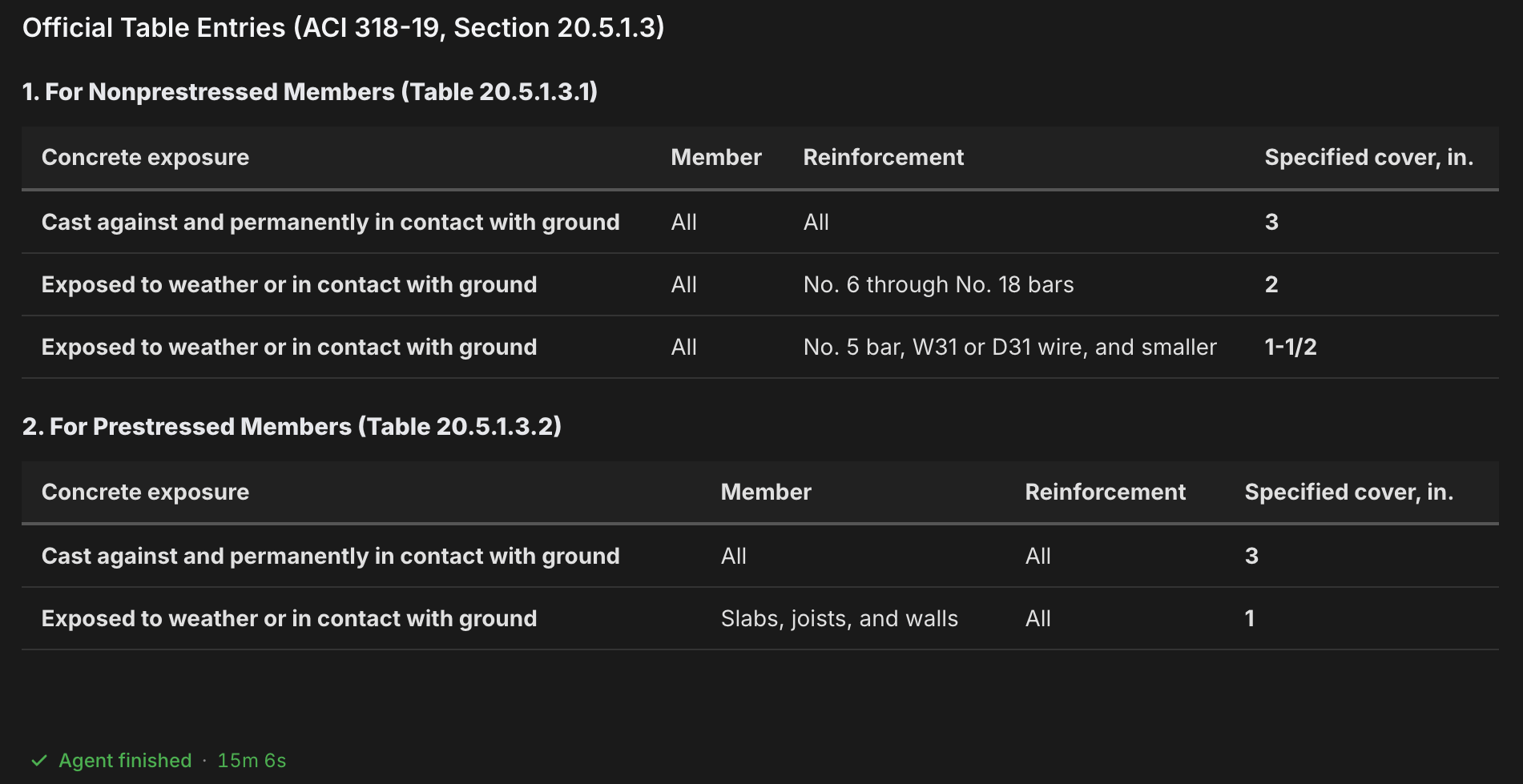 **Ask for the quote every time.** A quoted clause you can read beside your response is reviewer-ready. A bare section number still sends you back to the shelf.
***
## Find the Code First
The design standards the agent works from are listed inside the app, filtered to your region. Check there before you write the question.
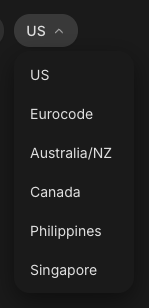
The selector next to the agent name at the top left sets which family of codes the agent works from, and filters what the **@** picker shows.
**Ask for the quote every time.** A quoted clause you can read beside your response is reviewer-ready. A bare section number still sends you back to the shelf.
***
## Find the Code First
The design standards the agent works from are listed inside the app, filtered to your region. Check there before you write the question.
The selector next to the agent name at the top left sets which family of codes the agent works from, and filters what the **@** picker shows.
 Type **@** in the message box. The green **Standards** section lists the design codes available for your selected standard, and typing after the **@** searches them. That list is live in the app and is the source of truth for what is available in your region. The [Mentions guide](/how-to/mentions) covers the picker in full.
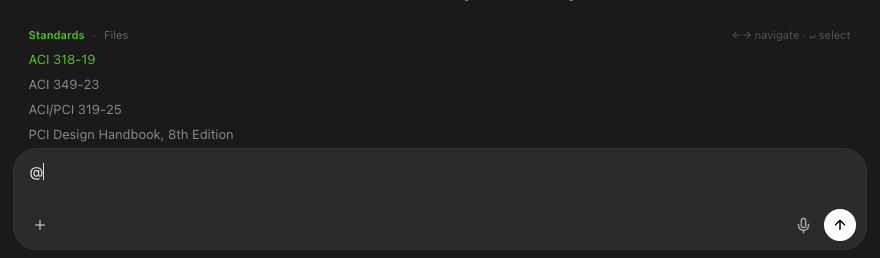 Press **Enter** on a code to tag it as a green chip, which pins the exact document. Naming the code and edition in the prompt works too. Either way, the answer cites the document you asked for.
***
## Questions That Get Reviewer-Ready Answers
The same shape works from any desk:
```text Fire rating and egress theme={null}
Per IBC 2021, what is the maximum common path of egress travel
for a Group B occupancy with an automatic sprinkler system?
Quote the table entry and any footnotes that apply.
```
```text Load combinations theme={null}
Which ASCE 7-22 LRFD load combination governs a low-slope roof
carrying dead, roof live, and snow load? Quote the candidate
combinations and show why the governing one governs.
```
Each one names the code and edition, says exactly what the answer must contain, and asks for the quoted text. When the jurisdiction matters (a local amendment, a state code), name the city or authority too.
***
## Push Past the First Answer
A good answer is a starting point. Two follow-ups turn it into a finished response:
* **Ask what a reviewer would raise.** "What other sections could a reviewer cite against this detail?" surfaces the questions before the comment letter does.
* **Work from the actual comment.** Attach the reviewer's comment letter or the marked-up sheet, or tag it with **@** if it is already in your [Files area](/how-to/file-management), and ask for a point-by-point response with citations.
You are the engineer of record. The agent quotes the clause; you confirm the quote against the code text before it carries your response.
***
## Next Steps
How the @ picker works: standards, files, and folders
[Mentions guide](/how-to/mentions)
Work in your own language and jurisdiction
[Local Codes & Languages](/workflows/local-codes-languages)
Site hazard parameters by address, with references
[Wind & Seismic Loads](/workflows/wind-seismic-loads)
Turn a code answer into a full element check
[Design Checks](/workflows/design-checks)
**Questions?** Email **[support@stru.ai](mailto:support@stru.ai)** or [book a call](https://cal.com/bhosh).
Press **Enter** on a code to tag it as a green chip, which pins the exact document. Naming the code and edition in the prompt works too. Either way, the answer cites the document you asked for.
***
## Questions That Get Reviewer-Ready Answers
The same shape works from any desk:
```text Fire rating and egress theme={null}
Per IBC 2021, what is the maximum common path of egress travel
for a Group B occupancy with an automatic sprinkler system?
Quote the table entry and any footnotes that apply.
```
```text Load combinations theme={null}
Which ASCE 7-22 LRFD load combination governs a low-slope roof
carrying dead, roof live, and snow load? Quote the candidate
combinations and show why the governing one governs.
```
Each one names the code and edition, says exactly what the answer must contain, and asks for the quoted text. When the jurisdiction matters (a local amendment, a state code), name the city or authority too.
***
## Push Past the First Answer
A good answer is a starting point. Two follow-ups turn it into a finished response:
* **Ask what a reviewer would raise.** "What other sections could a reviewer cite against this detail?" surfaces the questions before the comment letter does.
* **Work from the actual comment.** Attach the reviewer's comment letter or the marked-up sheet, or tag it with **@** if it is already in your [Files area](/how-to/file-management), and ask for a point-by-point response with citations.
You are the engineer of record. The agent quotes the clause; you confirm the quote against the code text before it carries your response.
***
## Next Steps
How the @ picker works: standards, files, and folders
[Mentions guide](/how-to/mentions)
Work in your own language and jurisdiction
[Local Codes & Languages](/workflows/local-codes-languages)
Site hazard parameters by address, with references
[Wind & Seismic Loads](/workflows/wind-seismic-loads)
Turn a code answer into a full element check
[Design Checks](/workflows/design-checks)
**Questions?** Email **[support@stru.ai](mailto:support@stru.ai)** or [book a call](https://cal.com/bhosh).