> ## Documentation Index
> Fetch the complete documentation index at: https://docs.stru.ai/llms.txt
> Use this file to discover all available pages before exploring further.
# Check an Existing Model
> Export the results from ETABS or SAP2000, attach the export, and get checks that trace back to your own numbers
## Your Numbers, Checked
The auditable way to verify a model: export the results tables from ETABS or SAP2000 to Excel or CSV, attach the export, and ask for the check. The agent works from your numbers, and every conclusion traces back to a row in your export, which is what makes the check reviewable by anyone who picks it up after you.
The pattern works on any model you can export from: your own, a subconsultant's, or a legacy model you inherited. Common checks:
* **Verify drift limits**: every story against the code allowable, with the governing story called out
* **Spot-check member DCRs**: find the members near or over 1.0 and see what drives them
* **Sanity-check reactions**: total the base reactions and compare them with your hand tally of the gravity load
***
## The Pattern
In ETABS or SAP2000, export the results tables you need to Excel or CSV: story drifts for a drift check, joint reactions for a reaction check, the steel or concrete design summary for DCRs. Export only the load cases and combinations that matter for the question; a focused export makes a focused check.
Attach the file with the **+** button, or tag it with **@** if it is already in your Files ([Mentions guide](/how-to/mentions)). Then open with:
```text theme={null}
List the files you can see and the tables inside the workbook
before you start.
```
The reply confirms the agent is working from your export, sheet by sheet, before any checking begins. With the export attached, the opening message looks like this:
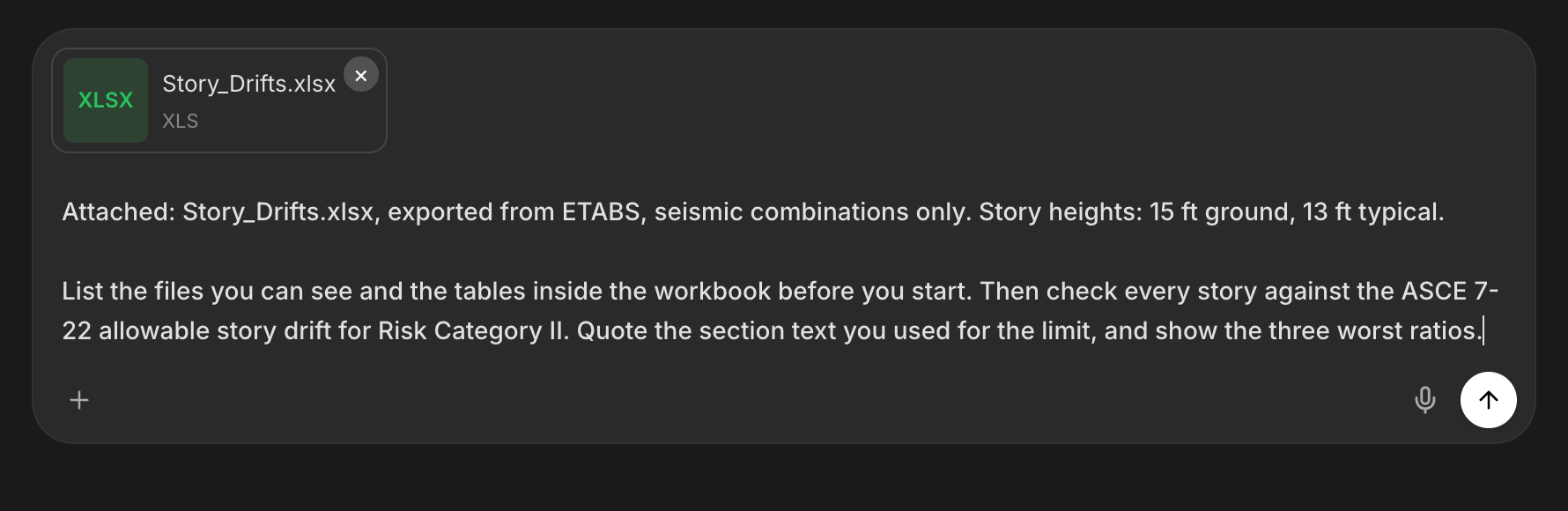 Code and edition, units, story heights for drift ratios, which combinations are seismic and which are wind, and what limit applies. The export holds the results; you hold the meaning. A complete brief gets a complete check.
Drift first, then DCRs, then reactions. Each check gets its own request and its own traceable answer. Batching them into one prompt blurs which number answered which question.
***
## Three Checks That Work Well
```text Example: drift check theme={null}
Attached: Story_Drifts.xlsx, exported from ETABS, seismic
combinations only. Story heights: 15 ft ground, 13 ft typical.
Check every story against the ASCE 7-22 allowable story drift
for Risk Category II. Quote the section text you used for the
limit. Flag any story over the limit and show the three worst
ratios with story, combination, and direction.
```
Asking for the quoted section text makes the answer reviewer-ready: the limit, the clause, and your numbers, all in one place.
```text Example: DCR spot check theme={null}
Attached: Steel_Design_Summary.xlsx from ETABS.
List every member with a DCR above 0.95, grouped by story and
section. For the worst five, tell me which check governs
(flexure, shear, combined) from the columns in the export.
```
Any member that deserves a closer look can then get a full independent check from first principles: [Design Checks](/workflows/design-checks) covers that pattern.
```text Example: reaction sanity check theme={null}
Attached: Joint_Reactions.xlsx from SAP2000.
Sum the vertical reactions for the dead load case and compare
with my hand tally: 6 floors x 12,000 sq ft x 95 psf, roughly
6,840 kips plus wall loads. Explain any difference over 2
percent and show which columns carry the most load.
```
A reaction total that matches your hand calc is the fastest global confidence check a model can get.
***
## Push Past the First Answer
Two follow-ups turn a check into an audit:
* **Have it read the governing number back.** *"Walk me through the governing story: which combination, which direction, and the exact rows in my export that produced the ratio."* The answer should point at your data, row by row.
* **Ask what was not checked.** *"List every check you did not run on this export."* The reply becomes the plan for the next export: torsional irregularity, uplift, service-level drift, whatever the first pass left out.
When the checks are done, ask for the summary as an Excel check sheet you can file with the calc package: [Design Spreadsheets in Excel](/workflows/excel-spreadsheets) covers the deliverable side. You are the engineer of record; the export, the checks, and the model stay under your control, which is the point of this pattern.
***
## Next Steps
Full independent checks for the members the export flagged.
Turn the check results into a workbook for the calc package.
The staged workflow for building the model in the first place.
Drive the software live from the desktop app.
**Questions?** Email **[support@stru.ai](mailto:support@stru.ai)** or [book a call](https://cal.com/bhosh).
Code and edition, units, story heights for drift ratios, which combinations are seismic and which are wind, and what limit applies. The export holds the results; you hold the meaning. A complete brief gets a complete check.
Drift first, then DCRs, then reactions. Each check gets its own request and its own traceable answer. Batching them into one prompt blurs which number answered which question.
***
## Three Checks That Work Well
```text Example: drift check theme={null}
Attached: Story_Drifts.xlsx, exported from ETABS, seismic
combinations only. Story heights: 15 ft ground, 13 ft typical.
Check every story against the ASCE 7-22 allowable story drift
for Risk Category II. Quote the section text you used for the
limit. Flag any story over the limit and show the three worst
ratios with story, combination, and direction.
```
Asking for the quoted section text makes the answer reviewer-ready: the limit, the clause, and your numbers, all in one place.
```text Example: DCR spot check theme={null}
Attached: Steel_Design_Summary.xlsx from ETABS.
List every member with a DCR above 0.95, grouped by story and
section. For the worst five, tell me which check governs
(flexure, shear, combined) from the columns in the export.
```
Any member that deserves a closer look can then get a full independent check from first principles: [Design Checks](/workflows/design-checks) covers that pattern.
```text Example: reaction sanity check theme={null}
Attached: Joint_Reactions.xlsx from SAP2000.
Sum the vertical reactions for the dead load case and compare
with my hand tally: 6 floors x 12,000 sq ft x 95 psf, roughly
6,840 kips plus wall loads. Explain any difference over 2
percent and show which columns carry the most load.
```
A reaction total that matches your hand calc is the fastest global confidence check a model can get.
***
## Push Past the First Answer
Two follow-ups turn a check into an audit:
* **Have it read the governing number back.** *"Walk me through the governing story: which combination, which direction, and the exact rows in my export that produced the ratio."* The answer should point at your data, row by row.
* **Ask what was not checked.** *"List every check you did not run on this export."* The reply becomes the plan for the next export: torsional irregularity, uplift, service-level drift, whatever the first pass left out.
When the checks are done, ask for the summary as an Excel check sheet you can file with the calc package: [Design Spreadsheets in Excel](/workflows/excel-spreadsheets) covers the deliverable side. You are the engineer of record; the export, the checks, and the model stay under your control, which is the point of this pattern.
***
## Next Steps
Full independent checks for the members the export flagged.
Turn the check results into a workbook for the calc package.
The staged workflow for building the model in the first place.
Drive the software live from the desktop app.
**Questions?** Email **[support@stru.ai](mailto:support@stru.ai)** or [book a call](https://cal.com/bhosh).