> ## Documentation Index
> Fetch the complete documentation index at: https://docs.stru.ai/llms.txt
> Use this file to discover all available pages before exploring further.
# Branded Reports
> Set your header fields and company logo once, and every calc sheet and report comes out on your firm's letterhead
## Your Letterhead, Every Time
Every calc sheet the [Structural Agent](/platform-guides/structural-agent) produces carries a full project header, and you control every field in it: project name, project number, project task, calc by, calc date, checked by, checked date, and the project address, plus your company logo pulled from your [Standards folder](/how-to/standards-folder). Set the fields and the logo once, and every [Mathcad sheet](/workflows/mathcad-calc-sheets), [Excel workbook](/workflows/excel-spreadsheets), and PDF report comes out on your firm's letterhead.
Here is the header on a finished calc sheet:
 ***
## The Header Fields
| Field | Example |
| -------------- | ----------------------------------- |
| Project name | Office Building Demo |
| Project number | 24-1042 |
| Project task | Fillet Weld Capacity Design |
| Calc by | J. Doe, PE |
| Calc date | 07/06/2026 |
| Checked by | R. Roe, PE |
| Checked date | 07/07/2026 |
| Address | 1600 4th Ave, Seattle, WA 98101 |
| Logo | logo.png from your Standards folder |
**Calc by and checked by are your QA trail.** Fill them the way your firm's review process expects: you are the engineer of record, and the header carries that on every page.
***
## One-Time Setup
Open **Files** from the account menu and find the Standards folder, marked with the book icon. Upload your **logo** (a PNG with a transparent background works best) along with anything else that defines your format: a report template, a sample calc package, formatting notes.
***
## The Header Fields
| Field | Example |
| -------------- | ----------------------------------- |
| Project name | Office Building Demo |
| Project number | 24-1042 |
| Project task | Fillet Weld Capacity Design |
| Calc by | J. Doe, PE |
| Calc date | 07/06/2026 |
| Checked by | R. Roe, PE |
| Checked date | 07/07/2026 |
| Address | 1600 4th Ave, Seattle, WA 98101 |
| Logo | logo.png from your Standards folder |
**Calc by and checked by are your QA trail.** Fill them the way your firm's review process expects: you are the engineer of record, and the header carries that on every page.
***
## One-Time Setup
Open **Files** from the account menu and find the Standards folder, marked with the book icon. Upload your **logo** (a PNG with a transparent background works best) along with anything else that defines your format: a report template, a sample calc package, formatting notes.
 No Standards folder yet? Right-click any folder you can edit in [Files](/how-to/file-management) and choose **Set as Standards Folder**. Organization-wide setups are covered in [Your Standards Folder](/how-to/standards-folder).
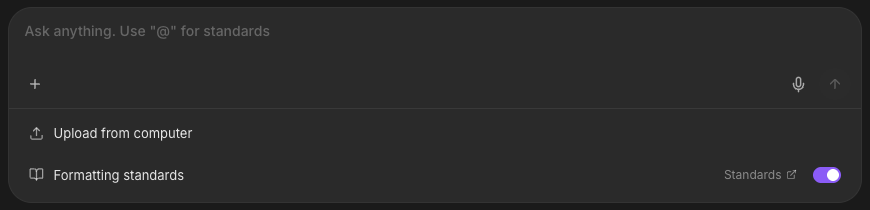
Click the **+** button in the message box. **Formatting standards** shows a toggle, on by default. With it on, the agent reads your Standards folder before it formats anything: no tagging needed in each prompt.
No Standards folder yet? Right-click any folder you can edit in [Files](/how-to/file-management) and choose **Set as Standards Folder**. Organization-wide setups are covered in [Your Standards Folder](/how-to/standards-folder).
Click the **+** button in the message box. **Formatting standards** shows a toggle, on by default. With it on, the agent reads your Standards folder before it formats anything: no tagging needed in each prompt.
 Tell the agent the fields once and keep them:
```text Example: header defaults theme={null}
Use these header fields on all calc sheets for this project:
Project: Office Building Demo
Project number: 24-1042
Calc by: J. Doe, PE
Checked by: R. Roe, PE
Address: 1600 4th Ave, Seattle, WA 98101
Logo: logo.png from the Standards folder.
Save this as a standard.
```
The header block lands in your Standards folder, and future conversations pick it up automatically. The task and the dates change with every calc, so leave those to each request.
***
## Generate the Deliverable
Ask for the calc or report the way you normally would: the header and formatting come from your standards. Set the task per calc, and override any field inline when a sheet needs something different:
```text Example: calc package theme={null}
Create the retaining wall design calcs for the north wall: 10 ft
retained height, level backfill, 120 pcf soil, no surcharge,
ACI 318-19, US units. Project task: North Retaining Wall.
```
```text Example: field report theme={null}
Write up the findings from @Site_Walk_Photos.pdf as a field
observation report on our template, with the standard header.
```
The finished document lands in the chat as a download link and in your [Files area](/how-to/file-management) automatically. The same setup carries to [RFIs and RFAs](/how-to/generate-rfi-rfa): the agent follows the forms it finds in your Standards folder.
***
## One-Off Formats
For a client format you will use once, skip the Standards folder: attach the template with the **+** button and reference it in the prompt.
```text Example theme={null}
@Client_Report_Template.docx Use this template for this report
instead of our standard format.
```
Attachments and tagging are covered in [Using the Chat Input](/how-to/chat-input) and [Mentions & Attachments](/how-to/mentions).
***
## Next Steps
Where the logo and templates live, and how the agent uses them
[Standards Folder guide](/how-to/standards-folder)
The calc package that wears this header
[Mathcad Calc Sheets guide](/workflows/mathcad-calc-sheets)
Workbooks with the same header rows built in
[Excel Spreadsheets guide](/workflows/excel-spreadsheets)
The brief that fills the sheet under the header
[Design Checks guide](/workflows/design-checks)
**Questions?** Email **[support@stru.ai](mailto:support@stru.ai)** or [book a call](https://cal.com/bhosh).
Tell the agent the fields once and keep them:
```text Example: header defaults theme={null}
Use these header fields on all calc sheets for this project:
Project: Office Building Demo
Project number: 24-1042
Calc by: J. Doe, PE
Checked by: R. Roe, PE
Address: 1600 4th Ave, Seattle, WA 98101
Logo: logo.png from the Standards folder.
Save this as a standard.
```
The header block lands in your Standards folder, and future conversations pick it up automatically. The task and the dates change with every calc, so leave those to each request.
***
## Generate the Deliverable
Ask for the calc or report the way you normally would: the header and formatting come from your standards. Set the task per calc, and override any field inline when a sheet needs something different:
```text Example: calc package theme={null}
Create the retaining wall design calcs for the north wall: 10 ft
retained height, level backfill, 120 pcf soil, no surcharge,
ACI 318-19, US units. Project task: North Retaining Wall.
```
```text Example: field report theme={null}
Write up the findings from @Site_Walk_Photos.pdf as a field
observation report on our template, with the standard header.
```
The finished document lands in the chat as a download link and in your [Files area](/how-to/file-management) automatically. The same setup carries to [RFIs and RFAs](/how-to/generate-rfi-rfa): the agent follows the forms it finds in your Standards folder.
***
## One-Off Formats
For a client format you will use once, skip the Standards folder: attach the template with the **+** button and reference it in the prompt.
```text Example theme={null}
@Client_Report_Template.docx Use this template for this report
instead of our standard format.
```
Attachments and tagging are covered in [Using the Chat Input](/how-to/chat-input) and [Mentions & Attachments](/how-to/mentions).
***
## Next Steps
Where the logo and templates live, and how the agent uses them
[Standards Folder guide](/how-to/standards-folder)
The calc package that wears this header
[Mathcad Calc Sheets guide](/workflows/mathcad-calc-sheets)
Workbooks with the same header rows built in
[Excel Spreadsheets guide](/workflows/excel-spreadsheets)
The brief that fills the sheet under the header
[Design Checks guide](/workflows/design-checks)
**Questions?** Email **[support@stru.ai](mailto:support@stru.ai)** or [book a call](https://cal.com/bhosh).