> ## Documentation Index
> Fetch the complete documentation index at: https://docs.stru.ai/llms.txt
> Use this file to discover all available pages before exploring further.
# Structural Agent
> Generate calculation packages, check designs against code, build spreadsheets, and draft engineering documents with the Structural Agent
## Overview
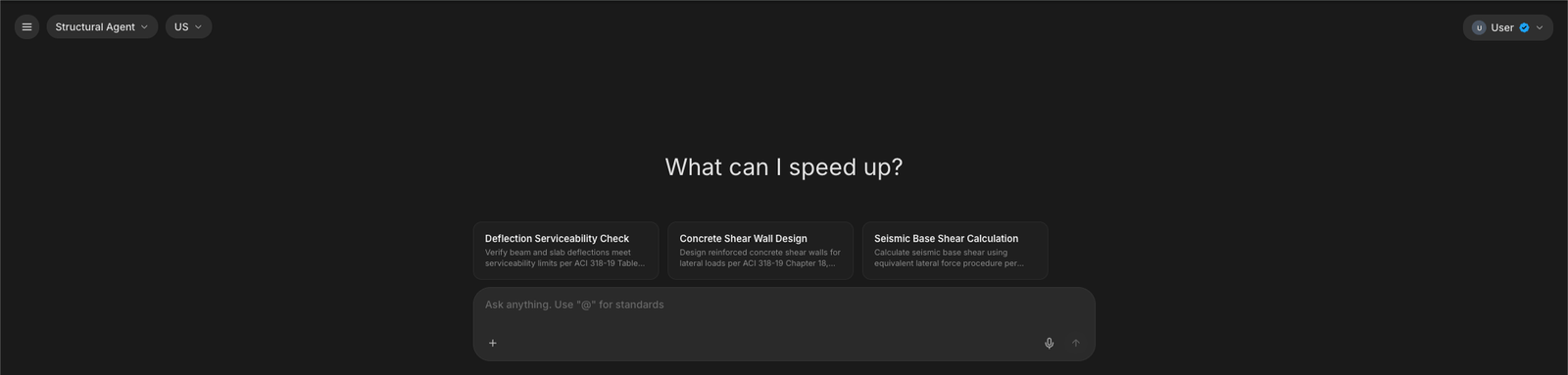
The **Structural Agent** is the general-purpose engineering assistant in Stru AI, and the agent you start on when you open [app.stru.ai](https://app.stru.ai). Describe the task, attach or tag the files it needs, and the agent researches, calculates, and builds the deliverable.
An *agent* is an AI assistant that does the work, not just the talking: it reads your files, searches design codes, runs calculations, and produces documents (calc sheets, spreadsheets, PDFs) you download and use.
 **You are the engineer of record.** The agent drafts and calculates; you review and take responsibility. Check the code references and the numbers before anything leaves your desk. Every calc sheet is laid out to be checked line by line.
***
## What Can You Do With It?
Describe a design check (a beam, a weld, a base plate) and get a formatted, unit-aware calc sheet to download and check
Ask code questions and get answers backed by the cited clause: ACI, AISC, ASCE, and regional standards
Generate a new Excel workbook, or upload your company's existing sheet and have the agent explain or extend it
Give a project address and get wind, seismic, snow, and other design parameters for your risk category and site class
Point it at a drawing sheet and get a ready-to-review RFI or RFA as a PDF: see the [step-by-step guide](/how-to/generate-rfi-rfa)
Keep your templates in your [Standards folder](/how-to/standards-folder) and the agent follows your company's formatting automatically
***
## Getting Started
Go to [app.stru.ai](https://app.stru.ai). The Structural Agent is the default. Confirm which agent is active in the dropdown at the top-left corner.
**You are the engineer of record.** The agent drafts and calculates; you review and take responsibility. Check the code references and the numbers before anything leaves your desk. Every calc sheet is laid out to be checked line by line.
***
## What Can You Do With It?
Describe a design check (a beam, a weld, a base plate) and get a formatted, unit-aware calc sheet to download and check
Ask code questions and get answers backed by the cited clause: ACI, AISC, ASCE, and regional standards
Generate a new Excel workbook, or upload your company's existing sheet and have the agent explain or extend it
Give a project address and get wind, seismic, snow, and other design parameters for your risk category and site class
Point it at a drawing sheet and get a ready-to-review RFI or RFA as a PDF: see the [step-by-step guide](/how-to/generate-rfi-rfa)
Keep your templates in your [Standards folder](/how-to/standards-folder) and the agent follows your company's formatting automatically
***
## Getting Started
Go to [app.stru.ai](https://app.stru.ai). The Structural Agent is the default. Confirm which agent is active in the dropdown at the top-left corner.
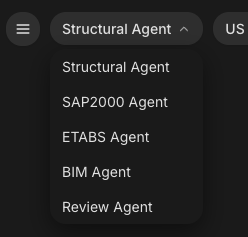 The selector next to the agent name sets which family of building codes the agent works from: US, Eurocode, Australia/NZ, Canada, Philippines, or Singapore. This also filters which code documents appear when you type **@** in the message box.
 Type what you need in the message box, or use one of the suggestion cards to see what a good prompt looks like. Attach the files the agent should work from (drawings, spreadsheets, reports) with the **+** button or by dragging them onto the page. The [Using the Chat Input](/how-to/chat-input) guide covers every way to get files and instructions in.
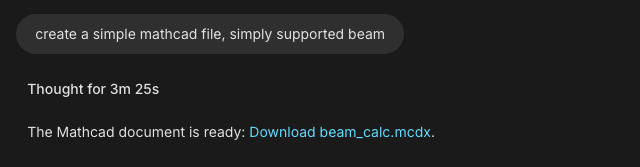
The agent shows its progress while it works. You'll see a step list for longer tasks. Documents it builds open live in the [Canvas](/how-to/canvas) beside the chat, and finished files come back as download links. Everything is also saved to your [Files area](/how-to/file-management) automatically.
Type what you need in the message box, or use one of the suggestion cards to see what a good prompt looks like. Attach the files the agent should work from (drawings, spreadsheets, reports) with the **+** button or by dragging them onto the page. The [Using the Chat Input](/how-to/chat-input) guide covers every way to get files and instructions in.
The agent shows its progress while it works. You'll see a step list for longer tasks. Documents it builds open live in the [Canvas](/how-to/canvas) beside the chat, and finished files come back as download links. Everything is also saved to your [Files area](/how-to/file-management) automatically.
 ***
## Common Workflows
### Get a code-backed answer
Ask the question the way you'd ask a colleague, and name the code if you have one in mind:
```text Example theme={null}
What's the minimum development length for a #6 bottom bar,
uncoated, normalweight 4000 psi concrete, per ACI 318-19?
State the modification factors you assume and show the calculation.
```
The agent answers with the governing clause cited (here, ACI 318-19 §25.4.2) and lists the modification factors it applied: bar location, coating, lightweight concrete, spacing and cover. Development length depends on all of them, so the assumptions are stated where you can check them.
Type **@** in the message box to tag a specific code document directly. The [Mentions guide](/how-to/mentions) shows how the picker works.
### Build a calculation package
Describe the element, the loads, and the check you need:
```text Example theme={null}
Create a fillet weld capacity calc: E70XX electrode, 1/4 in leg,
10 in weld length, 35 kip required shear. LRFD per AISC 360-22.
```
The agent drafts the calc sheet live in the Canvas beside the chat, where you can watch each section appear: project reference, code references, calculations, and the final design check.
***
## Common Workflows
### Get a code-backed answer
Ask the question the way you'd ask a colleague, and name the code if you have one in mind:
```text Example theme={null}
What's the minimum development length for a #6 bottom bar,
uncoated, normalweight 4000 psi concrete, per ACI 318-19?
State the modification factors you assume and show the calculation.
```
The agent answers with the governing clause cited (here, ACI 318-19 §25.4.2) and lists the modification factors it applied: bar location, coating, lightweight concrete, spacing and cover. Development length depends on all of them, so the assumptions are stated where you can check them.
Type **@** in the message box to tag a specific code document directly. The [Mentions guide](/how-to/mentions) shows how the picker works.
### Build a calculation package
Describe the element, the loads, and the check you need:
```text Example theme={null}
Create a fillet weld capacity calc: E70XX electrode, 1/4 in leg,
10 in weld length, 35 kip required shear. LRFD per AISC 360-22.
```
The agent drafts the calc sheet live in the Canvas beside the chat, where you can watch each section appear: project reference, code references, calculations, and the final design check.
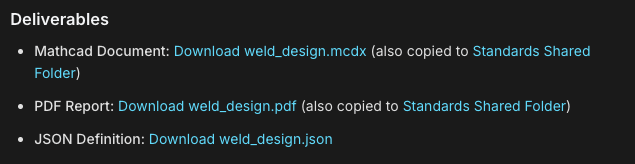
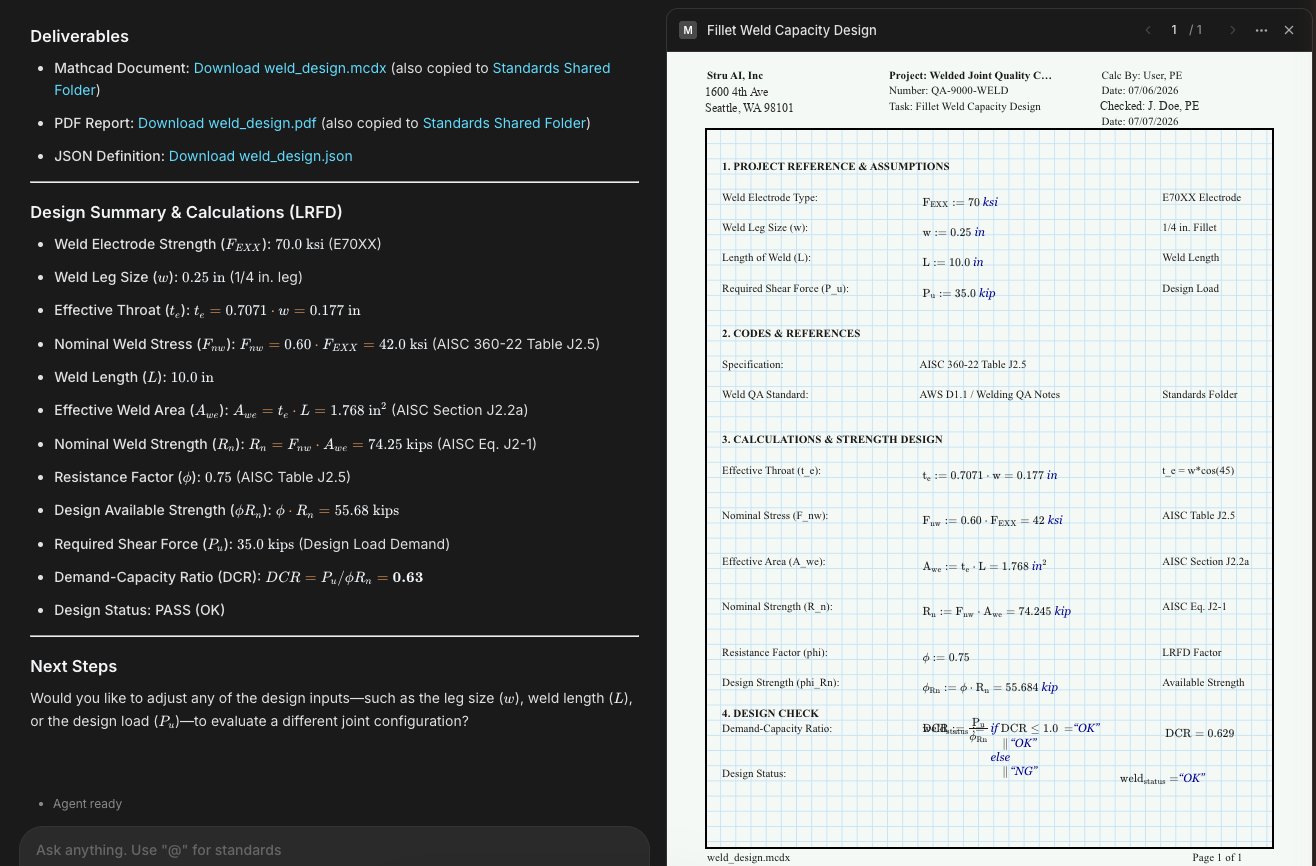 When it finishes, the deliverables arrive as download links in the chat: the calc file itself, a PDF report, and supporting files.
 ### Work with spreadsheets
The agent builds new Excel workbooks and reads the ones you already have:
```text Create a new workbook theme={null}
Build a spreadsheet that checks bearing capacity for a strip
footing: inputs for width, depth, soil friction angle, and
cohesion, with the Terzaghi factors calculated.
```
```text Analyze an existing one theme={null}
@Retaining_Wall_Design.xlsx Walk me through this spreadsheet.
What are the inputs, what does it check, and are there any
formulas that look off?
```
### Look up site hazard data
```text Example theme={null}
Get the wind and seismic design parameters for 1600 4th Ave,
Seattle, WA 98101. Risk Category II, Site Class D.
```
The agent returns the design parameters for the location, ready to feed into your load calcs.
### Draft an RFI or RFA from a drawing
Tag the drawing sheet, describe the question or proposed change, and the agent reads the sheet and drafts the document as a PDF. This workflow has its own walkthrough: [Generate RFIs & RFAs](/how-to/generate-rfi-rfa).
***
## Tips for Better Results
Name the element, the loads, the material, and the code edition. "Check this beam" gets a generic answer; "check this W16x40, 28 ft span, 1.2 klf total factored load, A992, AISC 360-22 LRFD" gets a real calc.
The agent reads drawings, specs, and spreadsheets. Give it the actual document instead of describing it from memory. Files already in your Files area can be tagged with **@** so you never upload the same sheet twice.
If your company has a calc-sheet format, report boilerplate, or QA notes, put them in your [Standards folder](/how-to/standards-folder). With **Formatting standards** switched on in the **+** menu, the agent follows them automatically.
Bigger deliverables take several minutes. The agent shows a task list and progress while it works. You can keep typing follow-ups; press Enter and they'll be answered as soon as the current task finishes.
The agent drafts and calculates; you review. Check the code references and the numbers before anything leaves your desk. Every calc sheet is laid out so it can be checked line by line.
***
## FAQ
Every conversation gets its own folder under **Documents** in your Files area, and generated deliverables land there automatically. See [File Management](/how-to/file-management) for how the folders are organized.
A built-in library of design standards covering the regions in the design standard selector. Type **@** in the message box to see the exact documents and editions available for your selected region; that list is the source of truth. Every answer cites the clause it used, so you can verify against the code text.
Yes. Anything you upload or keep in your [Standards folder](/how-to/standards-folder) works: templates, past calcs, QA checklists, marked-up drawings.
The Structural Agent is the generalist. For driving ETABS or SAP2000 on your desktop, use the [ETABS & SAP2000 Agents](/platform-guides/etabs-sap2000-agents); for IFC/Revit model work, the [BIM Agent](/platform-guides/bim-agent); for Q\&A over a drawing set, the [Review Agent](/platform-guides/review-agent).
***
## Next Steps
Every way to type, dictate, and attach files
[Read the guide](/how-to/chat-input)
The live workspace where your documents take shape
[Read the guide](/how-to/canvas)
Turn a drawing sheet into a ready-to-send RFI or RFA
[Read the guide](/how-to/generate-rfi-rfa)
Make the agent follow your company's formats
[Read the guide](/how-to/standards-folder)
**Questions?** Email **[support@stru.ai](mailto:support@stru.ai)** or [book a call](https://cal.com/bhosh).
### Work with spreadsheets
The agent builds new Excel workbooks and reads the ones you already have:
```text Create a new workbook theme={null}
Build a spreadsheet that checks bearing capacity for a strip
footing: inputs for width, depth, soil friction angle, and
cohesion, with the Terzaghi factors calculated.
```
```text Analyze an existing one theme={null}
@Retaining_Wall_Design.xlsx Walk me through this spreadsheet.
What are the inputs, what does it check, and are there any
formulas that look off?
```
### Look up site hazard data
```text Example theme={null}
Get the wind and seismic design parameters for 1600 4th Ave,
Seattle, WA 98101. Risk Category II, Site Class D.
```
The agent returns the design parameters for the location, ready to feed into your load calcs.
### Draft an RFI or RFA from a drawing
Tag the drawing sheet, describe the question or proposed change, and the agent reads the sheet and drafts the document as a PDF. This workflow has its own walkthrough: [Generate RFIs & RFAs](/how-to/generate-rfi-rfa).
***
## Tips for Better Results
Name the element, the loads, the material, and the code edition. "Check this beam" gets a generic answer; "check this W16x40, 28 ft span, 1.2 klf total factored load, A992, AISC 360-22 LRFD" gets a real calc.
The agent reads drawings, specs, and spreadsheets. Give it the actual document instead of describing it from memory. Files already in your Files area can be tagged with **@** so you never upload the same sheet twice.
If your company has a calc-sheet format, report boilerplate, or QA notes, put them in your [Standards folder](/how-to/standards-folder). With **Formatting standards** switched on in the **+** menu, the agent follows them automatically.
Bigger deliverables take several minutes. The agent shows a task list and progress while it works. You can keep typing follow-ups; press Enter and they'll be answered as soon as the current task finishes.
The agent drafts and calculates; you review. Check the code references and the numbers before anything leaves your desk. Every calc sheet is laid out so it can be checked line by line.
***
## FAQ
Every conversation gets its own folder under **Documents** in your Files area, and generated deliverables land there automatically. See [File Management](/how-to/file-management) for how the folders are organized.
A built-in library of design standards covering the regions in the design standard selector. Type **@** in the message box to see the exact documents and editions available for your selected region; that list is the source of truth. Every answer cites the clause it used, so you can verify against the code text.
Yes. Anything you upload or keep in your [Standards folder](/how-to/standards-folder) works: templates, past calcs, QA checklists, marked-up drawings.
The Structural Agent is the generalist. For driving ETABS or SAP2000 on your desktop, use the [ETABS & SAP2000 Agents](/platform-guides/etabs-sap2000-agents); for IFC/Revit model work, the [BIM Agent](/platform-guides/bim-agent); for Q\&A over a drawing set, the [Review Agent](/platform-guides/review-agent).
***
## Next Steps
Every way to type, dictate, and attach files
[Read the guide](/how-to/chat-input)
The live workspace where your documents take shape
[Read the guide](/how-to/canvas)
Turn a drawing sheet into a ready-to-send RFI or RFA
[Read the guide](/how-to/generate-rfi-rfa)
Make the agent follow your company's formats
[Read the guide](/how-to/standards-folder)
**Questions?** Email **[support@stru.ai](mailto:support@stru.ai)** or [book a call](https://cal.com/bhosh).