> ## Documentation Index
> Fetch the complete documentation index at: https://docs.stru.ai/llms.txt
> Use this file to discover all available pages before exploring further.
# BIM Agent
> Inspect, tag, cost, and clean up IFC and Revit building models using natural language prompts
## Getting Started
The BIM Agent lets you work with building information models (IFC and Revit files) through conversation. Upload a model, describe what you need, and the agent reads, analyzes, or edits it for you.
Open [app.stru.ai](https://app.stru.ai) and sign in with your email.
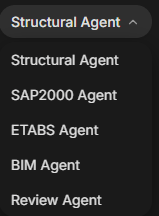
Use the dropdown in the **top-left** corner to choose **BIM Agent**.
 Attach an `.ifc` or `.rvt` file using the **+** button next to the message box. The file appears as a card above your prompt.
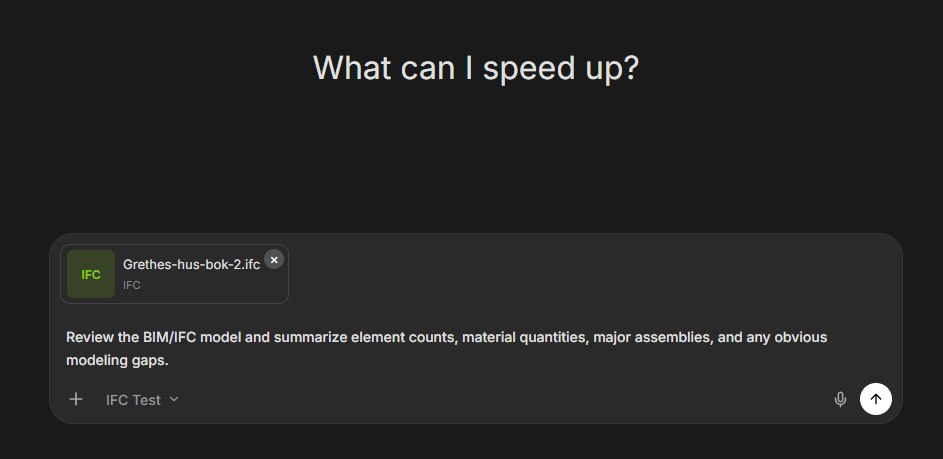 Write your request in plain language — no need to know any file format or query syntax:
```text theme={null}
Review the BIM/IFC model and summarize element counts, material
quantities, major assemblies, and any obvious modeling gaps.
```
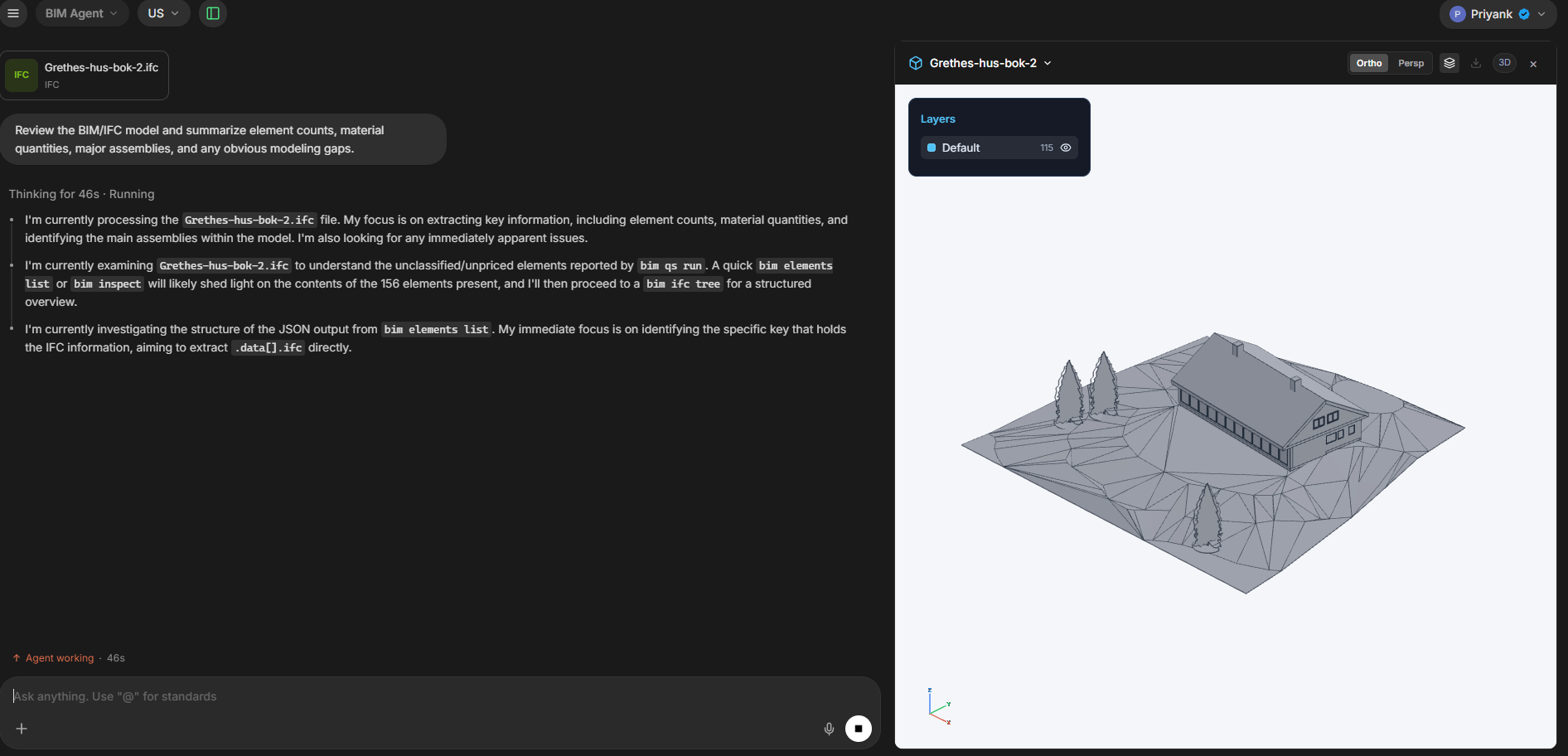
The agent works through the model, shows its reasoning, and renders the 3D geometry alongside its findings. Use **Ortho/Persp** to switch views and the **Layers** panel to isolate categories.
Write your request in plain language — no need to know any file format or query syntax:
```text theme={null}
Review the BIM/IFC model and summarize element counts, material
quantities, major assemblies, and any obvious modeling gaps.
```
The agent works through the model, shows its reasoning, and renders the 3D geometry alongside its findings. Use **Ortho/Persp** to switch views and the **Layers** panel to isolate categories.
 **Pro Tip:** Use **@** to search building codes and standards while writing prompts, just like the ETABS/SAP2000 agents.
***
## IFC vs. Revit: What's Supported
The agent's depth of access depends on the file format you upload.
**Full support** — the agent can read and edit everything:
* Element lists, properties, and spatial hierarchy
* Quantity takeoff and cost estimation
* Data-quality warnings
* Tagging, renaming, and deleting elements
* Batch edits across many elements at once
**File-level facts only**, without a live Revit connection:
* Project/file metadata
* Linked-file references
* Data-quality warnings at the file level
Element-by-element data (counts, properties, geometry edits) requires a live connection to a running Revit session — the agent will tell you clearly when that's needed rather than guessing.
**Working with a Revit model?** The agent can convert it to IFC first (where a converter is configured) to unlock full element-level analysis, editing, and costing — just ask: *"Convert this Revit file to IFC so we can dig into the elements."*
***
## What the BIM Agent Can Do
Summarize a model's spatial tree, element counts, properties, and material breakdown. Spot missing data, unclassified elements, and modeling gaps.
Run per-element quantity takeoffs (areas, volumes, lengths) and roll them up into a priced bill of quantities, broken down by storey or element type.
Set or fix properties (fire ratings, classifications, names) on one element or hundreds at once, as a single all-or-nothing batch.
Surface deterministic warnings — missing properties, unclassified elements, orphaned geometry — before they become downstream problems.
Compare two versions of a model to see what changed: element counts, quantities, or newly introduced warnings.
Ask open-ended questions the standard summaries don't cover — the agent writes and runs the analysis behind the scenes and reports back the answer, not the code.
**Nothing is ever silently changed or fabricated.** The agent asks before saving changes, tells you exactly what it modified, and reports missing data as "unavailable" rather than guessing a number.
***
## Writing Effective Prompts
### The Golden Rule
**Either be specific OR explicitly give the agent discretion.** Avoid vague prompts.
```text ✅ Good: Be Specific theme={null}
Set the FireRating property to "2HR" on every beam under
Pset_BeamCommon. Show me the list of beams you'll update
before saving.
```
```text ✅ Good: Give Discretion theme={null}
Review this model for data quality issues and use your
judgment on what's worth flagging — focus on anything that
would block a quantity takeoff.
```
```text ❌ Bad: Vague theme={null}
Fix the model.
```
### Key Prompt Elements
If you're uploading a Revit file but only need file-level facts, say so — it avoids the agent reaching for element-level data it can't get offline:
✅ "This is a Revit file — just pull the project metadata and linked files for now."
For large tagging or costing jobs, work incrementally:
```text theme={null}
First, list all beams missing a fire rating.
[Review the list]
Now tag all of them with FireRating = 2HR.
[Confirm]
Finally, run a cost estimate on the updated model.
```
For edits you want to double-check first:
✅ "Show me what would change, but don't save yet."
✅ "Once I confirm, save this as a new file rather than overwriting the original."
***
## Common Use Cases
### Model Summary
```text theme={null}
Review this IFC model and summarize element counts, material
quantities, major assemblies, and any obvious modeling gaps.
```
### Spatial Breakdown
```text theme={null}
Show me the building's spatial hierarchy — sites, buildings,
storeys, and spaces — and how many elements live in each storey.
```
### Finding Specific Elements
```text theme={null}
List every beam on Level 2, along with their sections and
lengths.
```
### Data Quality Sweep
```text theme={null}
Check this model for data quality issues — missing properties,
unclassified elements, or anything that would block a cost
estimate.
```
### Single Element Fix
```text theme={null}
Set the fire rating on beam ID 151 to 2HR under
Pset_BeamCommon, and rename it to "Exterior Beam A".
```
### Batch Tagging
```text theme={null}
Find every beam missing a fire rating and set it to 2HR.
Show me the full list of affected beams before you save.
```
### Cleaning Up Orphaned Elements
```text theme={null}
Find any elements that look duplicated or disconnected from
the spatial hierarchy, and remove them. Don't touch anything
that still contains other elements — flag those instead.
```
### Renaming for Consistency
```text theme={null}
Rename all columns to follow the pattern "Column--"
based on their location, and show me the before/after mapping.
```
### Quantity Takeoff
```text theme={null}
Run a quantity takeoff on all beams and columns — I need areas,
volumes, and lengths per element.
```
### Full Cost Estimate
```text theme={null}
Generate a priced bill of quantities for this model using
MasterFormat classification, broken down by storey and
element type. Flag anything without a rate.
```
### Classification Check
```text theme={null}
Classify every element in this model under Uniclass and tell
me which ones don't have a clear classification.
```
***
## Advanced Usage
### Batch Operations
Describe the whole batch in one prompt — the agent treats it as one all-or-nothing change, so a problem with one element doesn't leave the model half-edited:
```text theme={null}
Tag beams 151, 162, and 178 with FireRating = 2HR under
Pset_BeamCommon, and rename beam 151 to "Exterior Beam A".
Apply all of these together, and if any one of them fails,
don't save any of the changes.
```
### Study and Compare Models
```text theme={null}
Compare 'Design_A.ifc' and 'Design_B.ifc':
1. Element count differences by type
2. Material quantity differences
3. Any new data-quality warnings introduced in Design_B
```
**Use cases:** Track changes between design revisions, verify a consultant's model matches expectations, or audit what changed after a coordination pass.
### Convert Between Formats
```text theme={null}
Convert 'Building_Model.rvt' to IFC so we can run a full
quantity takeoff and check for data quality issues.
```
### Ad-Hoc Questions
When a standard summary doesn't answer your question, just ask — the agent figures out how to get the answer:
```text theme={null}
How many exterior wall types are in this model, and what's
the total exterior wall area?
```
```text theme={null}
Are there any spaces without a defined area? List them by name.
```
***
## Best Practices
**Start broad, then narrow**
Ask for a full summary first, then drill into specific categories or storeys once you know what's there.
**Ask about gaps, not just what exists**
*"What's missing or unclassified in this model?"* often surfaces more useful information than a plain element count.
**Preview before you commit**
*"Show me what would change, but don't save yet"* lets you catch mistakes before they're written.
**Save to a new file when in doubt**
✅ *"Save this as 'Tagged\_Model.ifc' rather than overwriting the original"*
**Be explicit about scope**
✅ *"Tag only the beams on Level 2, not the whole building"*
❌ *"Tag some beams"*
**Run a takeoff before pricing**
Ask for quantities first so you can sanity-check them before the agent rolls them into a priced estimate.
**Specify the classification system**
✅ *"Use MasterFormat"* or *"Use Uniclass"* — the agent will otherwise pick a sensible default, but naming it avoids surprises.
**Ask what's missing, not just the total**
✅ *"What elements don't have a rate, and how much of the total do they represent?"*
***
## Troubleshooting
This is expected for Revit files opened offline — element lists, properties, and geometry edits need a live Revit connection. The agent will tell you this rather than guessing. Ask for file-level metadata instead, or request a conversion to IFC for full access.
The agent won't delete a spatial container (like a storey or space) that still holds other elements, since that would silently orphan its contents. Ask it to first move or delete the contained elements, or confirm you want the whole branch removed.
The agent never overwrites a file silently. Give it a new file name, or explicitly confirm you want to update the existing model in place.
Batch edits are all-or-nothing — if one item in the batch fails, none of the changes are saved. Ask the agent what failed and why, fix that item, and re-run the batch.
The agent never fabricates a quantity or rate — if something is missing, it shows up as "unavailable" or as an exception in the estimate, not a silent zero. Ask *"What's missing from this estimate?"* to see the gaps directly.
***
## Real-World Workflow
```text theme={null}
Review this model and summarize element counts, material
quantities, and any data quality issues.
```
*Agent reports element counts by type, flags 23 beams missing a fire rating.*
```text theme={null}
List the 23 beams missing a fire rating, with their IDs
and locations.
```
*Agent returns the list with IDs, levels, and coordinates.*
```text theme={null}
Tag all 23 of those beams with FireRating = 2HR under
Pset_BeamCommon. Show me the change set before saving,
then save as 'Model_Tagged.ifc'.
```
*Agent previews the batch, confirms, and saves the new file.*
```text theme={null}
Re-check the tagged model for data quality issues — confirm
no beams are still missing a fire rating.
```
*Agent confirms the gap is closed.*
```text theme={null}
Run a quantity takeoff on the tagged model, then generate a
priced bill of quantities using MasterFormat, broken down
by storey.
```
*Agent runs the takeoff, classifies elements, and returns a priced BOQ with any coverage gaps flagged.*
***
## Tips for Success
* **Start with a summary** - Get the lay of the land before diving into edits or costing
* **Preview before saving** - Ask the agent to show you the change set first for anything non-trivial
* **Batch related edits** - Group similar tagging or property changes into one request so they apply as a single transaction
* **Name your outputs** - Tell the agent what to call the saved file so you can track revisions
* **Ask "what's missing"** - Gaps and warnings are often more actionable than raw counts
***
## Next Steps
Upload an IFC model and ask for a full review
[Go to app.stru.ai](https://app.stru.ai)
Take a model from quantity takeoff to a priced bill of quantities
Find and fix missing properties or unclassified elements in bulk
Upload two versions of a model and see what changed
Convert a Revit model to IFC to unlock full element-level analysis
Use **@** in prompts to search relevant standards
**Questions?** Email **[support@stru.ai](mailto:support@stru.ai)** or [book a call](https://cal.com/bhosh) to discuss your use case.
**Pro Tip:** Use **@** to search building codes and standards while writing prompts, just like the ETABS/SAP2000 agents.
***
## IFC vs. Revit: What's Supported
The agent's depth of access depends on the file format you upload.
**Full support** — the agent can read and edit everything:
* Element lists, properties, and spatial hierarchy
* Quantity takeoff and cost estimation
* Data-quality warnings
* Tagging, renaming, and deleting elements
* Batch edits across many elements at once
**File-level facts only**, without a live Revit connection:
* Project/file metadata
* Linked-file references
* Data-quality warnings at the file level
Element-by-element data (counts, properties, geometry edits) requires a live connection to a running Revit session — the agent will tell you clearly when that's needed rather than guessing.
**Working with a Revit model?** The agent can convert it to IFC first (where a converter is configured) to unlock full element-level analysis, editing, and costing — just ask: *"Convert this Revit file to IFC so we can dig into the elements."*
***
## What the BIM Agent Can Do
Summarize a model's spatial tree, element counts, properties, and material breakdown. Spot missing data, unclassified elements, and modeling gaps.
Run per-element quantity takeoffs (areas, volumes, lengths) and roll them up into a priced bill of quantities, broken down by storey or element type.
Set or fix properties (fire ratings, classifications, names) on one element or hundreds at once, as a single all-or-nothing batch.
Surface deterministic warnings — missing properties, unclassified elements, orphaned geometry — before they become downstream problems.
Compare two versions of a model to see what changed: element counts, quantities, or newly introduced warnings.
Ask open-ended questions the standard summaries don't cover — the agent writes and runs the analysis behind the scenes and reports back the answer, not the code.
**Nothing is ever silently changed or fabricated.** The agent asks before saving changes, tells you exactly what it modified, and reports missing data as "unavailable" rather than guessing a number.
***
## Writing Effective Prompts
### The Golden Rule
**Either be specific OR explicitly give the agent discretion.** Avoid vague prompts.
```text ✅ Good: Be Specific theme={null}
Set the FireRating property to "2HR" on every beam under
Pset_BeamCommon. Show me the list of beams you'll update
before saving.
```
```text ✅ Good: Give Discretion theme={null}
Review this model for data quality issues and use your
judgment on what's worth flagging — focus on anything that
would block a quantity takeoff.
```
```text ❌ Bad: Vague theme={null}
Fix the model.
```
### Key Prompt Elements
If you're uploading a Revit file but only need file-level facts, say so — it avoids the agent reaching for element-level data it can't get offline:
✅ "This is a Revit file — just pull the project metadata and linked files for now."
For large tagging or costing jobs, work incrementally:
```text theme={null}
First, list all beams missing a fire rating.
[Review the list]
Now tag all of them with FireRating = 2HR.
[Confirm]
Finally, run a cost estimate on the updated model.
```
For edits you want to double-check first:
✅ "Show me what would change, but don't save yet."
✅ "Once I confirm, save this as a new file rather than overwriting the original."
***
## Common Use Cases
### Model Summary
```text theme={null}
Review this IFC model and summarize element counts, material
quantities, major assemblies, and any obvious modeling gaps.
```
### Spatial Breakdown
```text theme={null}
Show me the building's spatial hierarchy — sites, buildings,
storeys, and spaces — and how many elements live in each storey.
```
### Finding Specific Elements
```text theme={null}
List every beam on Level 2, along with their sections and
lengths.
```
### Data Quality Sweep
```text theme={null}
Check this model for data quality issues — missing properties,
unclassified elements, or anything that would block a cost
estimate.
```
### Single Element Fix
```text theme={null}
Set the fire rating on beam ID 151 to 2HR under
Pset_BeamCommon, and rename it to "Exterior Beam A".
```
### Batch Tagging
```text theme={null}
Find every beam missing a fire rating and set it to 2HR.
Show me the full list of affected beams before you save.
```
### Cleaning Up Orphaned Elements
```text theme={null}
Find any elements that look duplicated or disconnected from
the spatial hierarchy, and remove them. Don't touch anything
that still contains other elements — flag those instead.
```
### Renaming for Consistency
```text theme={null}
Rename all columns to follow the pattern "Column--"
based on their location, and show me the before/after mapping.
```
### Quantity Takeoff
```text theme={null}
Run a quantity takeoff on all beams and columns — I need areas,
volumes, and lengths per element.
```
### Full Cost Estimate
```text theme={null}
Generate a priced bill of quantities for this model using
MasterFormat classification, broken down by storey and
element type. Flag anything without a rate.
```
### Classification Check
```text theme={null}
Classify every element in this model under Uniclass and tell
me which ones don't have a clear classification.
```
***
## Advanced Usage
### Batch Operations
Describe the whole batch in one prompt — the agent treats it as one all-or-nothing change, so a problem with one element doesn't leave the model half-edited:
```text theme={null}
Tag beams 151, 162, and 178 with FireRating = 2HR under
Pset_BeamCommon, and rename beam 151 to "Exterior Beam A".
Apply all of these together, and if any one of them fails,
don't save any of the changes.
```
### Study and Compare Models
```text theme={null}
Compare 'Design_A.ifc' and 'Design_B.ifc':
1. Element count differences by type
2. Material quantity differences
3. Any new data-quality warnings introduced in Design_B
```
**Use cases:** Track changes between design revisions, verify a consultant's model matches expectations, or audit what changed after a coordination pass.
### Convert Between Formats
```text theme={null}
Convert 'Building_Model.rvt' to IFC so we can run a full
quantity takeoff and check for data quality issues.
```
### Ad-Hoc Questions
When a standard summary doesn't answer your question, just ask — the agent figures out how to get the answer:
```text theme={null}
How many exterior wall types are in this model, and what's
the total exterior wall area?
```
```text theme={null}
Are there any spaces without a defined area? List them by name.
```
***
## Best Practices
**Start broad, then narrow**
Ask for a full summary first, then drill into specific categories or storeys once you know what's there.
**Ask about gaps, not just what exists**
*"What's missing or unclassified in this model?"* often surfaces more useful information than a plain element count.
**Preview before you commit**
*"Show me what would change, but don't save yet"* lets you catch mistakes before they're written.
**Save to a new file when in doubt**
✅ *"Save this as 'Tagged\_Model.ifc' rather than overwriting the original"*
**Be explicit about scope**
✅ *"Tag only the beams on Level 2, not the whole building"*
❌ *"Tag some beams"*
**Run a takeoff before pricing**
Ask for quantities first so you can sanity-check them before the agent rolls them into a priced estimate.
**Specify the classification system**
✅ *"Use MasterFormat"* or *"Use Uniclass"* — the agent will otherwise pick a sensible default, but naming it avoids surprises.
**Ask what's missing, not just the total**
✅ *"What elements don't have a rate, and how much of the total do they represent?"*
***
## Troubleshooting
This is expected for Revit files opened offline — element lists, properties, and geometry edits need a live Revit connection. The agent will tell you this rather than guessing. Ask for file-level metadata instead, or request a conversion to IFC for full access.
The agent won't delete a spatial container (like a storey or space) that still holds other elements, since that would silently orphan its contents. Ask it to first move or delete the contained elements, or confirm you want the whole branch removed.
The agent never overwrites a file silently. Give it a new file name, or explicitly confirm you want to update the existing model in place.
Batch edits are all-or-nothing — if one item in the batch fails, none of the changes are saved. Ask the agent what failed and why, fix that item, and re-run the batch.
The agent never fabricates a quantity or rate — if something is missing, it shows up as "unavailable" or as an exception in the estimate, not a silent zero. Ask *"What's missing from this estimate?"* to see the gaps directly.
***
## Real-World Workflow
```text theme={null}
Review this model and summarize element counts, material
quantities, and any data quality issues.
```
*Agent reports element counts by type, flags 23 beams missing a fire rating.*
```text theme={null}
List the 23 beams missing a fire rating, with their IDs
and locations.
```
*Agent returns the list with IDs, levels, and coordinates.*
```text theme={null}
Tag all 23 of those beams with FireRating = 2HR under
Pset_BeamCommon. Show me the change set before saving,
then save as 'Model_Tagged.ifc'.
```
*Agent previews the batch, confirms, and saves the new file.*
```text theme={null}
Re-check the tagged model for data quality issues — confirm
no beams are still missing a fire rating.
```
*Agent confirms the gap is closed.*
```text theme={null}
Run a quantity takeoff on the tagged model, then generate a
priced bill of quantities using MasterFormat, broken down
by storey.
```
*Agent runs the takeoff, classifies elements, and returns a priced BOQ with any coverage gaps flagged.*
***
## Tips for Success
* **Start with a summary** - Get the lay of the land before diving into edits or costing
* **Preview before saving** - Ask the agent to show you the change set first for anything non-trivial
* **Batch related edits** - Group similar tagging or property changes into one request so they apply as a single transaction
* **Name your outputs** - Tell the agent what to call the saved file so you can track revisions
* **Ask "what's missing"** - Gaps and warnings are often more actionable than raw counts
***
## Next Steps
Upload an IFC model and ask for a full review
[Go to app.stru.ai](https://app.stru.ai)
Take a model from quantity takeoff to a priced bill of quantities
Find and fix missing properties or unclassified elements in bulk
Upload two versions of a model and see what changed
Convert a Revit model to IFC to unlock full element-level analysis
Use **@** in prompts to search relevant standards
**Questions?** Email **[support@stru.ai](mailto:support@stru.ai)** or [book a call](https://cal.com/bhosh) to discuss your use case.