> ## Documentation Index
> Fetch the complete documentation index at: https://docs.stru.ai/llms.txt
> Use this file to discover all available pages before exploring further.
# Your Standards Folder
> Put your company's templates and formatting guides in one folder, and every deliverable the AI produces comes out your way
## Deliverables in Your Company's Format
Every firm has its own way documents should look: the report cover sheet, the RFI form, the calc-package layout, the title block conventions. The **Standards folder** is how you teach that to Stru once: drop your templates and formatting guides in, and the AI consults them automatically whenever it produces a document for you.
What engineers put in it:
* **RFI / RFA templates**: so a generated RFI follows your form (see [Generate RFIs & RFAs](/how-to/generate-rfi-rfa))
* **Report boilerplate and cover sheets**: calc packages come out looking issued, not generic
* **Formatting guides and checklists**: units conventions, numbering, QA sign-off blocks
* **Representative calculation examples**: "make it look like this one"
The Standards folder is marked with a **book icon** in your file list:
 **Your Standards folder vs. design standards.** The Standards *folder* holds **your own** reference documents. The **Standards** section you see when you type **@** in the chat is different: that is the built-in design-code library (ACI, ASCE, AISC, and regional codes) provided by Stru. This guide is about your folder; the code library is covered in [Mentions & Attachments](/how-to/mentions).
***
## Where It Comes From
* **Organizations**: every organization gets a shared **Standards** folder under the Organization area automatically. The whole team (and the AI) works from one library. By default every member can edit it; see [Sharing & Permissions](/how-to/file-access) to tighten that.
* **Your own designation**: you can point your conversations at any folder you can edit instead: right-click the folder's row in [Files](/how-to/file-management) (on a trackpad: two-finger click, or Control-click) and choose **Set as Standards Folder**. It gets the book icon, and your choice wins over the organization default. Right-click again to remove the designation and fall back to the org folder.
The *pointer* is personal: designating a folder only changes which folder **your** conversations use. The *contents* of a shared folder are shared as usual: if you all point at the org Standards folder, you're all working from the same documents.
No: a folder is exactly one type at a time (see [Folder Types](/how-to/file-management#folder-types)). Disable reviews on a folder before setting it as your Standards folder.
***
## How the AI Uses It
Click the **+** button in the message box. **Formatting standards** has an on/off toggle (it is **on by default**) and links straight to the folder in Files.
**Your Standards folder vs. design standards.** The Standards *folder* holds **your own** reference documents. The **Standards** section you see when you type **@** in the chat is different: that is the built-in design-code library (ACI, ASCE, AISC, and regional codes) provided by Stru. This guide is about your folder; the code library is covered in [Mentions & Attachments](/how-to/mentions).
***
## Where It Comes From
* **Organizations**: every organization gets a shared **Standards** folder under the Organization area automatically. The whole team (and the AI) works from one library. By default every member can edit it; see [Sharing & Permissions](/how-to/file-access) to tighten that.
* **Your own designation**: you can point your conversations at any folder you can edit instead: right-click the folder's row in [Files](/how-to/file-management) (on a trackpad: two-finger click, or Control-click) and choose **Set as Standards Folder**. It gets the book icon, and your choice wins over the organization default. Right-click again to remove the designation and fall back to the org folder.
The *pointer* is personal: designating a folder only changes which folder **your** conversations use. The *contents* of a shared folder are shared as usual: if you all point at the org Standards folder, you're all working from the same documents.
No: a folder is exactly one type at a time (see [Folder Types](/how-to/file-management#folder-types)). Disable reviews on a folder before setting it as your Standards folder.
***
## How the AI Uses It
Click the **+** button in the message box. **Formatting standards** has an on/off toggle (it is **on by default**) and links straight to the folder in Files.
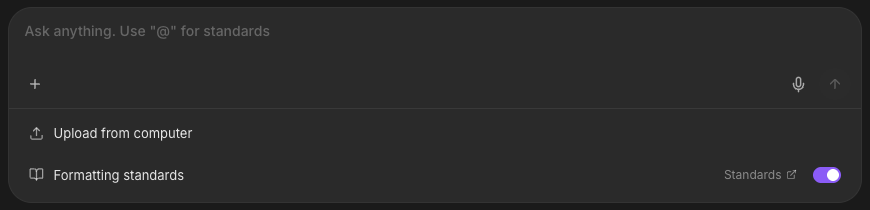 Chat normally: ask the [Structural Agent](/platform-guides/structural-agent) for a report, an [RFI](/how-to/generate-rfi-rfa), a calc sheet. With the toggle on, the agent has your Standards folder as working reference and follows the formats it finds there.
When the agent produces something worth reusing, tell it *"save this as a standard"* and the document lands in your Standards folder for next time.
**Using the same template every time?** Put it in the Standards folder once instead of tagging it in every prompt. For a worked example with an RFI template, see [Generate RFIs & RFAs](/how-to/generate-rfi-rfa#using-your-companys-rfirfa-template).
***
## Keeping It Healthy
**Updates are live edits.** Any Editor can change a template in place, and the whole team (and the AI) sees the new version immediately. There is no version history, and deletions are permanent (see the no-undo rules in [File Management](/how-to/file-management#deleting-read-this-before-you-share)). Keep an offline copy of anything critical, and tighten who can edit via [Sharing & Permissions](/how-to/file-access).
Short and current beats large and stale. A handful of well-chosen templates (report format, RFI form, calc example) outperforms a dump of every document your firm has ever produced. The AI follows what it finds.
Nothing breaks. Organization members fall back to the org Standards folder; individual accounts fall back to none. Your designation resumes automatically if access comes back.
No: deliverables go to your conversation folder or selected project as usual (see [Where Does My File End Up?](/how-to/file-management#where-does-my-file-end-up)). The Standards folder only changes when you explicitly save a standard.
***
## Next Steps
Use a company template from your Standards folder
[RFI & RFA guide](/how-to/generate-rfi-rfa)
Folder types and organization
[File Management guide](/how-to/file-management)
**Questions?** Email **[support@stru.ai](mailto:support@stru.ai)** or [book a call](https://cal.com/bhosh).
Chat normally: ask the [Structural Agent](/platform-guides/structural-agent) for a report, an [RFI](/how-to/generate-rfi-rfa), a calc sheet. With the toggle on, the agent has your Standards folder as working reference and follows the formats it finds there.
When the agent produces something worth reusing, tell it *"save this as a standard"* and the document lands in your Standards folder for next time.
**Using the same template every time?** Put it in the Standards folder once instead of tagging it in every prompt. For a worked example with an RFI template, see [Generate RFIs & RFAs](/how-to/generate-rfi-rfa#using-your-companys-rfirfa-template).
***
## Keeping It Healthy
**Updates are live edits.** Any Editor can change a template in place, and the whole team (and the AI) sees the new version immediately. There is no version history, and deletions are permanent (see the no-undo rules in [File Management](/how-to/file-management#deleting-read-this-before-you-share)). Keep an offline copy of anything critical, and tighten who can edit via [Sharing & Permissions](/how-to/file-access).
Short and current beats large and stale. A handful of well-chosen templates (report format, RFI form, calc example) outperforms a dump of every document your firm has ever produced. The AI follows what it finds.
Nothing breaks. Organization members fall back to the org Standards folder; individual accounts fall back to none. Your designation resumes automatically if access comes back.
No: deliverables go to your conversation folder or selected project as usual (see [Where Does My File End Up?](/how-to/file-management#where-does-my-file-end-up)). The Standards folder only changes when you explicitly save a standard.
***
## Next Steps
Use a company template from your Standards folder
[RFI & RFA guide](/how-to/generate-rfi-rfa)
Folder types and organization
[File Management guide](/how-to/file-management)
**Questions?** Email **[support@stru.ai](mailto:support@stru.ai)** or [book a call](https://cal.com/bhosh).