> ## Documentation Index
> Fetch the complete documentation index at: https://docs.stru.ai/llms.txt
> Use this file to discover all available pages before exploring further.
# Review Pricing & Page Credits
> Know exactly what a Drawing Review costs before you start: per-page pricing, page credits, and organization pools
## Know the Cost Before You Commit
[Drawing Reviews](/how-to/drawing-review) are priced by one simple rule: **you pay per drawing page in scope**. Supporting documents (specs, reports, calculations, images) ride along free as reference material. You always see the full price before a review starts, and nothing runs until you confirm it.
Each drawing page in the review's scope
A review page credit covers one drawing page
Specs and supporting documents aren't billed
**Separate from your plan credits.** Drawing Review is billed with its own **review page credits**. It never draws from the monthly usage credits that power your conversations. Check balances any time in your Usage and Credits pages.
***
## The Quote: What You See Before Starting
The review dialog shows exactly what the run costs before you start it:
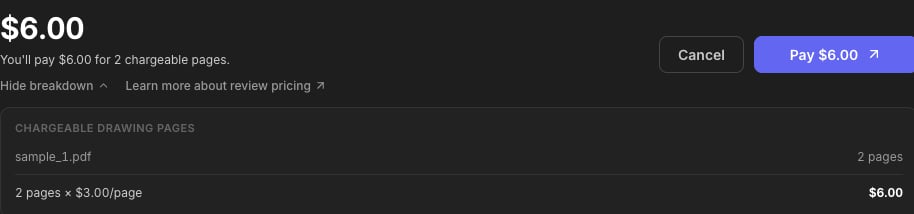 * **Pages in scope**: the page count across the files labeled **Drawing** with their **Include** checkbox on (see [the Drawing Review guide](/how-to/drawing-review#step-by-step)).
* **Credits applied**: page credits from your balance are used first, automatically.
* **Amount due**: if credits don't cover the full scope, the remainder is payable by card: the start button becomes **Pay**, and the review begins once payment confirms.
Expand **Price breakdown** to see per-drawing page counts and how credits were applied.
**Only drawings are billed.** Check the **Category** labels before launching: a spec mislabeled as a Drawing adds pages to the bill. Fixing a label takes two clicks.
***
## Review Page Credits
Page credits are the prepaid currency for reviews:
* **1 credit covers 1 drawing page**, whatever the [review mode](/how-to/review-modes).
* **They never expire.**
* They're applied automatically to every quote before any card payment is requested.
***
## For Organizations
Organizations share a **review page credit pool**, managed by admins from **Organization → Credits**:
* **Pages in scope**: the page count across the files labeled **Drawing** with their **Include** checkbox on (see [the Drawing Review guide](/how-to/drawing-review#step-by-step)).
* **Credits applied**: page credits from your balance are used first, automatically.
* **Amount due**: if credits don't cover the full scope, the remainder is payable by card: the start button becomes **Pay**, and the review begins once payment confirms.
Expand **Price breakdown** to see per-drawing page counts and how credits were applied.
**Only drawings are billed.** Check the **Category** labels before launching: a spec mislabeled as a Drawing adds pages to the bill. Fixing a label takes two clicks.
***
## Review Page Credits
Page credits are the prepaid currency for reviews:
* **1 credit covers 1 drawing page**, whatever the [review mode](/how-to/review-modes).
* **They never expire.**
* They're applied automatically to every quote before any card payment is requested.
***
## For Organizations
Organizations share a **review page credit pool**, managed by admins from **Organization → Credits**:
 * **Buy page credits**: top up the pool at any time.
* **Per-member allocation**: control how much of the shared pool each member can draw. A member who exceeds their allocation can still run reviews by paying by card.
* Reviews launched by members draw from the pool first, then their own balance.
Organization admins see the pool and per-member usage under **Organization → Credits**. For everyone, the review dialog's quote shows exactly how many credits will be applied to the run you're about to start.
No. Pricing is pages × rate regardless of the mode or instructions. See [Review Modes](/how-to/review-modes).
Scope it: flip the **Include** checkbox off for superseded sheets, and split a massive set into per-package folders so each review covers only what you need checked.
Email **[support@stru.ai](mailto:support@stru.ai)** with the review name and the folder it was launched from, and the team will make it right.
***
## Next Steps
Launch your first review
[Drawing Review guide](/how-to/drawing-review)
Pick the review that matches the job
[Review Modes & Instructions](/how-to/review-modes)
**Questions?** Email **[support@stru.ai](mailto:support@stru.ai)** or [book a call](https://cal.com/bhosh).
* **Buy page credits**: top up the pool at any time.
* **Per-member allocation**: control how much of the shared pool each member can draw. A member who exceeds their allocation can still run reviews by paying by card.
* Reviews launched by members draw from the pool first, then their own balance.
Organization admins see the pool and per-member usage under **Organization → Credits**. For everyone, the review dialog's quote shows exactly how many credits will be applied to the run you're about to start.
No. Pricing is pages × rate regardless of the mode or instructions. See [Review Modes](/how-to/review-modes).
Scope it: flip the **Include** checkbox off for superseded sheets, and split a massive set into per-package folders so each review covers only what you need checked.
Email **[support@stru.ai](mailto:support@stru.ai)** with the review name and the folder it was launched from, and the team will make it right.
***
## Next Steps
Launch your first review
[Drawing Review guide](/how-to/drawing-review)
Pick the review that matches the job
[Review Modes & Instructions](/how-to/review-modes)
**Questions?** Email **[support@stru.ai](mailto:support@stru.ai)** or [book a call](https://cal.com/bhosh).