> ## Documentation Index
> Fetch the complete documentation index at: https://docs.stru.ai/llms.txt
> Use this file to discover all available pages before exploring further.
# Review Modes & Instructions
> Pick the review that matches the job: what each of the six Drawing Review modes catches, and how to brief the reviewer for findings you can act on
## Pick the Review That Matches the Job
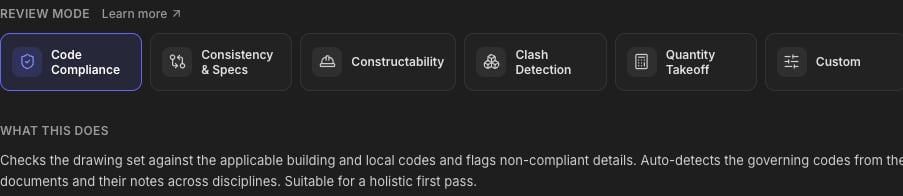
When you [launch a Drawing Review](/how-to/drawing-review), you choose a **review mode**, the kind of check the reviewer runs on your set, and optionally refine it with **additional instructions**. Different points in a project call for different reviews: a code check before issue is not the same job as a constructability pass before bid.
 ***
## The Six Modes, by the Job They Do
**The pre-issue check.** Flags details, notes, and schedules with potential issues against the governing building codes, across disciplines. It surfaces the flags; the compliance call stays with you, the engineer. The default, and the right first pass on most sets.
**The after-revisions check.** Cross-references sheets, details, sections, and callouts against each other and the specifications, catching conflicts, mismatched tags, and references that point nowhere. Run it after a heavy revision cycle.
**Catch the things that become RFIs later.** Reads the set the way the field will, flagging missing dimensions, underspecified details, and conflicting information that would otherwise come back as RFIs during construction. Run it before the set goes out to bid.
**The coordination check on the sheets.** Flags cross-discipline conflicts visible across the drawing set: structure vs. MEP layouts, embeds vs. rebar congestion, equipment vs. stated clearances. It reads the drawings, not a 3D model. For model-based geometric clash detection, use the [BIM Agent](/platform-guides/bim-agent) with your IFC model.
**The estimating job.** Produces quantity schedules from the drawings. Tell it what to quantify and in what units. This mode requires instructions.
**Your scope, your rules.** You define what to check, what to ignore, and what the output should look like. Requires instructions.
**Modes seed the instructions.** Picking a mode pre-fills the review's instructions with that mode's scope. The **What this does** text under the cards tells you exactly what you're getting. You can run it as-is, or edit the instructions to narrow or extend it.
***
## Writing Additional Instructions
The **Additional Instructions** field is how you brief the reviewer. It's optional for most modes and **required** for Quantity Takeoff and Custom. The badge next to the field tells you which.
***
## The Six Modes, by the Job They Do
**The pre-issue check.** Flags details, notes, and schedules with potential issues against the governing building codes, across disciplines. It surfaces the flags; the compliance call stays with you, the engineer. The default, and the right first pass on most sets.
**The after-revisions check.** Cross-references sheets, details, sections, and callouts against each other and the specifications, catching conflicts, mismatched tags, and references that point nowhere. Run it after a heavy revision cycle.
**Catch the things that become RFIs later.** Reads the set the way the field will, flagging missing dimensions, underspecified details, and conflicting information that would otherwise come back as RFIs during construction. Run it before the set goes out to bid.
**The coordination check on the sheets.** Flags cross-discipline conflicts visible across the drawing set: structure vs. MEP layouts, embeds vs. rebar congestion, equipment vs. stated clearances. It reads the drawings, not a 3D model. For model-based geometric clash detection, use the [BIM Agent](/platform-guides/bim-agent) with your IFC model.
**The estimating job.** Produces quantity schedules from the drawings. Tell it what to quantify and in what units. This mode requires instructions.
**Your scope, your rules.** You define what to check, what to ignore, and what the output should look like. Requires instructions.
**Modes seed the instructions.** Picking a mode pre-fills the review's instructions with that mode's scope. The **What this does** text under the cards tells you exactly what you're getting. You can run it as-is, or edit the instructions to narrow or extend it.
***
## Writing Additional Instructions
The **Additional Instructions** field is how you brief the reviewer. It's optional for most modes and **required** for Quantity Takeoff and Custom. The badge next to the field tells you which.
 Brief it like you'd brief a junior engineer doing the review for you:
* **The governing code and edition**: *"Check against IBC 2024 and ACI 318-19"* beats letting the reviewer infer it.
* **Where to focus**: discipline, sheet range, or system: *"structural sheets only,"* *"focus on the podium transfer level."*
* **What a useful finding looks like**: *"flag anything that would require an RFI,"* *"list every detail referencing a spec section that doesn't exist."*
* **The output you want** (Takeoff/Custom): *"a quantity schedule of all structural steel by member size, in tons."*
### Example briefs, mode by mode
```text theme={null}
Check the structural sheets against ACI 318-19 and AISC 360-22.
Prioritize seismic detailing. This is SDC D. Flag any detail
where reinforcement development or splice lengths look short.
```
```text theme={null}
Cross-check every detail callout against the sheets it references.
Compare the foundation schedule on S-201 with the plan callouts,
and flag any spec section references that don't exist in the spec.
```
```text theme={null}
Review from the GC's perspective. Flag missing dimensions,
congested connections, conflicting details, and anything a
steel detailer would need to RFI before shop drawings.
```
```text theme={null}
Produce a takeoff of all cast-in-place concrete by element type
(footings, walls, columns, slabs) in cubic yards, and rebar
tonnage per level based on the schedules.
```
**Vague scope in, vague findings out.** The single biggest upgrade to review quality is naming the code edition and saying what you want flagged.
***
## FAQs
**Code Compliance** for a design review before issue; **Constructability** before the set goes to bid; **Consistency & Specs** after a heavy revision cycle.
Pick the closest mode and extend it in the instructions, e.g. Code Compliance plus *"also flag any callout inconsistencies you notice along the way."* For a fully mixed scope, use **Custom** and describe everything.
No. Pricing is per drawing page in scope, regardless of mode or instructions. See [Review Pricing](/how-to/review-pricing).
Everything in the folder with its **Include** checkbox on: drawings are reviewed page by page, and supporting documents (specs, reports, calcs) are reference context. Labels and scope are covered in the [Drawing Review guide](/how-to/drawing-review#step-by-step).
***
## Next Steps
The full launch-to-results walkthrough
[Drawing Review guide](/how-to/drawing-review)
Per-page pricing and page credits
[Review Pricing guide](/how-to/review-pricing)
**Questions?** Email **[support@stru.ai](mailto:support@stru.ai)** or [book a call](https://cal.com/bhosh).
Brief it like you'd brief a junior engineer doing the review for you:
* **The governing code and edition**: *"Check against IBC 2024 and ACI 318-19"* beats letting the reviewer infer it.
* **Where to focus**: discipline, sheet range, or system: *"structural sheets only,"* *"focus on the podium transfer level."*
* **What a useful finding looks like**: *"flag anything that would require an RFI,"* *"list every detail referencing a spec section that doesn't exist."*
* **The output you want** (Takeoff/Custom): *"a quantity schedule of all structural steel by member size, in tons."*
### Example briefs, mode by mode
```text theme={null}
Check the structural sheets against ACI 318-19 and AISC 360-22.
Prioritize seismic detailing. This is SDC D. Flag any detail
where reinforcement development or splice lengths look short.
```
```text theme={null}
Cross-check every detail callout against the sheets it references.
Compare the foundation schedule on S-201 with the plan callouts,
and flag any spec section references that don't exist in the spec.
```
```text theme={null}
Review from the GC's perspective. Flag missing dimensions,
congested connections, conflicting details, and anything a
steel detailer would need to RFI before shop drawings.
```
```text theme={null}
Produce a takeoff of all cast-in-place concrete by element type
(footings, walls, columns, slabs) in cubic yards, and rebar
tonnage per level based on the schedules.
```
**Vague scope in, vague findings out.** The single biggest upgrade to review quality is naming the code edition and saying what you want flagged.
***
## FAQs
**Code Compliance** for a design review before issue; **Constructability** before the set goes to bid; **Consistency & Specs** after a heavy revision cycle.
Pick the closest mode and extend it in the instructions, e.g. Code Compliance plus *"also flag any callout inconsistencies you notice along the way."* For a fully mixed scope, use **Custom** and describe everything.
No. Pricing is per drawing page in scope, regardless of mode or instructions. See [Review Pricing](/how-to/review-pricing).
Everything in the folder with its **Include** checkbox on: drawings are reviewed page by page, and supporting documents (specs, reports, calcs) are reference context. Labels and scope are covered in the [Drawing Review guide](/how-to/drawing-review#step-by-step).
***
## Next Steps
The full launch-to-results walkthrough
[Drawing Review guide](/how-to/drawing-review)
Per-page pricing and page credits
[Review Pricing guide](/how-to/review-pricing)
**Questions?** Email **[support@stru.ai](mailto:support@stru.ai)** or [book a call](https://cal.com/bhosh).