> ## Documentation Index
> Fetch the complete documentation index at: https://docs.stru.ai/llms.txt
> Use this file to discover all available pages before exploring further.
# Mentions & Attachments (@)
> Tag design codes, files, and whole folders in your message with @. No re-uploading, no copy-pasting.
## Overview
Type **@** in the message box and a picker opens with everything the agent can work from: the built-in **design standards library** (building codes) and **your files** (everything in your [Files area](/how-to/file-management)). Tagging beats re-uploading: the agent gets the exact document and your message stays readable.
The picker has two sections, and they're different things:
Built-in design codes (ACI, AISC, ASCE, and your region's codes), shown in green. Filtered by your [design standard selector](/how-to/chat-input#overview): with US selected, you see the US codes.
Your own drawings, specs, spreadsheets, and folders from the Files area, shown in purple. Browse into folders like a file manager.
Not to be confused with your Standards *folder*. The green **Standards** section is the built-in library of published design codes. Your own [Standards folder](/how-to/standards-folder) (company templates and formatting references) lives in the Files section, and the **Formatting standards** toggle in the [+ menu](/how-to/chat-input#the-formatting-standards-toggle) points the agent at it automatically.
## Using the picker
The picker opens on the **Standards** section, showing design codes matched to your selected design standard:
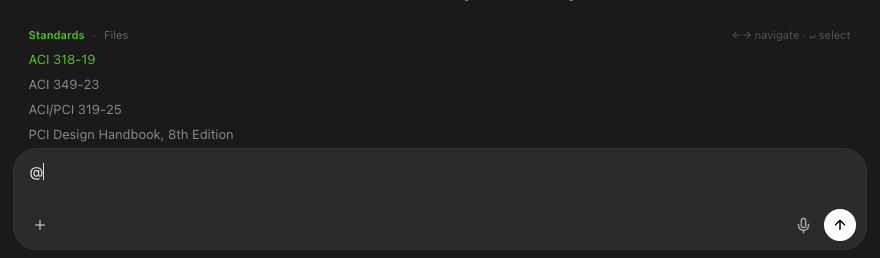 * **↑ / ↓** move the selection.
* **→** switches from Standards to **Files**, and drills *into* a selected folder.
* **←** backs out again.
* **↑ / ↓** move the selection.
* **→** switches from Standards to **Files**, and drills *into* a selected folder.
* **←** backs out again.
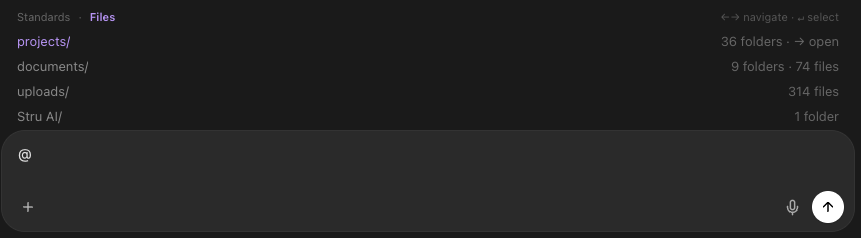 Keep typing after the **@** and the picker searches the current section, including inside subfolders, with the folder path shown next to each match.
The selection becomes a colored chip in your message: green for standards, purple for files and folders. Add as many as you need, and press **Backspace** on a chip to remove the whole thing in one keystroke.
## Tagging a whole folder
Select a folder and press **Enter** instead of drilling into it. The agent gets the folder's contents. Use this when the task spans a document set:
```text Example theme={null}
@Skyline_Tower_Drawings Compare the column schedule against the
foundation plan and list any mismatched sizes.
```
## When to @, when to attach
| Situation | Do this |
| ---------------------------------------------- | ------------------------------------------------------------------------------------------ |
| The file is already in your Files area | **@** it. No re-upload, no duplicate copies. |
| The file is on your computer, not uploaded yet | Attach it: **+** button, drag and drop, or paste ([how](/how-to/chat-input#adding-files)). |
| You need a design code clause | **@** it from the Standards section, or name the code in your prompt. |
| The whole project folder matters | **@** the folder itself. |
Attachments become @-able. Anything you attach is saved into your Files automatically, so next conversation you tag it instead of hunting for the file again. See [File Management](/how-to/file-management) for where attachments land.
## Next steps
The rest of the message box: uploads, dictation, shortcuts.
How your Files area is organized and where attachments go.
Company templates the agent follows automatically.
A real workflow built on @-tagging drawings.
**Questions?** Email **[support@stru.ai](mailto:support@stru.ai)** or [book a call](https://cal.com/bhosh).
Keep typing after the **@** and the picker searches the current section, including inside subfolders, with the folder path shown next to each match.
The selection becomes a colored chip in your message: green for standards, purple for files and folders. Add as many as you need, and press **Backspace** on a chip to remove the whole thing in one keystroke.
## Tagging a whole folder
Select a folder and press **Enter** instead of drilling into it. The agent gets the folder's contents. Use this when the task spans a document set:
```text Example theme={null}
@Skyline_Tower_Drawings Compare the column schedule against the
foundation plan and list any mismatched sizes.
```
## When to @, when to attach
| Situation | Do this |
| ---------------------------------------------- | ------------------------------------------------------------------------------------------ |
| The file is already in your Files area | **@** it. No re-upload, no duplicate copies. |
| The file is on your computer, not uploaded yet | Attach it: **+** button, drag and drop, or paste ([how](/how-to/chat-input#adding-files)). |
| You need a design code clause | **@** it from the Standards section, or name the code in your prompt. |
| The whole project folder matters | **@** the folder itself. |
Attachments become @-able. Anything you attach is saved into your Files automatically, so next conversation you tag it instead of hunting for the file again. See [File Management](/how-to/file-management) for where attachments land.
## Next steps
The rest of the message box: uploads, dictation, shortcuts.
How your Files area is organized and where attachments go.
Company templates the agent follows automatically.
A real workflow built on @-tagging drawings.
**Questions?** Email **[support@stru.ai](mailto:support@stru.ai)** or [book a call](https://cal.com/bhosh).