> ## Documentation Index
> Fetch the complete documentation index at: https://docs.stru.ai/llms.txt
> Use this file to discover all available pages before exploring further.
# Generate RFIs & RFAs from Drawings
> Use the Structural Agent to turn a drawing sheet into a ready-to-send RFI or RFA in PDF format
## Overview
The Structural Agent can read a drawing sheet and draft a **Request for Information (RFI)** or **Request for Approval (RFA)** for you — a ready-to-send PDF that references the relevant details on the sheet. You point it at the drawing, describe the question or the change you want approved, and the agent handles the reading, the writing, and the formatting.
The whole workflow happens in the chat: pick the Structural Agent, attach or tag your drawing, and write your prompt.
***
## Step-by-Step
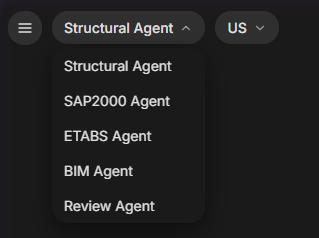
Open [app.stru.ai](https://app.stru.ai) and pick **Structural Agent** from the agent dropdown in the top-left corner.
 Two ways to get your drawing in front of the agent:
* **Upload it** — click the **+** button in the message box and choose **Upload from computer** (or just drag the PDF onto the page).
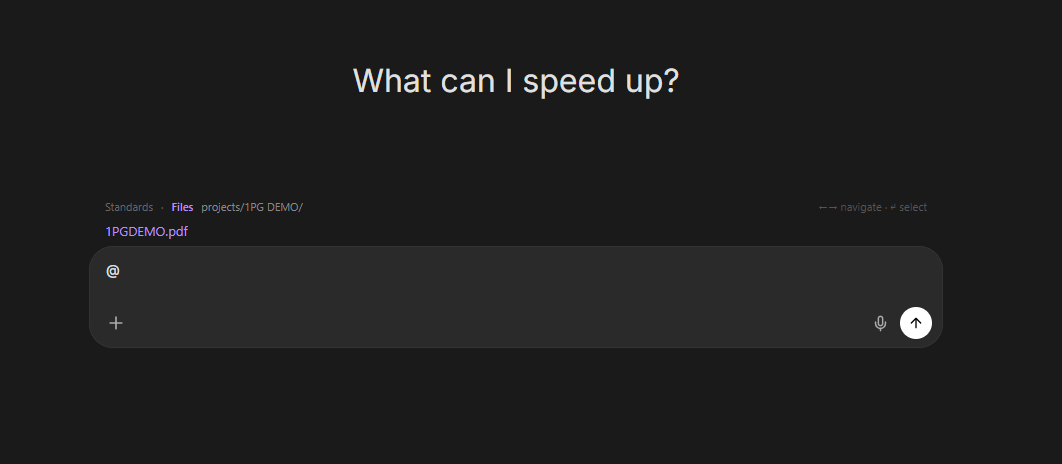
* **Tag an existing file** — if the drawing is already in your Files, type **@** in the message box and pick it. The picker lets you browse your Standards and Files, and navigate into project folders with the arrow keys.
Two ways to get your drawing in front of the agent:
* **Upload it** — click the **+** button in the message box and choose **Upload from computer** (or just drag the PDF onto the page).
* **Tag an existing file** — if the drawing is already in your Files, type **@** in the message box and pick it. The picker lets you browse your Standards and Files, and navigate into project folders with the arrow keys.
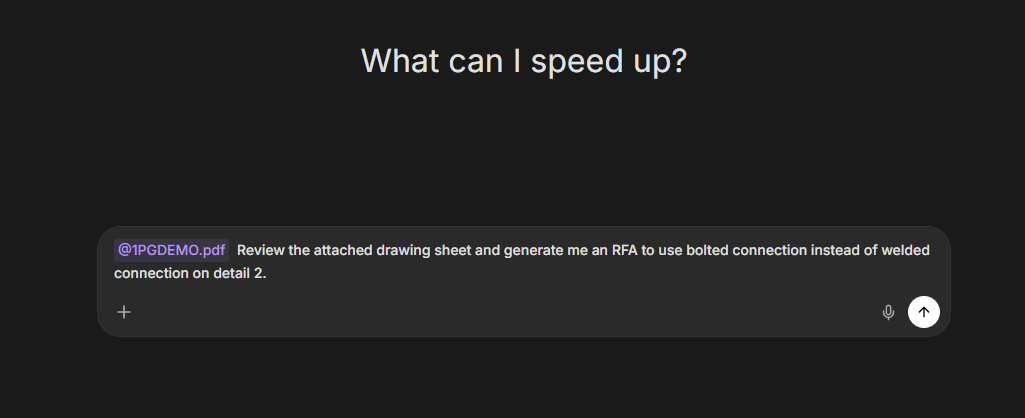
 With the drawing tagged, describe the RFI or RFA you need. Name the sheet, the detail, and the specific question or proposed change:
 ```text Example: RFA (propose a substitution) theme={null}
@1PGDEMO.pdf Review the attached drawing sheet and generate
me an RFA to use bolted connection instead of welded
connection on detail 2.
```
```text Example: RFI (ask for clarification) theme={null}
@1PGDEMO.pdf The base plate thickness on detail 5 conflicts
with the schedule on S-501. Generate an RFI asking the EOR
to confirm which governs.
```
Send the message and let the agent run — it typically takes **around 10 minutes** depending on the task. It reads the drawing, pulls the relevant details, and drafts the document.
The finished RFI or RFA comes back in the conversation as a **PDF**, ready to review and send. It's also saved to the conversation's folder under **Documents** in your Files area.
***
## Using Your Company's RFI/RFA Template
If your company has a standard RFI or RFA format, the agent can follow it instead of its default layout:
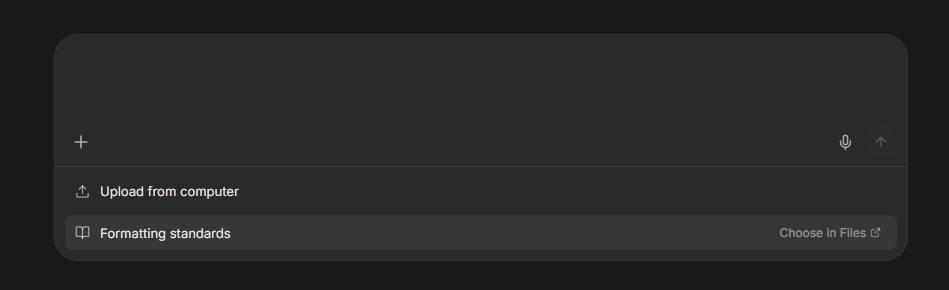
Click the **+** button in the message box and choose **Upload from computer** to add your template.
```text Example: RFA (propose a substitution) theme={null}
@1PGDEMO.pdf Review the attached drawing sheet and generate
me an RFA to use bolted connection instead of welded
connection on detail 2.
```
```text Example: RFI (ask for clarification) theme={null}
@1PGDEMO.pdf The base plate thickness on detail 5 conflicts
with the schedule on S-501. Generate an RFI asking the EOR
to confirm which governs.
```
Send the message and let the agent run — it typically takes **around 10 minutes** depending on the task. It reads the drawing, pulls the relevant details, and drafts the document.
The finished RFI or RFA comes back in the conversation as a **PDF**, ready to review and send. It's also saved to the conversation's folder under **Documents** in your Files area.
***
## Using Your Company's RFI/RFA Template
If your company has a standard RFI or RFA format, the agent can follow it instead of its default layout:
Click the **+** button in the message box and choose **Upload from computer** to add your template.
 Reference the template with **@** alongside the drawing, and tell the agent to follow it:
```text theme={null}
@1PGDEMO.pdf @Company_RFI_Template.pdf Generate an RFI about
the beam-to-column connection on detail 3, following the
attached template format.
```
**Using the same template every time?** Put it in your [Standards folder](/how-to/file-management#the-organization-area-and-standards-folder) instead. With **Formatting standards** switched on in the **+** menu (it's on by default), the agent consults your standards automatically — no need to tag the template in every prompt.
***
## Tips for Better Results
Point the agent at the exact location: *"detail 2 on the attached sheet"* beats *"the connection."* If your drawing set has multiple sheets, name the sheet number too.
An RFA proposes something for approval — give the agent both the substitution and the justification if you have one: *"bolted connection instead of welded, to simplify field erection."* The agent builds the case around it.
Say what's unclear or conflicting and what answer you need: *"confirm which governs"*, *"clarify the intended weld size"*, *"provide the missing dimension."*
The agent drafts the document — you're the engineer of record on what goes out. Check the references, the technical claims, and the project details before it leaves your desk.
***
## Next Steps
Learn where your drawings and generated PDFs live
[File Management guide](/how-to/file-management)
Upload a drawing sheet and generate your first RFI
[app.stru.ai](https://app.stru.ai)
**Questions?** Email **[support@stru.ai](mailto:support@stru.ai)** or [book a call](https://cal.com/bhosh).
Reference the template with **@** alongside the drawing, and tell the agent to follow it:
```text theme={null}
@1PGDEMO.pdf @Company_RFI_Template.pdf Generate an RFI about
the beam-to-column connection on detail 3, following the
attached template format.
```
**Using the same template every time?** Put it in your [Standards folder](/how-to/file-management#the-organization-area-and-standards-folder) instead. With **Formatting standards** switched on in the **+** menu (it's on by default), the agent consults your standards automatically — no need to tag the template in every prompt.
***
## Tips for Better Results
Point the agent at the exact location: *"detail 2 on the attached sheet"* beats *"the connection."* If your drawing set has multiple sheets, name the sheet number too.
An RFA proposes something for approval — give the agent both the substitution and the justification if you have one: *"bolted connection instead of welded, to simplify field erection."* The agent builds the case around it.
Say what's unclear or conflicting and what answer you need: *"confirm which governs"*, *"clarify the intended weld size"*, *"provide the missing dimension."*
The agent drafts the document — you're the engineer of record on what goes out. Check the references, the technical claims, and the project details before it leaves your desk.
***
## Next Steps
Learn where your drawings and generated PDFs live
[File Management guide](/how-to/file-management)
Upload a drawing sheet and generate your first RFI
[app.stru.ai](https://app.stru.ai)
**Questions?** Email **[support@stru.ai](mailto:support@stru.ai)** or [book a call](https://cal.com/bhosh).