> ## Documentation Index
> Fetch the complete documentation index at: https://docs.stru.ai/llms.txt
> Use this file to discover all available pages before exploring further.
# File Management
> How Documents, Projects, Uploads, Organization, and the Standards folder work in the Stru AI Files area
## Overview
This guide covers the **Files area** of the Stru AI web app — how your documents, projects, and uploads are organized, how sharing and permissions work, and how the shared Standards folder operates. Agent workflows (chatting with an agent, selecting a project in the chat) are covered in the [ETABS & SAP2000 Agents guide](/platform-guides/etabs-sap2000-agents).
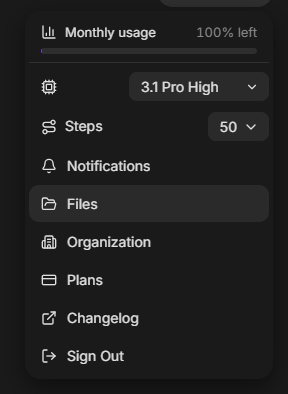 Open **Files** from the account menu in the top-right corner of the app.
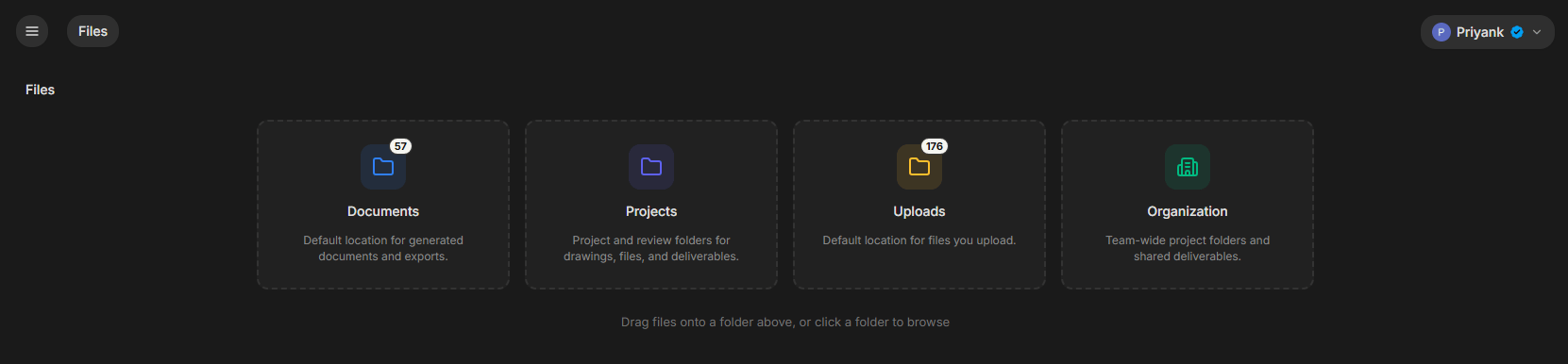 Default location for generated documents and exports — including a folder per conversation (see below)
Your personal project and review folders, where drawings and reviews live
Default location for files you upload outside a project
Team-wide project folders and the shared Standards folder
You can drag files onto any of these cards to upload straight into them.
***
## The Files Home Screen
* **Documents** — the default home for documents the AI generates for you (reports, calc sheets, exports), and where each conversation's own folder lives.
* **Projects** — your personal project folders. This is where drawings live and reviews run.
* **Uploads** — files you upload outside a project.
* **Organization** *(organization accounts only)* — your organization's shared project folders and the shared Standards folder. Everything here is owned by the organization, not by any one person.
Folders and files teammates share directly with you appear under **Shared with me**.
Under **Shared with me**. Personal folders and single files that teammates share with you land there.
If you're online when it happens, you get a live in-app notification right away. If you weren't, you'll see it the next time you log in instead, along with an unread badge for shares you haven't seen yet. Organization-wide projects don't appear here — those live under **Organization**, since everyone in the org already has them. Removing someone's access is silent — they simply lose access without a notification.
***
## Projects: Creating and Organizing Folders
Click **+ New Folder** in the top right to create a folder. Right-clicking a folder gives you the quick actions — **Manage Access**, **Rename**, **Enable Reviews** / **Disable Reviews**, **Set as Standards Folder**, and **Delete**:
Default location for generated documents and exports — including a folder per conversation (see below)
Your personal project and review folders, where drawings and reviews live
Default location for files you upload outside a project
Team-wide project folders and the shared Standards folder
You can drag files onto any of these cards to upload straight into them.
***
## The Files Home Screen
* **Documents** — the default home for documents the AI generates for you (reports, calc sheets, exports), and where each conversation's own folder lives.
* **Projects** — your personal project folders. This is where drawings live and reviews run.
* **Uploads** — files you upload outside a project.
* **Organization** *(organization accounts only)* — your organization's shared project folders and the shared Standards folder. Everything here is owned by the organization, not by any one person.
Folders and files teammates share directly with you appear under **Shared with me**.
Under **Shared with me**. Personal folders and single files that teammates share with you land there.
If you're online when it happens, you get a live in-app notification right away. If you weren't, you'll see it the next time you log in instead, along with an unread badge for shares you haven't seen yet. Organization-wide projects don't appear here — those live under **Organization**, since everyone in the org already has them. Removing someone's access is silent — they simply lose access without a notification.
***
## Projects: Creating and Organizing Folders
Click **+ New Folder** in the top right to create a folder. Right-clicking a folder gives you the quick actions — **Manage Access**, **Rename**, **Enable Reviews** / **Disable Reviews**, **Set as Standards Folder**, and **Delete**:
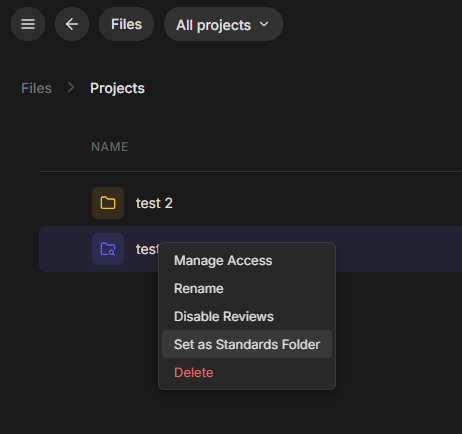 Click **+ New Folder** in the top right, type a name, and press Enter.
Yes. Create a folder inside another folder to nest it. The breadcrumb trail at the top lets you jump back to any parent level. A nested folder does not inherit its parent's folder type — see below.
A confirmation dialog warns that deleting removes the folder and its contents **for everyone who has access** — there's no accidental one-click delete.
***
## Folder Types: Plain, Review, and Standards
Every folder is one of three types, each with its own icon in the file list:
Click **+ New Folder** in the top right, type a name, and press Enter.
Yes. Create a folder inside another folder to nest it. The breadcrumb trail at the top lets you jump back to any parent level. A nested folder does not inherit its parent's folder type — see below.
A confirmation dialog warns that deleting removes the folder and its contents **for everyone who has access** — there's no accidental one-click delete.
***
## Folder Types: Plain, Review, and Standards
Every folder is one of three types, each with its own icon in the file list:
 * **Plain folder** (yellow folder icon) — pure storage, no review tools. Every new folder starts as this.
* **Review folder** (blue review icon) — shows a **Launch Review** button and a **Reviews** section, and uploads get automatic Language/Category detection.
* **Standards folder** (book icon) — your reference library that the AI agent works from.
You can change any folder to any type by right-clicking it: **Enable Reviews** / **Disable Reviews** to switch between plain and review, and **Set as Standards Folder** to make it your standards library. A folder is always exactly one type at a time.
Right-click the folder and choose **Enable Reviews**. This needs Editor access or higher — not owner-only.
If the folder already has files in it, turning reviews on automatically runs Language/Category detection on those existing files.
Yes — right-click the folder and choose **Disable Reviews** to turn it back into a plain folder. The files inside are never touched, and past review results stay readable.
No. Every new folder starts as plain storage, even inside a review folder. Each folder's type is its own deliberate choice.
They only appear in **review folders** — plain folders never run this analysis or show these columns.
It only runs for files uploaded through the Files browser itself. Attaching a file in a chat message never triggers it — chat attachments are just chat. If a file lands in a review folder some other way (the AI writes it there, for example) and is missing labels, opening or refreshing that folder's file list catches it up automatically.
***
## Sharing and Permissions (Manage Access)
Right-click any file or folder and choose **Manage Access** to control who can open it. What the dialog shows depends on who owns the item.
**Personal folders** have one boundary — only you and the people you add can open it. Type a name or email in **Add people**, pick a role, and click **Add**:
* **Plain folder** (yellow folder icon) — pure storage, no review tools. Every new folder starts as this.
* **Review folder** (blue review icon) — shows a **Launch Review** button and a **Reviews** section, and uploads get automatic Language/Category detection.
* **Standards folder** (book icon) — your reference library that the AI agent works from.
You can change any folder to any type by right-clicking it: **Enable Reviews** / **Disable Reviews** to switch between plain and review, and **Set as Standards Folder** to make it your standards library. A folder is always exactly one type at a time.
Right-click the folder and choose **Enable Reviews**. This needs Editor access or higher — not owner-only.
If the folder already has files in it, turning reviews on automatically runs Language/Category detection on those existing files.
Yes — right-click the folder and choose **Disable Reviews** to turn it back into a plain folder. The files inside are never touched, and past review results stay readable.
No. Every new folder starts as plain storage, even inside a review folder. Each folder's type is its own deliberate choice.
They only appear in **review folders** — plain folders never run this analysis or show these columns.
It only runs for files uploaded through the Files browser itself. Attaching a file in a chat message never triggers it — chat attachments are just chat. If a file lands in a review folder some other way (the AI writes it there, for example) and is missing labels, opening or refreshing that folder's file list catches it up automatically.
***
## Sharing and Permissions (Manage Access)
Right-click any file or folder and choose **Manage Access** to control who can open it. What the dialog shows depends on who owns the item.
**Personal folders** have one boundary — only you and the people you add can open it. Type a name or email in **Add people**, pick a role, and click **Add**:
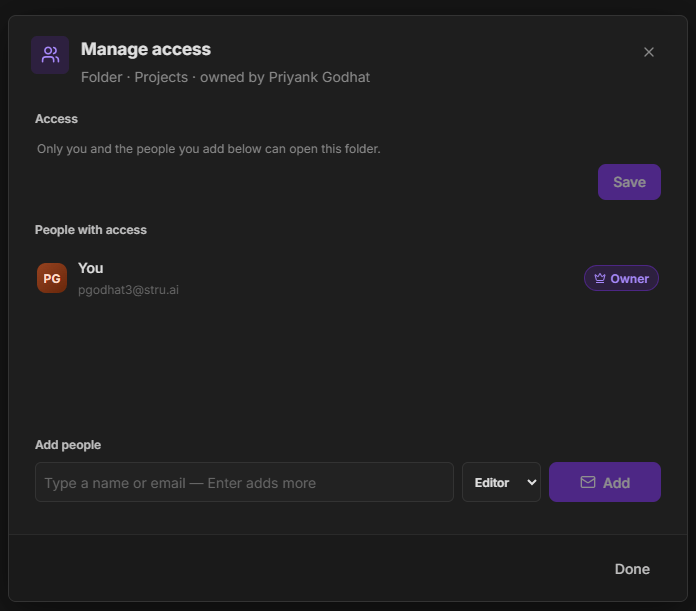 **Organization-owned folders** add an access toggle at the top — **Private** or **Organization** — plus dropdowns for who gets access and at what default role:
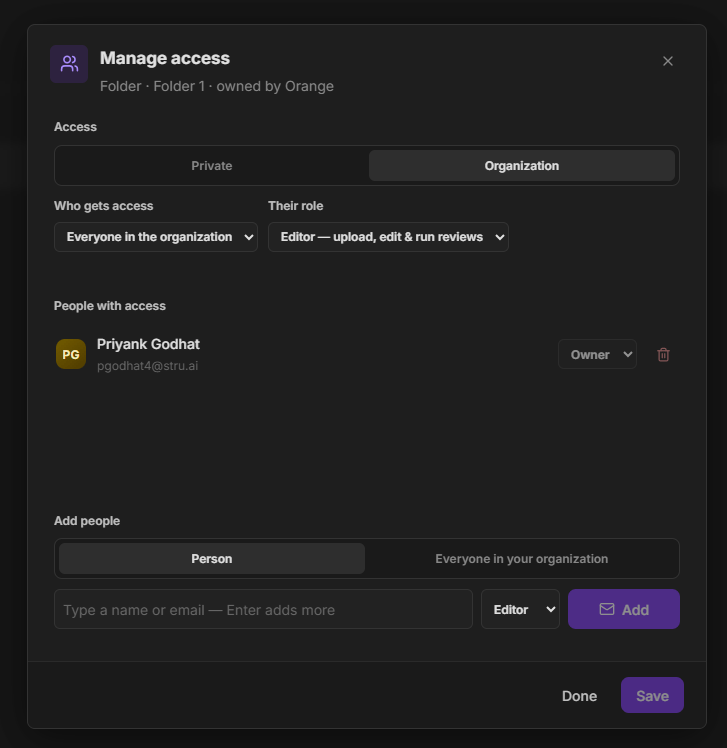 * **Viewer** — view, preview, and download only.
* **Editor** — everything a Viewer can do, plus upload, create, rename, move, delete, and launch reviews.
* **Owner** — everything an Editor can do, plus manage who can see the item, manage members and their roles, delete it, and transfer ownership.
* **Private** — a hard boundary: only the people you explicitly add can open it, even if it sits inside a folder other people in the org can already access.
* **Organization** — opens it up, and you then choose *who*: either **Everyone in the organization**, or — if the folder sits inside another shared folder — **People with access to \[that parent folder]**, which inherits access from above. You also set their default role here.
Adding an individual person applies as soon as you click **Add**. Changes to the access level itself (Private/Organization and the default role) take effect when you click **Save** — if saving fails, your choice stays in place so you can retry.
Yes. Keep typing in the Add field — each Enter (or comma) adds another person as a chip — then click **Add** once to grant them all the same role.
Yes. Add their email as usual and they'll show as **"Invited — gets access when they sign up."** The access activates automatically the moment they create an account with that email. Stru doesn't email them, so let them know yourself and point them at the app.
Immediately. Access is re-checked on the server for every request, so a removed person's very next action is denied — even in an already-open tab.
***
## The Organization Area and Standards Folder
A shared Projects area owned by the organization rather than any one person. Files survive a member leaving — the departed person just loses access, and their files stay. Default visibility on organization-owned folders is organization-wide, and the default member role is Editor.
Every organization automatically gets a shared **Standards** folder under **Organization**, marked with a book icon. Drop in whatever the team should treat as reference material — formatting guides, report boilerplate, checklists, calculation examples. Everyone in the organization can see and maintain it by default.
When "Formatting standards" is on in the chat (it's on by default), the agent has this folder available as working reference and follows what's in it — see the [ETABS & SAP2000 Agents guide](/platform-guides/etabs-sap2000-agents) for how agents use it.
Yes. Right-click any folder you can edit → **Set as Standards Folder**. Your designation wins over the organization default, and the folder gets the book icon. Right-click again to remove the designation — you'll fall back to the org Standards folder if you're an organization member.
Personal. Designating a folder only changes your own conversations — every teammate keeps their own choice, or the organization default if they never made one. What's shared is the *contents* of a shared folder: if you all point at the org Standards folder, you're all working from the same documents.
Yes. There's one copy, owned by the organization. Any Editor updates a standard in place and the whole team sees the new version immediately. There's no formal versioning or approval workflow yet — updates are live edits.
Nothing breaks. Organization members fall back to the org Standards folder; individual accounts fall back to no standards folder. Your designation resumes automatically if access comes back. The same fallback applies if your role on the folder drops to Viewer.
***
## Uploads, Documents, and Shared with Me
* **Viewer** — view, preview, and download only.
* **Editor** — everything a Viewer can do, plus upload, create, rename, move, delete, and launch reviews.
* **Owner** — everything an Editor can do, plus manage who can see the item, manage members and their roles, delete it, and transfer ownership.
* **Private** — a hard boundary: only the people you explicitly add can open it, even if it sits inside a folder other people in the org can already access.
* **Organization** — opens it up, and you then choose *who*: either **Everyone in the organization**, or — if the folder sits inside another shared folder — **People with access to \[that parent folder]**, which inherits access from above. You also set their default role here.
Adding an individual person applies as soon as you click **Add**. Changes to the access level itself (Private/Organization and the default role) take effect when you click **Save** — if saving fails, your choice stays in place so you can retry.
Yes. Keep typing in the Add field — each Enter (or comma) adds another person as a chip — then click **Add** once to grant them all the same role.
Yes. Add their email as usual and they'll show as **"Invited — gets access when they sign up."** The access activates automatically the moment they create an account with that email. Stru doesn't email them, so let them know yourself and point them at the app.
Immediately. Access is re-checked on the server for every request, so a removed person's very next action is denied — even in an already-open tab.
***
## The Organization Area and Standards Folder
A shared Projects area owned by the organization rather than any one person. Files survive a member leaving — the departed person just loses access, and their files stay. Default visibility on organization-owned folders is organization-wide, and the default member role is Editor.
Every organization automatically gets a shared **Standards** folder under **Organization**, marked with a book icon. Drop in whatever the team should treat as reference material — formatting guides, report boilerplate, checklists, calculation examples. Everyone in the organization can see and maintain it by default.
When "Formatting standards" is on in the chat (it's on by default), the agent has this folder available as working reference and follows what's in it — see the [ETABS & SAP2000 Agents guide](/platform-guides/etabs-sap2000-agents) for how agents use it.
Yes. Right-click any folder you can edit → **Set as Standards Folder**. Your designation wins over the organization default, and the folder gets the book icon. Right-click again to remove the designation — you'll fall back to the org Standards folder if you're an organization member.
Personal. Designating a folder only changes your own conversations — every teammate keeps their own choice, or the organization default if they never made one. What's shared is the *contents* of a shared folder: if you all point at the org Standards folder, you're all working from the same documents.
Yes. There's one copy, owned by the organization. Any Editor updates a standard in place and the whole team sees the new version immediately. There's no formal versioning or approval workflow yet — updates are live edits.
Nothing breaks. Organization members fall back to the org Standards folder; individual accounts fall back to no standards folder. Your designation resumes automatically if access comes back. The same fallback applies if your role on the folder drops to Viewer.
***
## Uploads, Documents, and Shared with Me
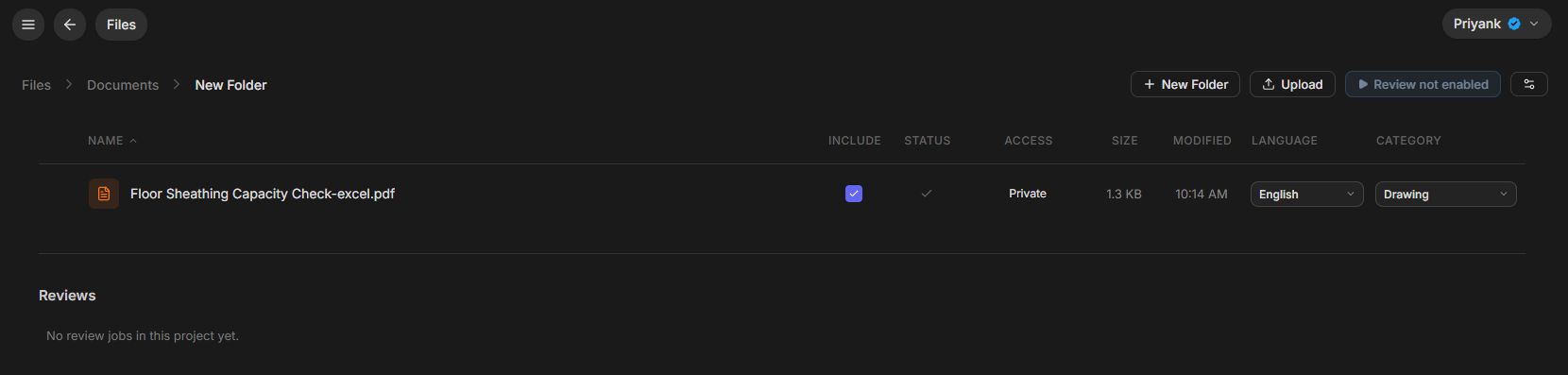 Each conversation gets its own folder under **Documents**, created automatically the first time you attach a file or the AI generates one in that conversation. It's named after the conversation's title, and all of that conversation's files live together in it.
If you attached a file before the conversation had a name or folder yet, it's automatically moved into the conversation's folder as soon as one is created. Anything the AI generates for you that isn't tied to a specific project also registers into that conversation's Documents folder automatically, so it shows up in Files without any extra step.
Files you've uploaded outside of a project, with columns for status, size, and modified date (click a column header to toggle sort order).
It auto-creates (or reuses) a **Default** project folder for the attachment. You still need to select a project before you can *send a chat message* on the Review agent — the auto-created Default folder only handles the attachment while you decide.
Items generated for you — reports, calc sheets, exports — plus each conversation's own folder. The assistant can produce genuine Word (.docx), PowerPoint (.pptx), and PDF files in addition to its Mathcad and Excel documents, and they land here the same way.
Folders and individual files other people have shared directly with you. Organization-wide projects don't appear here, since everyone in the organization already has them under **Organization**.
***
## Working with Files
* **Images** — double-click to open a preview with download, fullscreen, and close controls.
* **Markdown (.md), plain text (.txt), and CSV** — open with an in-app preview.
* **Excel (.xlsx)** — opens with an in-app spreadsheet-style preview.
* **PowerPoint (.pptx/.ppt)** — opens in the same paged document viewer used for PDFs and Word documents, rendering page-by-page in-app.
* **Word (.docx) and PDF** — a paged in-app viewer, with the Comments tab preserved for Word documents.
If the document isn't part of a review, you get a clean chat-only side panel — no Issues/Activity tabs or "start a review" prompts that don't apply. That chat is folder-aware: it knows which document you have open and can answer questions about it. (Word documents keep their Comments tab alongside chat.)
If the document is already part of an existing review, you get the full review workspace (Activity, Issues, chat). Either way, **Launch Review** lives on the folder in Files — there's no "Start Review" option inside the document viewer itself.
The dropdown next to the agent name at the top of the viewer is a **file switcher** — it lists other documents in the same folder so you can jump between them. Pick which review to view from Files, not from inside one.
Yes. Check the box next to one or more files or folders to reveal a bulk action bar (share and delete) in the top toolbar.
Right-click a file for **Manage Access**, **Rename**, **Download**, and **Delete**.
***
## Quick Reference
| Concept | What it means |
| --------------------------------------- | ----------------------------------------------------------------------------------------------------------------------- |
| **Plain folder** | Storage only, no review tools. Default for every new folder. |
| **Review folder** | Launch Review, a Reviews log, and auto Language/Category detection on uploads. Switch via right-click → Enable Reviews. |
| **Standards folder** | The reference library the agent works from, marked with a book icon. Switch via right-click → Set as Standards Folder. |
| **Private** (personal folder) | Only you plus the people you add. |
| **Private** (organization folder) | A hard boundary — only the people you explicitly add, even inside a shared org. |
| **Organization** (organization folder) | Everyone in the org, or people with access to the parent folder — plus anyone you add individually. |
| **Documents (per-conversation folder)** | Auto-created the first time you attach or generate a file in a conversation, named after the conversation. |
| **Uploads** | Files uploaded outside of a project. |
***
## Next Steps
See how agents use projects and the Standards folder
[ETABS & SAP2000 Agents](/platform-guides/etabs-sap2000-agents)
Go to your Files area to try it out
[app.stru.ai/files](https://app.stru.ai/files)
**Questions?** Email **[support@stru.ai](mailto:support@stru.ai)** or [book a call](https://cal.com/bhosh).
Each conversation gets its own folder under **Documents**, created automatically the first time you attach a file or the AI generates one in that conversation. It's named after the conversation's title, and all of that conversation's files live together in it.
If you attached a file before the conversation had a name or folder yet, it's automatically moved into the conversation's folder as soon as one is created. Anything the AI generates for you that isn't tied to a specific project also registers into that conversation's Documents folder automatically, so it shows up in Files without any extra step.
Files you've uploaded outside of a project, with columns for status, size, and modified date (click a column header to toggle sort order).
It auto-creates (or reuses) a **Default** project folder for the attachment. You still need to select a project before you can *send a chat message* on the Review agent — the auto-created Default folder only handles the attachment while you decide.
Items generated for you — reports, calc sheets, exports — plus each conversation's own folder. The assistant can produce genuine Word (.docx), PowerPoint (.pptx), and PDF files in addition to its Mathcad and Excel documents, and they land here the same way.
Folders and individual files other people have shared directly with you. Organization-wide projects don't appear here, since everyone in the organization already has them under **Organization**.
***
## Working with Files
* **Images** — double-click to open a preview with download, fullscreen, and close controls.
* **Markdown (.md), plain text (.txt), and CSV** — open with an in-app preview.
* **Excel (.xlsx)** — opens with an in-app spreadsheet-style preview.
* **PowerPoint (.pptx/.ppt)** — opens in the same paged document viewer used for PDFs and Word documents, rendering page-by-page in-app.
* **Word (.docx) and PDF** — a paged in-app viewer, with the Comments tab preserved for Word documents.
If the document isn't part of a review, you get a clean chat-only side panel — no Issues/Activity tabs or "start a review" prompts that don't apply. That chat is folder-aware: it knows which document you have open and can answer questions about it. (Word documents keep their Comments tab alongside chat.)
If the document is already part of an existing review, you get the full review workspace (Activity, Issues, chat). Either way, **Launch Review** lives on the folder in Files — there's no "Start Review" option inside the document viewer itself.
The dropdown next to the agent name at the top of the viewer is a **file switcher** — it lists other documents in the same folder so you can jump between them. Pick which review to view from Files, not from inside one.
Yes. Check the box next to one or more files or folders to reveal a bulk action bar (share and delete) in the top toolbar.
Right-click a file for **Manage Access**, **Rename**, **Download**, and **Delete**.
***
## Quick Reference
| Concept | What it means |
| --------------------------------------- | ----------------------------------------------------------------------------------------------------------------------- |
| **Plain folder** | Storage only, no review tools. Default for every new folder. |
| **Review folder** | Launch Review, a Reviews log, and auto Language/Category detection on uploads. Switch via right-click → Enable Reviews. |
| **Standards folder** | The reference library the agent works from, marked with a book icon. Switch via right-click → Set as Standards Folder. |
| **Private** (personal folder) | Only you plus the people you add. |
| **Private** (organization folder) | A hard boundary — only the people you explicitly add, even inside a shared org. |
| **Organization** (organization folder) | Everyone in the org, or people with access to the parent folder — plus anyone you add individually. |
| **Documents (per-conversation folder)** | Auto-created the first time you attach or generate a file in a conversation, named after the conversation. |
| **Uploads** | Files uploaded outside of a project. |
***
## Next Steps
See how agents use projects and the Standards folder
[ETABS & SAP2000 Agents](/platform-guides/etabs-sap2000-agents)
Go to your Files area to try it out
[app.stru.ai/files](https://app.stru.ai/files)
**Questions?** Email **[support@stru.ai](mailto:support@stru.ai)** or [book a call](https://cal.com/bhosh).