> ## Documentation Index
> Fetch the complete documentation index at: https://docs.stru.ai/llms.txt
> Use this file to discover all available pages before exploring further.
# Sharing & Permissions
> Give your engineers, reviewers, and project partners the right level of access to drawings and deliverables: roles, sharing, and access requests
## Give the Right People the Right Access
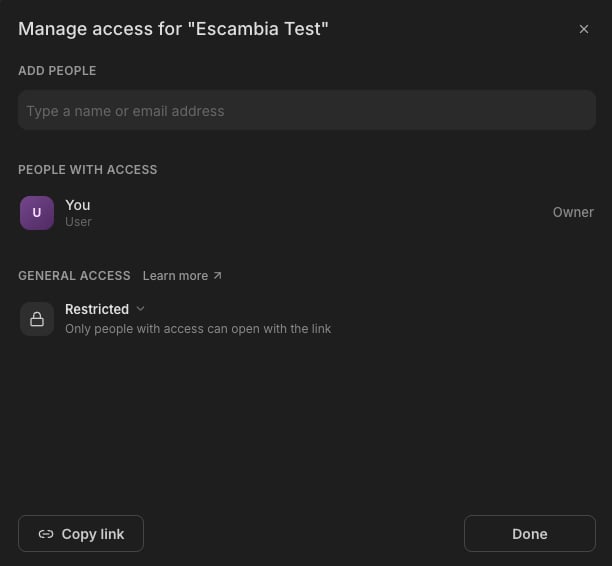
A project usually isn't a one-person job. The engineer running the review, the drafter fixing the sheets, the PM who just needs to read the findings: each needs a different level of access. In Stru, every file and folder has a **Manage Access** dialog that controls exactly that.
Common setups:
* **Project team**: share the job's [project folder](/how-to/file-management) with your engineers as **Editor** so they can upload sheets and [launch reviews](/how-to/drawing-review).
* **Review-only stakeholders**: add the PM or client as **Viewer**: they can open and download, but nothing changes under them.
* **Whole-company folders**: organization folders can default to everyone in your org, like the shared [Standards folder](/how-to/standards-folder).
Open Manage Access two ways:
* **For the folder you're in**: click **Manage access** in the toolbar at the top right.
* **For any file or folder**: right-click its row (on a trackpad: two-finger click, or Control-click) and choose **Manage access**.
**Everyone you share with needs a Stru account** (signing up is free). Every access level below applies to signed-in users; there are no anonymous, no-login links.
 ***
## The Three Roles
A **role** is what someone is allowed to do with a file or folder:
View, preview, and download. Can't upload, change, or run reviews.
Everything a Viewer can do, plus upload, create, rename, move, delete, and launch reviews.
Everything an Editor can do, plus manage who has access and transfer ownership.
**Editor applies to the whole folder's contents**: an Editor can rename, move, or delete anything in the folder, not just the items they added themselves. Give Editor to people doing the work; give Viewer to people reading it.
***
## Sharing with a Person
In the **Add people** field, type your teammate's name or email. Keep typing to add several people at once; each becomes a chip.
Choose **Viewer** or **Editor** for the people you're adding.
Your changes collect as a draft. Click **Save changes** to apply them all at once. (The button reads **Done** when there's nothing pending.)
Your teammate gets an in-app notification, and the item appears inside their own Files tree at its natural location; there's no separate "shared" area to dig through.
Yes: add their email as usual. They appear as an external invite and get access the moment they sign up with that email. Until then you can still change their role or revoke the invite.
Immediately after you save. Their very next action is denied, even in an already-open tab.
***
## General Access: the Default for Everyone Else
Below the people list, **General access** sets what happens for anyone who *isn't* listed individually:
***
## The Three Roles
A **role** is what someone is allowed to do with a file or folder:
View, preview, and download. Can't upload, change, or run reviews.
Everything a Viewer can do, plus upload, create, rename, move, delete, and launch reviews.
Everything an Editor can do, plus manage who has access and transfer ownership.
**Editor applies to the whole folder's contents**: an Editor can rename, move, or delete anything in the folder, not just the items they added themselves. Give Editor to people doing the work; give Viewer to people reading it.
***
## Sharing with a Person
In the **Add people** field, type your teammate's name or email. Keep typing to add several people at once; each becomes a chip.
Choose **Viewer** or **Editor** for the people you're adding.
Your changes collect as a draft. Click **Save changes** to apply them all at once. (The button reads **Done** when there's nothing pending.)
Your teammate gets an in-app notification, and the item appears inside their own Files tree at its natural location; there's no separate "shared" area to dig through.
Yes: add their email as usual. They appear as an external invite and get access the moment they sign up with that email. Until then you can still change their role or revoke the invite.
Immediately after you save. Their very next action is denied, even in an already-open tab.
***
## General Access: the Default for Everyone Else
Below the people list, **General access** sets what happens for anyone who *isn't* listed individually:
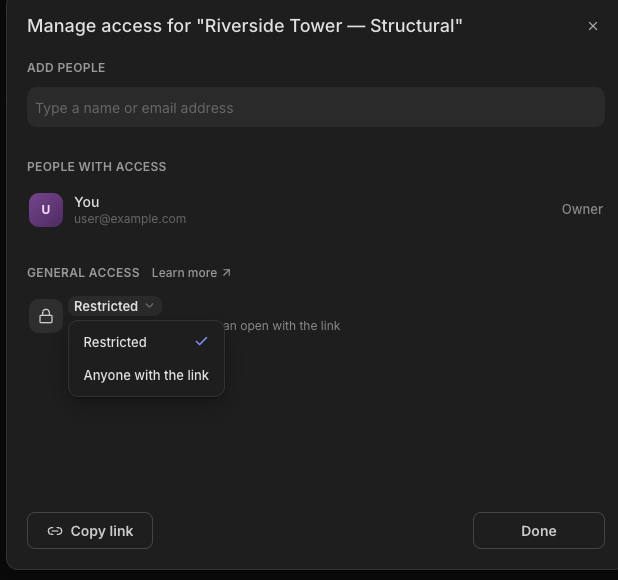 | Level | Who can open it |
| ------------------------ | ------------------------------------------------------------------------------------------------------------------ |
| **Restricted** | Only the people listed above. A hard boundary, even inside a shared project. |
| **Organization** | Everyone in your organization, at the default role you pick (Viewer or Editor). Available on organization folders. |
| **Anyone with the link** | Anyone signed in to Stru who has the link can view. |
On an organization folder, the Organization level pairs with a default role. Here is the shared Standards folder set to org-wide Editor:
| Level | Who can open it |
| ------------------------ | ------------------------------------------------------------------------------------------------------------------ |
| **Restricted** | Only the people listed above. A hard boundary, even inside a shared project. |
| **Organization** | Everyone in your organization, at the default role you pick (Viewer or Editor). Available on organization folders. |
| **Anyone with the link** | Anyone signed in to Stru who has the link can view. |
On an organization folder, the Organization level pairs with a default role. Here is the shared Standards folder set to org-wide Editor:
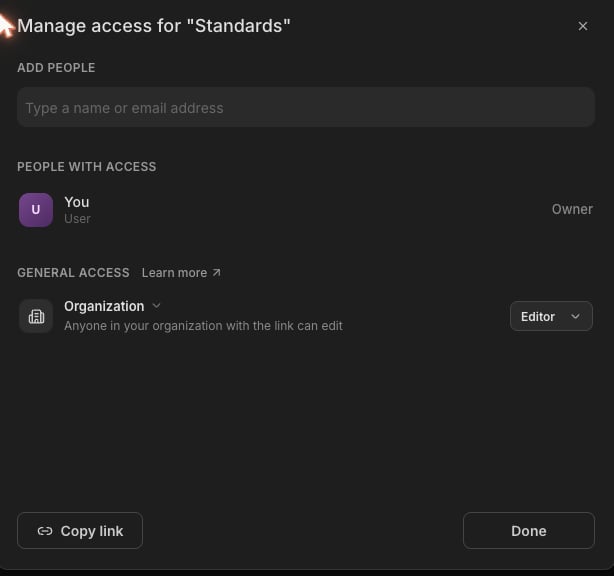 Use **Copy link** to grab the item's link for a chat or email; the button confirms with **Link copied**.
**Need to lock down one subfolder inside a shared project?** Set that subfolder to **Restricted**: the rest of the project stays open to the team, but only the people you list can open that folder. And to exclude a single person from an org-wide folder, set their individual role to **Restricted** in the people list.
***
## Requesting Access
Opened a link you don't have access to? You'll see a **You need access** panel instead of the content:
Pick **Viewer** or **Editor**, and optionally add a note explaining why.
Click **Request access**. The owner is notified and you'll see **Request pending**.
Owners see incoming requests in **Notifications**, with **Approve as Viewer/Editor** and **Deny** buttons. Approval works like any normal share: the item appears in your Files.
***
## FAQs
Referencing a file in a conversation (see [Mentions & Attachments](/how-to/mentions)) requires **Editor** access or higher. If a file was shared with you as Viewer, ask the owner to raise your role.
Yes: on organization resources, an Owner can open the person's role menu and choose **Transfer ownership**. You keep Editor access after the transfer.
Organization owners and admins hold owner rights on every organization project, so access can always be fixed; an org project can't be orphaned.
Organization-owned folders and files are unaffected; the departed person just loses access. Their personal folders remain their own.
Changes apply when you click **Save changes**. Until then they're a local draft; closing the dialog without saving discards them.
***
## Next Steps
Set up project folders your way
[File Management guide](/how-to/file-management)
Editor access lets you launch reviews
[Drawing Review guide](/how-to/drawing-review)
**Questions?** Email **[support@stru.ai](mailto:support@stru.ai)** or [book a call](https://cal.com/bhosh).
Use **Copy link** to grab the item's link for a chat or email; the button confirms with **Link copied**.
**Need to lock down one subfolder inside a shared project?** Set that subfolder to **Restricted**: the rest of the project stays open to the team, but only the people you list can open that folder. And to exclude a single person from an org-wide folder, set their individual role to **Restricted** in the people list.
***
## Requesting Access
Opened a link you don't have access to? You'll see a **You need access** panel instead of the content:
Pick **Viewer** or **Editor**, and optionally add a note explaining why.
Click **Request access**. The owner is notified and you'll see **Request pending**.
Owners see incoming requests in **Notifications**, with **Approve as Viewer/Editor** and **Deny** buttons. Approval works like any normal share: the item appears in your Files.
***
## FAQs
Referencing a file in a conversation (see [Mentions & Attachments](/how-to/mentions)) requires **Editor** access or higher. If a file was shared with you as Viewer, ask the owner to raise your role.
Yes: on organization resources, an Owner can open the person's role menu and choose **Transfer ownership**. You keep Editor access after the transfer.
Organization owners and admins hold owner rights on every organization project, so access can always be fixed; an org project can't be orphaned.
Organization-owned folders and files are unaffected; the departed person just loses access. Their personal folders remain their own.
Changes apply when you click **Save changes**. Until then they're a local draft; closing the dialog without saving discards them.
***
## Next Steps
Set up project folders your way
[File Management guide](/how-to/file-management)
Editor access lets you launch reviews
[Drawing Review guide](/how-to/drawing-review)
**Questions?** Email **[support@stru.ai](mailto:support@stru.ai)** or [book a call](https://cal.com/bhosh).