> ## Documentation Index
> Fetch the complete documentation index at: https://docs.stru.ai/llms.txt
> Use this file to discover all available pages before exploring further.
# Drawing Review
> Run an AI QA/QC review over a drawing set: catch code issues, coordination conflicts, and constructability problems before the set goes out
## Catch It Before It Goes Out
A **Drawing Review** is an AI QA/QC pass over a full drawing set: every sheet, cross-checked against the codes, the specs, and the other sheets.
Jobs engineers use it for:
* **QA/QC a set before issue**: a full pass over the drawings before they leave your desk
* **Code checking**: flag details, notes, and schedules with potential issues against the governing building codes, for your review
* **Catch coordination issues**: discrepancies between architectural, structural, and MEP sheets
* **Constructability**: find the underspecified and conflicting details that would otherwise come back as RFIs during construction
* **Cross-discipline conflict and rebar/detail checks**: conflicts and congestion called out across the sheets
* **Quantity takeoffs**: quantity schedules pulled from the set
You launch a review from the [Files area](/how-to/file-management), it runs on its own, and the results collect in the folder's **Reviews** section, with an email when it's done. Pricing is per drawing page, shown up front: see [Review Pricing](/how-to/review-pricing).
**Drawing Review vs. the Review Agent: two different things.** A *Drawing Review* is the formal, set-wide QA/QC run described on this page. The *[Review Agent](/platform-guides/review-agent)* is the chat agent you **talk to** about your drawings: ask questions, dig into specific findings. They work together: run the review, then interrogate the results in chat.
***
## Step-by-Step
A review covers the files in one folder, so give each drawing set (or submittal package) its own **project folder** in Files. Include the drawings plus anything the reviewer should read for context: specs, reports, calculations. New to folders? Start with [File Management](/how-to/file-management).
**Scope = the folder.** One drawing set per folder keeps reviews clean. Curate it before launching: the review reads what's there.
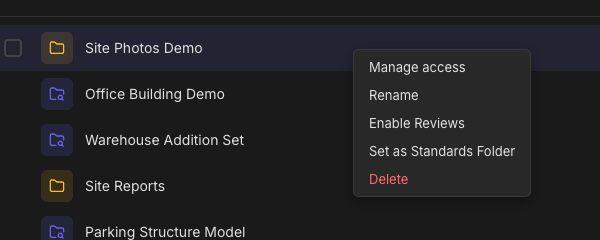
Right-click the folder's row in the **Projects** section of Files (on a trackpad: two-finger click, or Control-click) and choose **Enable Reviews**. The folder gets the review icon, a **Launch Review** button, and a **Reviews** section.
 In a review folder, every file gets an automatic **Category** label (Drawing, Spec, Report, Code, Calculations) and **Language**, shown as editable dropdowns, so correct anything the detection got wrong. The **Include** checkbox controls whether a file is in scope.
 **Only files categorized as Drawing are billed.** Specs, reports, and other supporting documents ride along free as reference material. See [Review Pricing](/how-to/review-pricing).
Click **Launch Review** in the folder's toolbar (you need **Editor** access, see [Sharing & Permissions](/how-to/file-access)). The review dialog opens with a suggested name and the list of files in scope, with page counts.
**Only files categorized as Drawing are billed.** Specs, reports, and other supporting documents ride along free as reference material. See [Review Pricing](/how-to/review-pricing).
Click **Launch Review** in the folder's toolbar (you need **Editor** access, see [Sharing & Permissions](/how-to/file-access)). The review dialog opens with a suggested name and the list of files in scope, with page counts.
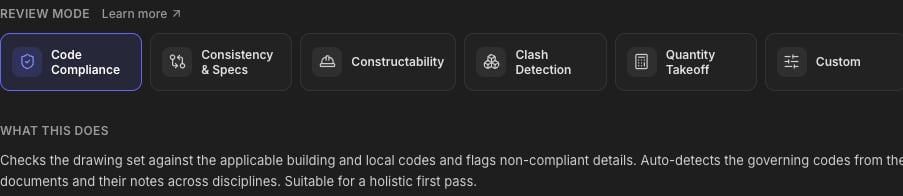
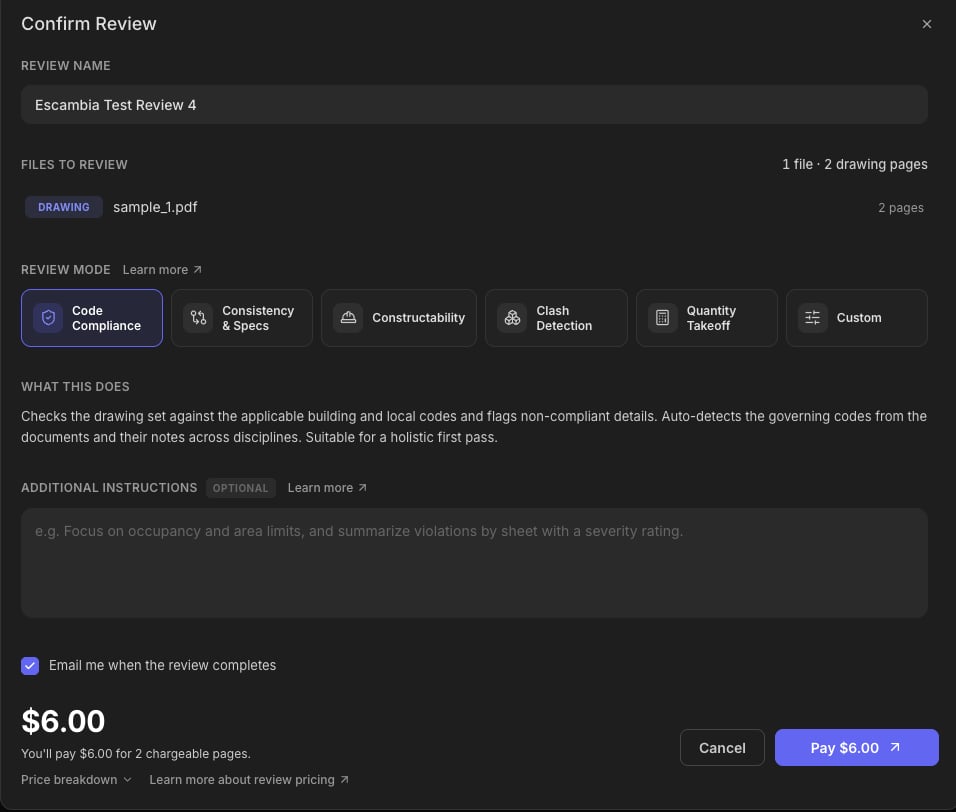 A **review mode** is the kind of check the reviewer runs. In one line each:
* **Code Compliance** (the default): flags potential building-code issues for your review
* **Consistency & Specs**: catches sheets, callouts, and specs that contradict each other
* **Constructability**: finds the unclear or missing details that turn into RFIs on site
* **Clash Detection**: flags cross-discipline conflicts visible across the sheets
* **Quantity Takeoff**: pulls quantity schedules from the drawings
* **Custom**: you define the scope yourself
Full detail on what each catches (and what it doesn't) in [Review Modes & Instructions](/how-to/review-modes).
A **review mode** is the kind of check the reviewer runs. In one line each:
* **Code Compliance** (the default): flags potential building-code issues for your review
* **Consistency & Specs**: catches sheets, callouts, and specs that contradict each other
* **Constructability**: finds the unclear or missing details that turn into RFIs on site
* **Clash Detection**: flags cross-discipline conflicts visible across the sheets
* **Quantity Takeoff**: pulls quantity schedules from the drawings
* **Custom**: you define the scope yourself
Full detail on what each catches (and what it doesn't) in [Review Modes & Instructions](/how-to/review-modes).
 Use **Additional Instructions** to brief the reviewer like you'd brief a junior engineer: the code edition, the areas you care about, what a useful finding looks like. Quantity Takeoff and Custom require instructions; for the others they're optional but powerful. Examples per mode in [Review Modes & Instructions](/how-to/review-modes#writing-additional-instructions).
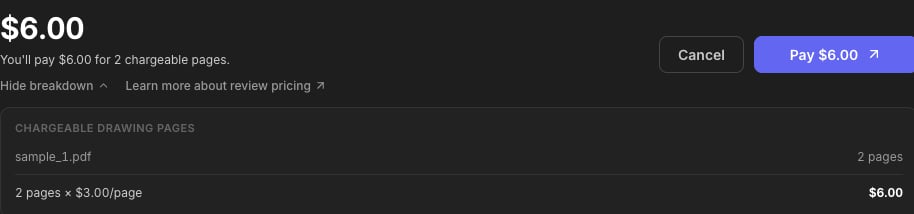
 The dialog shows the price before anything runs: pages in scope, page credits applied, and anything payable, with a **Price breakdown** you can expand. Click **Start review**; if your page credits don't cover the scope, the button offers to pay the difference by card and the review starts once payment confirms. Details in [Review Pricing](/how-to/review-pricing).
 The review appears in the folder's **Reviews** section with a live status, and runs on its own. How long depends on the size of the set, so leave **Email me when the review completes** checked (it's on by default) and get on with your day. Results appear in the Reviews section when the run finishes, ready to open. Then bring your questions to the [Review Agent](/platform-guides/review-agent).
 ***
## Review Statuses
| Status | Meaning |
| -------------------- | ----------------------------------------------------------------- |
| **Awaiting payment** | The review is created and waiting on card payment to begin. |
| **Running** | The review is in progress. |
| **Completed** | Done. Open it from the Reviews section. |
| **Failed** | The review couldn't be completed. Contact support if it persists. |
| **Cancelled** | The review was cancelled and won't produce results. |
***
## Tips for Better Reviews
Reviews scope to the folder: mixing two projects in one folder means one combined review. Keep sets separate and reviews stay clean.
The review treats drawings and supporting documents differently. A spec mislabeled as a Drawing gets billed and reviewed as sheets; a drawing mislabeled as a Spec gets skipped. Ten seconds of label-checking pays off.
Superseded sheets or irrelevant files in the folder? Flip their **Include** checkbox off instead of deleting them.
Name the code edition, the discipline focus, and what you want back. See [Review Modes & Instructions](/how-to/review-modes) for worked examples.
**You're still the engineer of record.** The review surfaces findings. It doesn't make the call. Verify anything that matters before it drives a decision. The [Review Agent](/platform-guides/review-agent) is built for exactly that follow-up: ask it to investigate any finding against the drawings.
***
## Next Steps
What each mode catches, and how to write instructions
[Review Modes & Instructions](/how-to/review-modes)
Per-page pricing and page credits
[Review Pricing guide](/how-to/review-pricing)
Chat with your drawings and findings
[Review Agent guide](/platform-guides/review-agent)
Set up project folders for your jobs
[File Management guide](/how-to/file-management)
**Questions?** Email **[support@stru.ai](mailto:support@stru.ai)** or [book a call](https://cal.com/bhosh).
***
## Review Statuses
| Status | Meaning |
| -------------------- | ----------------------------------------------------------------- |
| **Awaiting payment** | The review is created and waiting on card payment to begin. |
| **Running** | The review is in progress. |
| **Completed** | Done. Open it from the Reviews section. |
| **Failed** | The review couldn't be completed. Contact support if it persists. |
| **Cancelled** | The review was cancelled and won't produce results. |
***
## Tips for Better Reviews
Reviews scope to the folder: mixing two projects in one folder means one combined review. Keep sets separate and reviews stay clean.
The review treats drawings and supporting documents differently. A spec mislabeled as a Drawing gets billed and reviewed as sheets; a drawing mislabeled as a Spec gets skipped. Ten seconds of label-checking pays off.
Superseded sheets or irrelevant files in the folder? Flip their **Include** checkbox off instead of deleting them.
Name the code edition, the discipline focus, and what you want back. See [Review Modes & Instructions](/how-to/review-modes) for worked examples.
**You're still the engineer of record.** The review surfaces findings. It doesn't make the call. Verify anything that matters before it drives a decision. The [Review Agent](/platform-guides/review-agent) is built for exactly that follow-up: ask it to investigate any finding against the drawings.
***
## Next Steps
What each mode catches, and how to write instructions
[Review Modes & Instructions](/how-to/review-modes)
Per-page pricing and page credits
[Review Pricing guide](/how-to/review-pricing)
Chat with your drawings and findings
[Review Agent guide](/platform-guides/review-agent)
Set up project folders for your jobs
[File Management guide](/how-to/file-management)
**Questions?** Email **[support@stru.ai](mailto:support@stru.ai)** or [book a call](https://cal.com/bhosh).