> ## Documentation Index
> Fetch the complete documentation index at: https://docs.stru.ai/llms.txt
> Use this file to discover all available pages before exploring further.
# Using the Chat Input
> Type, attach files, dictate by voice, and pull in standards with @. Plus the keyboard shortcuts.
## Overview
The message box handles more than text. Attach files, dictate by voice, and reference your documents or design standards with @. This guide covers each, plus the shortcuts.
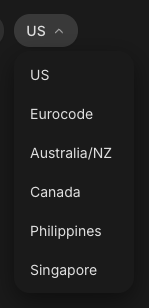
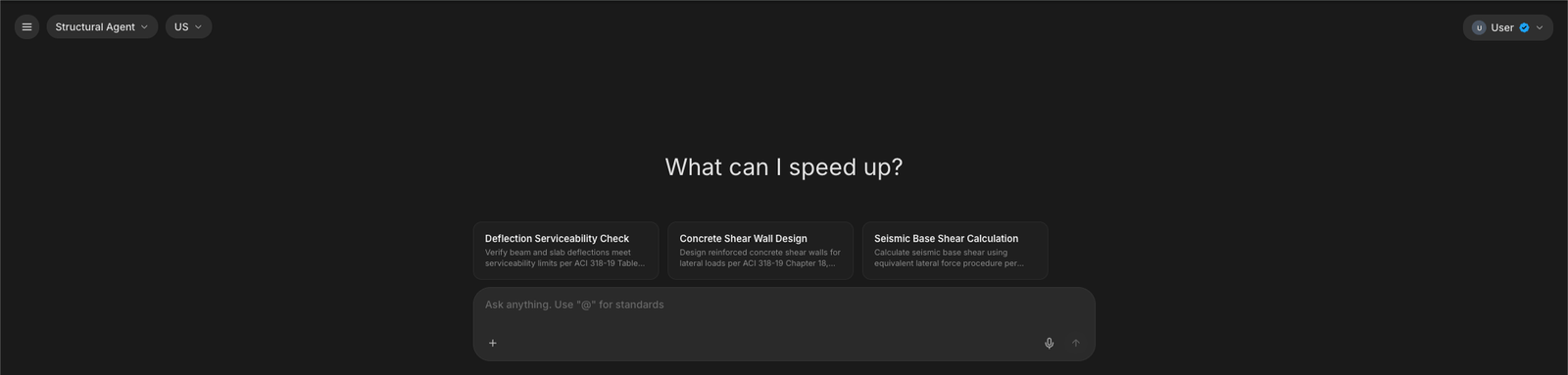 The pills above the chat set the context for every message: the [agent](/platform-guides/structural-agent) you're talking to (top-left dropdown) and the **design standard** next to it, which sets the code region your answers cite (US, Eurocode, Australia/NZ, Canada, Philippines, Singapore).
 ## Typing and sending
**Enter** sends. **Shift + Enter** adds a line break for prompts with a list of requirements. The send button (↑, bottom-right) becomes a stop button while the agent is responding.
You can type your next message while the agent is still working. Press Enter and it queues, then sends the moment the current response finishes.
## Adding files
Attach with the **+** button at the bottom-left of the message box, then **Upload from computer**. Drag-and-drop anywhere on the page and pasting images work too.
## Typing and sending
**Enter** sends. **Shift + Enter** adds a line break for prompts with a list of requirements. The send button (↑, bottom-right) becomes a stop button while the agent is responding.
You can type your next message while the agent is still working. Press Enter and it queues, then sends the moment the current response finishes.
## Adding files
Attach with the **+** button at the bottom-left of the message box, then **Upload from computer**. Drag-and-drop anywhere on the page and pasting images work too.
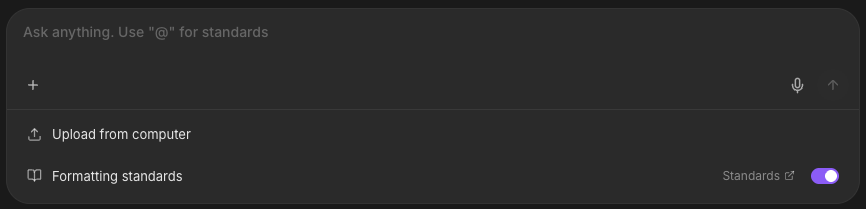 Up to 10 files per message: PDFs, images, Excel/CSV, Word, PowerPoint, and model files (IFC, RVT, DXF, DWG). Each attachment shows a preview card with upload progress.
Already uploaded it once? Type **@** and tag the file from your [Files](/how-to/file-management) instead of re-uploading. See [Mentions](/how-to/mentions).
### The Formatting standards toggle
The second row of the **+** menu controls whether the agent works from your [Standards folder](/how-to/standards-folder): the templates and boilerplate your company maintains. On by default, which is why deliverables come back in your format without you asking.
Two different things share the word "standards". The **Formatting standards** toggle points at your own Standards folder (your templates). The **@ picker's Standards section** is the built-in design code library (ACI, AISC, ASCE). See [Mentions](/how-to/mentions) for the second one.
### The project picker
On the [Review Agent](/platform-guides/review-agent) and [BIM Agent](/platform-guides/bim-agent), a **Select project** pill appears next to **+**. It sets which [project folder](/how-to/file-management) the agent reads from and saves into. Pick one before sending.
Up to 10 files per message: PDFs, images, Excel/CSV, Word, PowerPoint, and model files (IFC, RVT, DXF, DWG). Each attachment shows a preview card with upload progress.
Already uploaded it once? Type **@** and tag the file from your [Files](/how-to/file-management) instead of re-uploading. See [Mentions](/how-to/mentions).
### The Formatting standards toggle
The second row of the **+** menu controls whether the agent works from your [Standards folder](/how-to/standards-folder): the templates and boilerplate your company maintains. On by default, which is why deliverables come back in your format without you asking.
Two different things share the word "standards". The **Formatting standards** toggle points at your own Standards folder (your templates). The **@ picker's Standards section** is the built-in design code library (ACI, AISC, ASCE). See [Mentions](/how-to/mentions) for the second one.
### The project picker
On the [Review Agent](/platform-guides/review-agent) and [BIM Agent](/platform-guides/bim-agent), a **Select project** pill appears next to **+**. It sets which [project folder](/how-to/file-management) the agent reads from and saves into. Pick one before sending.
 ## Dictation
Click the **microphone** at the bottom-right and talk. A live waveform confirms it's recording, and your words appear in the input as you speak.
## Dictation
Click the **microphone** at the bottom-right and talk. A live waveform confirms it's recording, and your words appear in the input as you speak.
 Click the stop button (the square that replaces the mic) to finish. The transcript lands in the message box to review and edit before sending; nothing sends automatically. Recordings run up to 5 minutes.
## Autocomplete
As you type, the input may offer a grey inline completion. **Tab** accepts it; keep typing to ignore it. After a task finishes, the empty input may suggest a likely next prompt, which Tab accepts too.
## Shortcuts
| Shortcut | What it does |
| ------------------- | ----------------------------------------------------------------- |
| **Enter** | Send |
| **Shift + Enter** | New line |
| **Tab** | Accept the grey autocomplete |
| **@** | Open the file and standards picker ([Mentions](/how-to/mentions)) |
| **/** | Focus the message box from anywhere |
| **Esc** | Close the picker; stop a response; press twice to clear the input |
| **↑** (empty input) | Recall your queued message for editing |
| **⌘K / Ctrl+K** | Search past conversations |
## Next steps
Tag files, folders, and design codes with @ instead of re-uploading.
What the Formatting standards toggle points at.
Put the input to work on real engineering tasks.
Where the documents you ask for take shape.
**Questions?** Email **[support@stru.ai](mailto:support@stru.ai)** or [book a call](https://cal.com/bhosh).
Click the stop button (the square that replaces the mic) to finish. The transcript lands in the message box to review and edit before sending; nothing sends automatically. Recordings run up to 5 minutes.
## Autocomplete
As you type, the input may offer a grey inline completion. **Tab** accepts it; keep typing to ignore it. After a task finishes, the empty input may suggest a likely next prompt, which Tab accepts too.
## Shortcuts
| Shortcut | What it does |
| ------------------- | ----------------------------------------------------------------- |
| **Enter** | Send |
| **Shift + Enter** | New line |
| **Tab** | Accept the grey autocomplete |
| **@** | Open the file and standards picker ([Mentions](/how-to/mentions)) |
| **/** | Focus the message box from anywhere |
| **Esc** | Close the picker; stop a response; press twice to clear the input |
| **↑** (empty input) | Recall your queued message for editing |
| **⌘K / Ctrl+K** | Search past conversations |
## Next steps
Tag files, folders, and design codes with @ instead of re-uploading.
What the Formatting standards toggle points at.
Put the input to work on real engineering tasks.
Where the documents you ask for take shape.
**Questions?** Email **[support@stru.ai](mailto:support@stru.ai)** or [book a call](https://cal.com/bhosh).