> ## Documentation Index
> Fetch the complete documentation index at: https://docs.stru.ai/llms.txt
> Use this file to discover all available pages before exploring further.
# The Canvas
> The workspace beside the chat where calc sheets, spreadsheets, and 3D models take shape as the agent builds them
## Overview
When an agent builds a document (a calculation sheet, a spreadsheet, a 3D model), it opens in the **Canvas**: a panel beside the chat where you watch it take shape while the agent works.
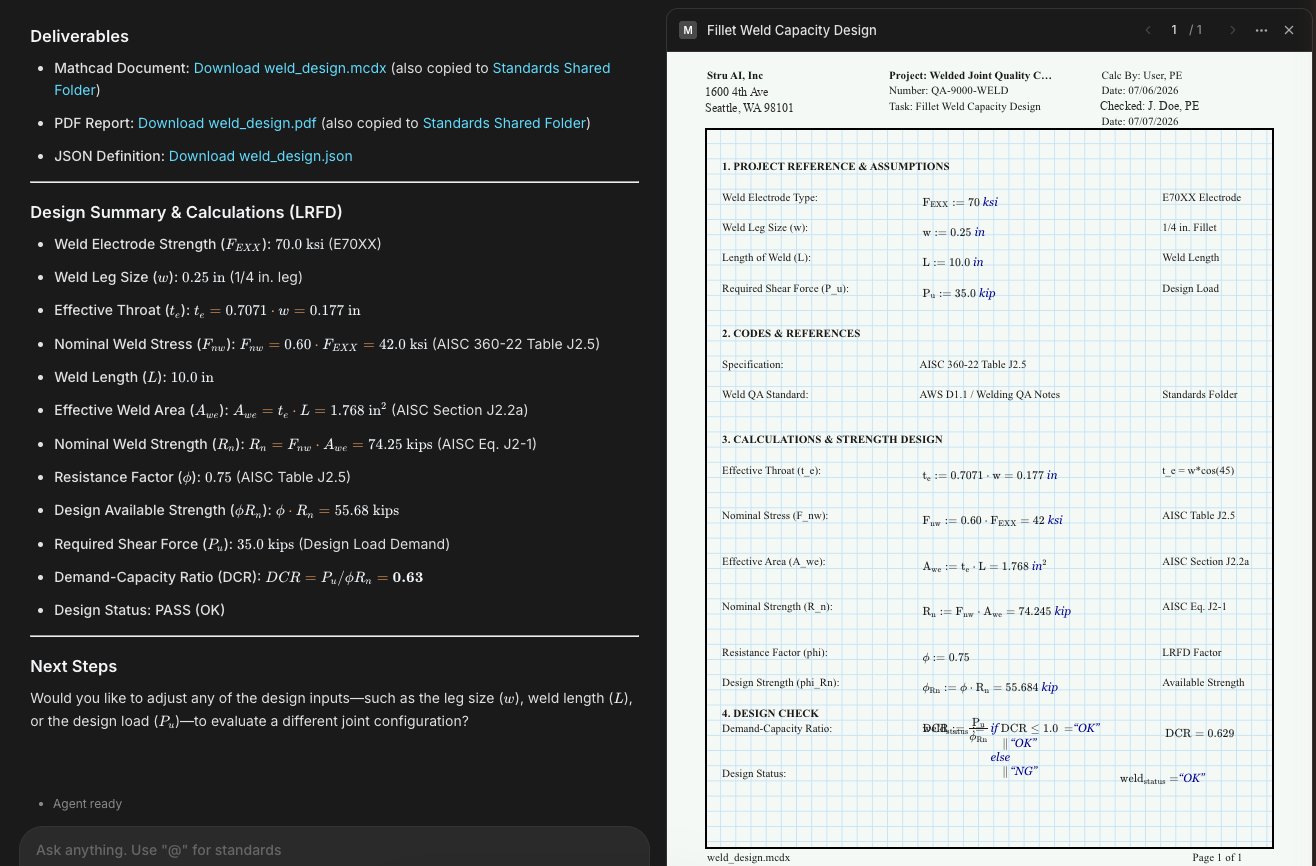 The Canvas appears automatically the first time a document is created in a conversation. A panel toggle in the header, next to the [design standard selector](/how-to/chat-input#overview), closes and reopens it. The [Structural Agent](/platform-guides/structural-agent) and the [BIM Agent](/platform-guides/bim-agent) use it.
Formatted, unit-aware calculation documents
Excel workbooks with live formulas
IFC building models and DXF drawings
## Calc sheets
Ask the Structural Agent for a design check and the calc sheet builds in the Canvas: title block, assumptions, code references, calculations, and the final pass/fail check.
The Canvas appears automatically the first time a document is created in a conversation. A panel toggle in the header, next to the [design standard selector](/how-to/chat-input#overview), closes and reopens it. The [Structural Agent](/platform-guides/structural-agent) and the [BIM Agent](/platform-guides/bim-agent) use it.
Formatted, unit-aware calculation documents
Excel workbooks with live formulas
IFC building models and DXF drawings
## Calc sheets
Ask the Structural Agent for a design check and the calc sheet builds in the Canvas: title block, assumptions, code references, calculations, and the final pass/fail check.
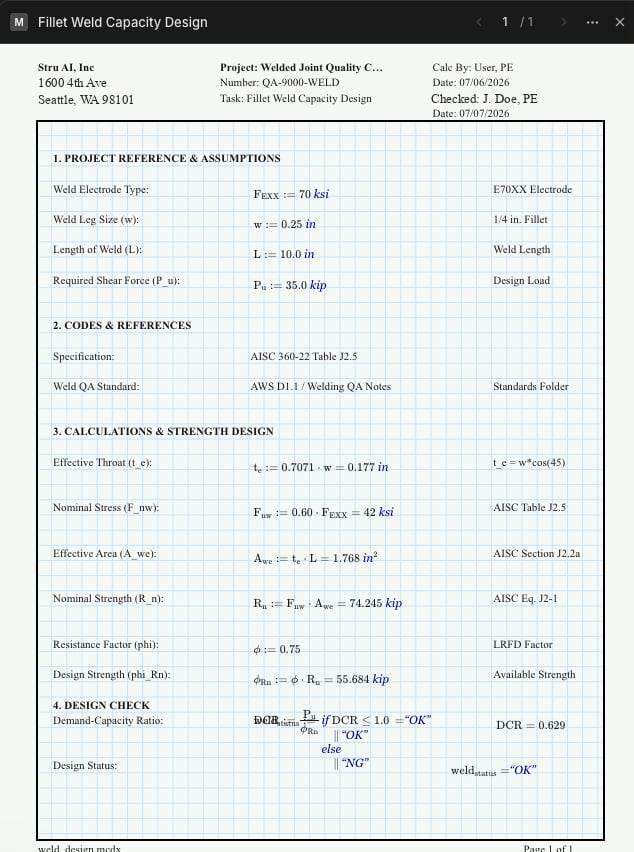 * Page navigation at the top steps through multi-page documents. Recently changed lines flash briefly so you can follow the agent's edits.
* Click anywhere on the sheet to place a cursor. The agent sees where you're pointing, so "add a serviceability check here" needs no further explanation.
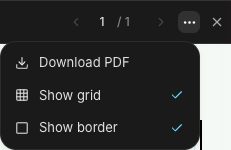
* The **⋯ menu** holds **Download PDF** plus display toggles for the calculation grid and page border:
* Page navigation at the top steps through multi-page documents. Recently changed lines flash briefly so you can follow the agent's edits.
* Click anywhere on the sheet to place a cursor. The agent sees where you're pointing, so "add a serviceability check here" needs no further explanation.
* The **⋯ menu** holds **Download PDF** plus display toggles for the calculation grid and page border:
 The calc file itself (and a PDF report when you ask for one) arrives as download links in the chat and is saved to your [Files area](/how-to/file-management).
## Spreadsheets
Excel workbooks open as a live grid: sheet tabs along the bottom, zoom controls in the header, cells that recalculate.
The calc file itself (and a PDF report when you ask for one) arrives as download links in the chat and is saved to your [Files area](/how-to/file-management).
## Spreadsheets
Excel workbooks open as a live grid: sheet tabs along the bottom, zoom controls in the header, cells that recalculate.
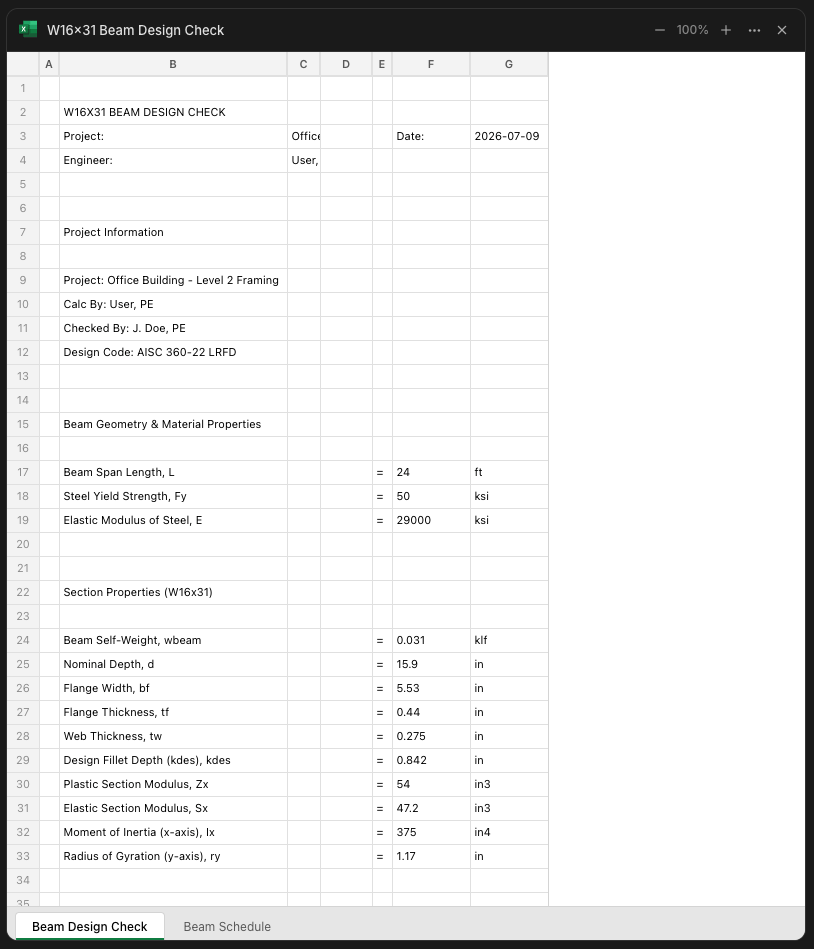 * Zoom with the +/− controls, or hold Ctrl/Cmd and scroll.
* Click a cell to edit it and watch dependent formulas update. Useful for quick what-if checks while you read.
* The **⋯ menu** offers **Download PDF**. The workbook itself comes back as an `.xlsx` download link in the chat.
Want a change to stick? Tell the agent. Cell edits in the Canvas are for quick exploration. Ask the agent to make the change ("set the beam span to 32 ft and update the checks") and it becomes part of the real workbook.
## 2D & 3D models
When you work with the [BIM Agent](/platform-guides/bim-agent), or click an IFC/DXF file attached to a chat message, the model opens in a 3D viewer:
* Zoom with the +/− controls, or hold Ctrl/Cmd and scroll.
* Click a cell to edit it and watch dependent formulas update. Useful for quick what-if checks while you read.
* The **⋯ menu** offers **Download PDF**. The workbook itself comes back as an `.xlsx` download link in the chat.
Want a change to stick? Tell the agent. Cell edits in the Canvas are for quick exploration. Ask the agent to make the change ("set the beam span to 32 ft and update the checks") and it becomes part of the real workbook.
## 2D & 3D models
When you work with the [BIM Agent](/platform-guides/bim-agent), or click an IFC/DXF file attached to a chat message, the model opens in a 3D viewer:
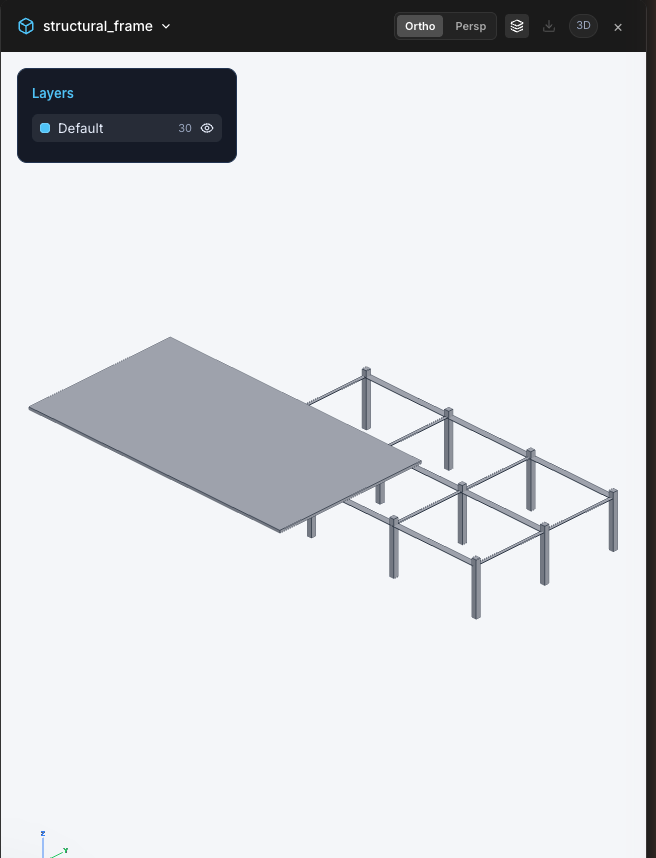 * Navigate like any CAD viewer: drag to orbit, scroll to zoom, use the axis gizmo in the corner to snap or reset the view. Toggle **Ortho / Persp** projection in the header.
* The **Layers panel** lists every layer with element counts. Click the eye to show or hide a layer.
* Click an element to select it and see its properties. In 2D drawings, drag left-to-right for a window selection and right-to-left for a crossing selection, like AutoCAD.
* Export from the download button in the header. DWG export carries a **Beta** tag while it rolls out.
## Switching between documents
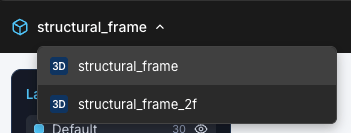
A conversation can produce several documents. The dropdown on the document title lists everything the conversation has open (calc sheets, workbooks, and models together):
* Navigate like any CAD viewer: drag to orbit, scroll to zoom, use the axis gizmo in the corner to snap or reset the view. Toggle **Ortho / Persp** projection in the header.
* The **Layers panel** lists every layer with element counts. Click the eye to show or hide a layer.
* Click an element to select it and see its properties. In 2D drawings, drag left-to-right for a window selection and right-to-left for a crossing selection, like AutoCAD.
* Export from the download button in the header. DWG export carries a **Beta** tag while it rolls out.
## Switching between documents
A conversation can produce several documents. The dropdown on the document title lists everything the conversation has open (calc sheets, workbooks, and models together):
 When the agent starts writing to a different document, the Canvas follows automatically.
## Good to know
Close the tab, come back tomorrow, reopen the conversation: the Canvas restores its documents automatically.
**Download PDF** saves a copy to your computer. The source documents (the calc file, the workbook) also land in the conversation's folder in [Files](/how-to/file-management), so nothing is lost if you never click download.
The Canvas splits the window with the chat. On a phone-width window the chat takes over and the Canvas stays out of the way.
The [Structural Agent](/platform-guides/structural-agent) (calc sheets, spreadsheets) and [BIM Agent](/platform-guides/bim-agent) (models). The [Review Agent](/platform-guides/review-agent) has its own drawing viewer, and the [ETABS & SAP2000 agents](/platform-guides/etabs-sap2000-agents) show the actual desktop application.
## Next steps
The agent that fills the Canvas with calc sheets and workbooks.
Inspect, edit, and quantify building models in the 3D viewer.
Where Canvas documents are saved for later.
Attach the files your documents are built from.
**Questions?** Email **[support@stru.ai](mailto:support@stru.ai)** or [book a call](https://cal.com/bhosh).
When the agent starts writing to a different document, the Canvas follows automatically.
## Good to know
Close the tab, come back tomorrow, reopen the conversation: the Canvas restores its documents automatically.
**Download PDF** saves a copy to your computer. The source documents (the calc file, the workbook) also land in the conversation's folder in [Files](/how-to/file-management), so nothing is lost if you never click download.
The Canvas splits the window with the chat. On a phone-width window the chat takes over and the Canvas stays out of the way.
The [Structural Agent](/platform-guides/structural-agent) (calc sheets, spreadsheets) and [BIM Agent](/platform-guides/bim-agent) (models). The [Review Agent](/platform-guides/review-agent) has its own drawing viewer, and the [ETABS & SAP2000 agents](/platform-guides/etabs-sap2000-agents) show the actual desktop application.
## Next steps
The agent that fills the Canvas with calc sheets and workbooks.
Inspect, edit, and quantify building models in the 3D viewer.
Where Canvas documents are saved for later.
Attach the files your documents are built from.
**Questions?** Email **[support@stru.ai](mailto:support@stru.ai)** or [book a call](https://cal.com/bhosh).